Quick start
Initial account setup
You can do the initial account setup through the web interface or the API.
If you set up your account via the API, follow these steps:
-
Add a user with the “advertiser” type.
A user with the “advertiser” type is required for creating ad campaigns.
The advertiser's login that's assigned to the campaign gets access to reports on campaign delivery.
If you don't plan to grant advertisers or agencies access to Adfox ad campaigns, you need to create a user with the “advertiser” type and assign their login to ad campaigns without giving the login and password details to the clients.
Sample request to add a user with the “advertiser” type:
https://adfox.yandex.com/api/v1?object=account&action=add&actionObject=advertiser -
Create a separate banner type for every area on the site (placement) where ad banners will be placed.
Each banner type contains a list of banner templates. A banner template is a banner code with a set of variables that's responsible for the banner's appearance and functionality on the site. Templates can only be managed in the web interface.
The banner type determines which placements the banner can be placed on.
Here's how the connection works:
- When creating a placement, specify its banner type.
- When creating banners in ad campaigns, select their banner type. You can only place a banner on the placements with the same banner type.
- The ad tag that's installed on the site also contains information about the placement banner type. Only banners on this placement (the ones that have the same banner type as the placement) are selected for display using this ad tag.
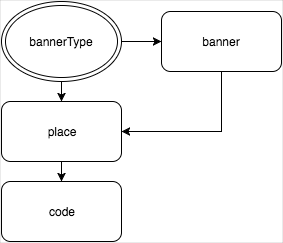
Sample request to add a banner type:
https://adfox.yandex.com/api/v1?object=account&action=add&actionObject=bannerType&name=topline&presentationTypeID=4 -
The Adfox interface provides a three-level structure for adding a site:
-
First level: Site name.
-
Second level: Site sections. They're usually separate menu items on the site. Site sections can be distinguished by the URL mask, for example:
- News section:
http://example.com/news. - Cars section:
http://example.com/auto. - Business section:
http://example.com/business.
If you need to identify site sections in a different way, contact support.
- News section:
-
Third level: Placements.
Sample request to add a site:
https://adfox.yandex.com/api/v1?object=account&action=add&actionObject=website&name=site.comSample request to add a section:
https://adfox.yandex.com/api/v1?object=account&action=add&actionObject=zone&name=news&siteID=39939Sample request to add a placement:
https://adfox.yandex.com/api/v1?object=account&action=add&actionObject=place&name=site.com&siteID=39939&zoneID=84438&bannerTypeID=22&positionID=2 -
-
Get an ad tag to install on the site.
Learn more about code types.
Sample request to get an ad tag:
https://adfox.yandex.com/api/v1?object=placement&action=info&mode=website&websiteID=3453&bannerTypeID=123&positionID=3
Main actions in the account
When the account is set up, these are the main actions you can perform on ad campaigns: