Exporting a solution
You can export the solution you get from planning and save source data to an Excel file. Do the following on the page with the resulting solution:
-
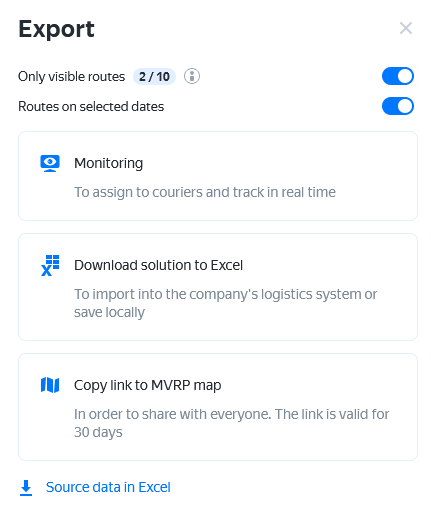
In the upper-right corner, click Export.
-
Select the export option:
To link Track & Trace with Calendar Planning, contact support.
Track & Trace
The system checks whether information can be uploaded to Track & Trace. If there are errors, correct them and try exporting the solution again.
If there are no issues, click Upload to Track & Trace.
Solution in Excel
Save routes and metrics of the resulting solution to an Excel file.
You can use the exported file for analysis or upload it to another system. Please note that the structure and the order of columns in the file may change. To upload data to another system, use the fields on the following sheets:
-
visit order, visit duration, and visits per week:
- Location ID (
location_idin the API). - Location address (
address). - Location description (
description). - Comments for location (
comments). - Additional location ID (
ref). - Latitude (
lat). - Longitude (
lon). - Visit time (
visit_duration). - Scheduled visits (
visit_count_expected). - Actual visits (
visit_count_real). - Skipped visits (
missed_visits). - Employee (
employee).
- Location ID (
-
data:
- Employee (
employeein the API). - Route (
route). - Date (
day). - Visit start (
arrival). - Visit end (
departure). - Location ID (
location_id). - Location address (
address). - Location description (
description). - Additional location ID (
ref). - Latitude (
lat). - Longitude (
lon). - Visit time (
visit_duration_min). - Distance to destination (km) (
transit_distance_km). - Sequence number (
sequence_number). - Number of visits (
number_of_visits). - First/last points (
first_or_last).
- Employee (
The general_report sheet contains summary information on routes and employee working time utilization.
Solution on the map
A link to the solution that you can share. The link is valid for 30 days.
The solution at the link is available to unauthorized users.
Source data in Excel
Save the source data to an Excel file to be edited and re-uploaded to the system.
For a full list of parameters, see Parameter list.
You can export the resulting solution fully or partially.
Full and partial export
You can export the resulting solution fully or partially.
Full export
Full export includes all planned routes.
Partial export
If the solution has planned routes that for one reason or another can't be started, you can:
-
Hide some routes. To do this, click
 to the left of the route.
 -
Select the dates for export. To do this, set a date or planning period at the top of the screen with the resulting solution.
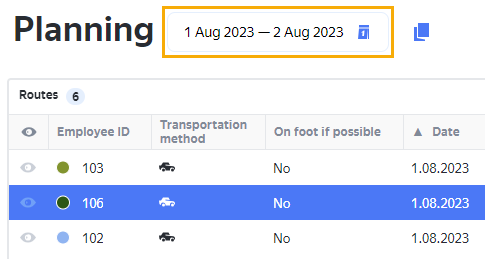
To export a partial solution:
- Click Export.
- Enable the Only visible routes option.
- Select an export option.
- Click Export.
- Enable the Routes on selected dates option.
- Select an export option.