|
macOS users You're reading Help for the beta version of Yandex Browser, which isn't available for macOS. For information on Yandex Browser for macOS, see Help for the main browser version. |
Installing and updating Yandex Browser
System requirements
Note
Support for 32-bit Windows versions was discontinued in August 2025.
Support for Windows 7, 8, and 8.1 was discontinued in December 2024.
Support for Windows XP and Windows Vista was discontinued in April 2017.
|
OS version |
|
|
Processor |
Processor with a frequency of 1 GHz (or higher) |
|
RAM |
512 MB minimum |
|
Free disk space |
At least 600 MB |
|
OS version |
64-bit Ubuntu 18.04 (or newer), Debian 10 (or newer), openSUSE 15.2 (or newer), or Fedora Linux 32 (or newer) |
|
Standard libraries |
glibc 2.18 (or higher), NSS 3.35 (or higher), nss-util 3.59 (or higher), ALSA 1.1.6 (or higher) |
|
Processor |
Intel Pentium 4 (or later) |
|
RAM |
512 MB minimum |
|
Free disk space |
At least 600 MB |
Install
Note
By downloading , you accept the License Agreement.
-
Make sure that your computer meets the system requirements.
-
Download the installation file.
-
Run the downloaded file.
-
Click Install.
-
Allow the installer to make changes on the computer.
Alert
Make sure that your computer meets the system requirements.
Debian, Deepin, Kali, Mint, Raspbian, Ubuntu
-
the Yandex Browser installation package (the Linux version, the deb package).
-
Open the package using the application manager (by default, the package may be opened with the archive manager).
-
Follow the instructions of the application manager.
CentOS, Fedora
-
Download the Yandex Browser installation package (the Linux version, the rpm package).
-
Open the package using the application manager (by default, the package may be opened with the archive manager).
-
Follow the instructions of the application manager.
OpenSUSE
-
Download the Yandex Browser installation package (the Linux version, the rpm package).
-
Run:
sudo zypper install <path to the rpm package>
-
You'll be asked if you want to continue. Press
y. -
You'll see the message "Signature verification failed. Cancel, try again, or ignore?" Press
i.
Elementary
-
the Yandex Browser installation package (the Linux version, the deb package).
-
Run:
sudo apt-get install <path to the deb package>
Manjaro
Note
The AUR repository contains the Yandex Browser distribution uploaded by the Arch Linux community. Yandex doesn't upload distributions to AUR.
-
Go to Add/Remove Software.
-
In the upper-right corner, click → Settings.
-
On the AUR tab, turn on the Enable AUR support option.
-
Close the settings window.
-
In the search box, enter
yandex-browser. -
In the search results, select yandex-browser-beta
→ Build → Apply → Apply.
After installing Yandex Browser, you'll see the message saying that the transaction has been completed successfully.
Tip
If you already have Yandex Browser installed on another device, you can transfer your profile data from there.
Default browser
To open all links in Yandex Browser by default:
-
In the upper-right corner, click → Settings.
-
Under Make Yandex Browser your default browser? click Yes, do it.
If you don't set it as your default browser, a Make Yandex your default browser suggestion may appear when you start it. To stop the window from appearing again, select the Don't ask again option and click No, thanks.
Updates
Yandex Browser is updated automatically. However, you can check your Yandex Browser version and update it manually if necessary:
-
Click → Help → About Yandex Browser.
-
In the window that opens, click Update. If you don't see this button, this means you already have the latest Yandex Browser version.
-
After installing the update, click Restart.
Without updates, Yandex Browser can't protect your data from new threats.
Yandex Browser is updated automatically. But if you haven't installed the appropriate repository, you need to manually register it along with the digital signature key:
DEB
-
Run:
sudo add-apt-repository "deb https://repo.yandex.ru/yandex-browser/deb beta main" -
Download the digital signature key by running:
curl https://repo.yandex.ru/yandex-browser/YANDEX-BROWSER-KEY.GPG --output YANDEX-BROWSER-KEY.GPG -
Register the key in the distribution disk by running:
sudo apt-key add YANDEX-BROWSER-KEY.GPG
RPM
In the terminal, run the following commands in the specified order:
sudo rpmkeys --import https://repo.yandex.ru/yandex-browser/YANDEX-BROWSER-KEY.GPG
sudo dnf config-manager --add-repo http://repo.yandex.ru/yandex-browser/rpm/beta/x86_64
If you installed Yandex Browser before June 9, 2023
To get the latest updates for Yandex Browser, you need to manually update the encryption key. To do that, run the following command in the console:
-
For RHEL, Cent OS, Fedora, openSUSE, ALT Linux, Rosa, and other RPM distributions:
sudo rpm --import https://repo.yandex.ru/yandex-browser/YANDEX-BROWSER-KEY.GPG -
For Ubuntu, Debian, Mint, and other DEB distributions:
curl -s https://repo.yandex.ru/yandex-browser/YANDEX-BROWSER-KEY.GPG | sudo gpg --dearmor -o /etc/apt/trusted.gpg.d/yandex-browser.gpg
If the APT package version in your system is 2.9.15 or higher
-
Download the digital signature key by running:
curl -s https://repo.yandex.ru/yandex-browser/YANDEX-BROWSER-KEY.GPG | sudo gpg --dearmor -o /etc/apt/trusted.gpg.d/yandex-browser.gpg -
Add a repository by running the following command in the console:
sudo add-apt-repository "deb https://repo.yandex.ru/yandex-browser/deb beta main"
How can I find out my Yandex Browser version?
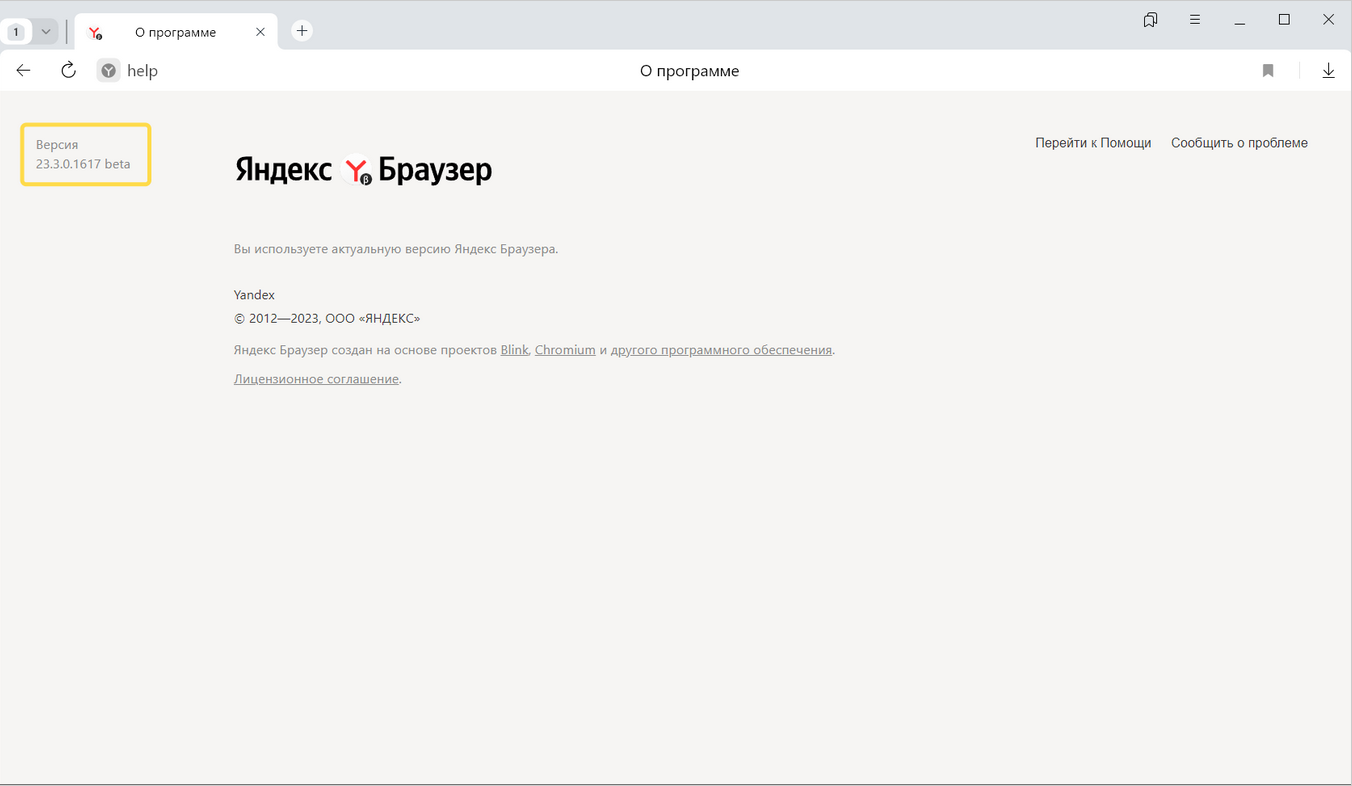
To find out what version of Yandex Browser you're using, click → Help → About Yandex Browser or enter browser://help in the SmartBox.
Reinstall
Note
You don't need to reinstall Yandex Browser to update it. It updates automatically.
While saving your profile information
To reinstall Yandex Browser so that all your profile information, including your tabs, site permissions, and sessions are saved:
-
Close all Yandex Browser windows.
-
Open the Control Panel.
-
Click Programs → Uninstall a program.
-
In the Uninstall/Change window, select Yandex from the list of installed programs.
-
Click Uninstall at the top of the list.
-
Click Uninstall in the window that opens.
-
Click Delete browser without selecting the Delete browser settings, browsing history, and other data option.
-
Install Yandex Browser again.
Without saving your profile information
-
Close all Yandex Browser windows.
-
Open the Control Panel.
-
Click Programs → Uninstall a program.
-
In the Uninstall/Change window, select Yandex from the list of installed programs.
-
Click Uninstall at the top of the list.
-
Click Reinstall in the window that opens.
-
Click Reinstall the browser.
During reinstallation, all your profile data will be deleted from the computer. But this data will be kept in your account linked to Yandex ID and restored after Yandex Browser is reinstalled. If you don't want the data to be restored, delete it from your Yandex ID account.
Delete
-
Close all Yandex Browser windows.
-
Open the Control panel:
-
Press the Win + R keyboard shortcut.
-
In the Open field, type
control. -
Click ОК.
-
-
Click Programs and features or Programs → Uninstall a program.
-
In the Uninstall/Change window, select Yandex from the list of installed programs.
-
Click Uninstall at the top of the list.
-
Click Uninstall in the window that opens.
-
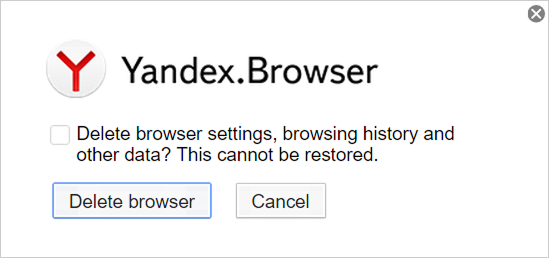
In the window that opens, check the Delete browser settings, browsing history, and other data box if you want to delete the Yandex Browser data from your computer.
-
Click Delete browser.
Your data and settings will only be deleted from your local computer, but will be preserved in your account linked to Yandex ID and restored after Yandex Browser is reinstalled. If you don't want the data to be restored, delete it from your Yandex ID account.
To delete Yandex Browser and its settings together with your personal data (such as bookmarks and history), use the ready-made file.
If you have already deleted Yandex Browser, but the data remains:
-
Close all Yandex Browser windows.
-
Run the command in the terminal:
rm -r /home/*/.config/yandex-browser*
Questions
If you still have questions, see FAQ about installation and updates.
You can enter search queries in the address bar and Yandex Browser will understand what you need.