|
macOS users You're reading Help for the beta version of Yandex Browser, which isn't available for macOS. For information on Yandex Browser for macOS, see Help for the main browser version. |
Mouse gestures
Enable gestures
By default, mouse gesture support is disabled in the Yandex Browser settings. To use mouse gestures:
- Click → Settings → Tools.
- Under Mouse gestures, select Enable.
Mouse gestures
Hold down the right mouse button to perform gestures. Then release the button after you complete the gesture.
Mouse gestures
|
Go back to the previous page |
||
|
Go to the next page |
||
|
Restore the last closed tab |
||
|
Close tab |
||
|
Other |
Refresh page |
|
|
Open the Tableau and put the cursor in the SmartBox |
Button combinations
Button combination
|
Go back to the previous page |
|
|
|
Go to the next page |
|
Mouse wheel
|
Increase page zoom |
Press Ctrl and scroll the mouse wheel forward. |
|
|
Decrease page zoom |
Press Ctrl and scroll the mouse wheel back. |
Disable gestures
- Click → Settings → Tools.
- Under Mouse gestures, deselect Enable.
Note
You can't disable zoom gestures because they're part of the operating system.
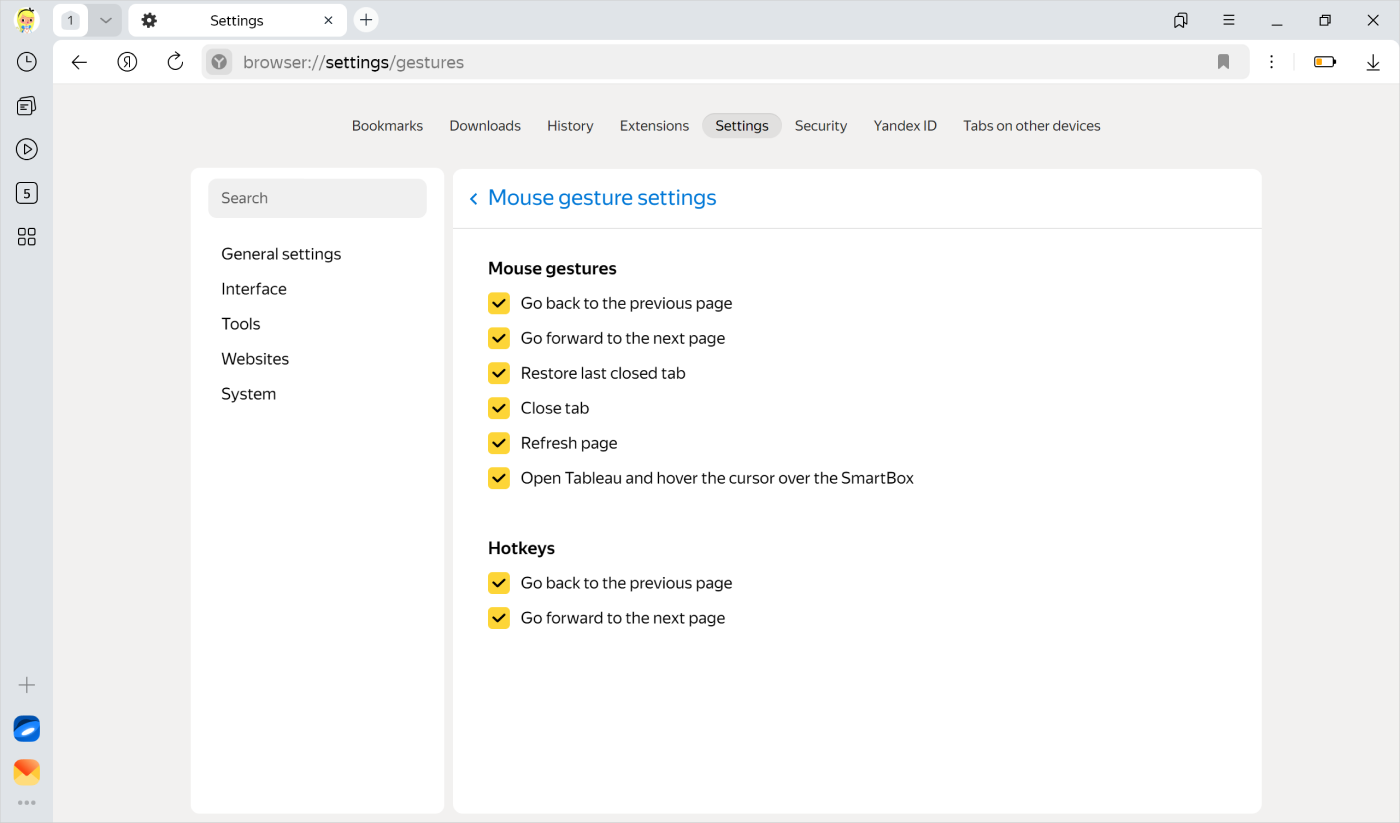
Gesture settings
You can disable specific gestures or hotkeys.
-
Click → Settings → Tools.
-
In the Mouse gestures section, click Mouse gesture settings.
-
Disable the unwanted options.
Learn more
Questions
You can enter search queries in the address bar and Yandex Browser will understand what you need.