How to navigate the data
|
|
Video tutorial. Working with panels and tabs Watch video
|


Top-down: from parent to child objects
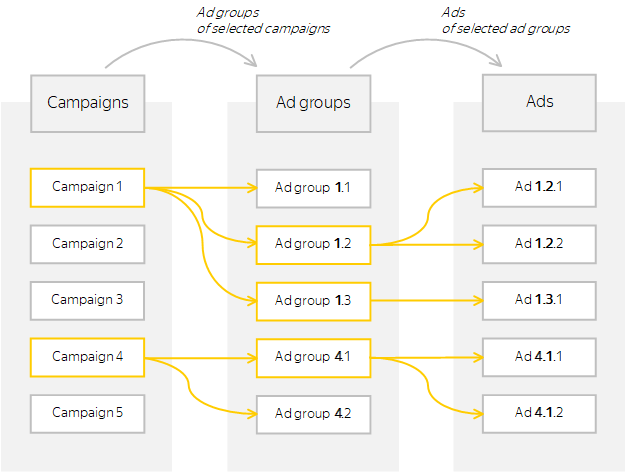
Objects selected on the previous tab determine which objects are shown on the next tab.
-
For agencies: In the Clients tab, select the client you want to work with.
For manager accounts: In the Accounts tab, select the account you want to work with. In addition, you can work with active campaigns belonging to the manager account itself.
The Campaigns tab shows campaigns belonging to the selected client.
-
On the Campaigns tab, select the campaign or multiple campaigns you would like to work with.
The Ad groups tab shows ad groups that belong to the selected campaigns.
-
On the Ad groups tab, select the ad group or multiple ad groups you would like to work with.
The Ads tab shows ads from the selected groups. The Keywords tab shows keywords for the selected groups. In the Audience segments and interests tab, you can view the audience segments that will see your ads.
If the supplementary panel is open, selection of ads by retargeting lists and selection of retargeting lists by ads is available:
-
In the Ads tab, select an ad or multiple ads in the main panel.
-
The Keywords tab in the supplementary panel now contains only keywords used for serving the selected ads (i.e., keywords from the same ad groups as the selected ads).
-
The supplementary panel's Audience segments and interests tab now displays only audience segments that can be served the selected ads.
-
-
On the main panel, go to the Keywords tab and select one or more keywords. The Ads tab in the supplementary panel now contains only those ads that can be served for the selected keywords (i.e., ads from the same ad groups as the selected keywords).
-
In the main panel's Audience segments and interests tab, select one or more audience segments. The supplementary panel's Ads tab now shows only ads that can be served to the selected audience segments.
To reset selection of ads by retargeting lists and of retargeting lists by ads, go back to the Ad groups tab.
Bottom-up: from child objects to parent objects
You can use the navigation section in the Inspector to navigate:
-
From ads, keywords, or audience segments to the campaigns and ad groups that contain them.
-
From ad groups to their host campaigns.
-
From campaigns to clients (if you have an agency account) and available accounts (if you have a manager account).
For example, you selected multiple campaigns in the Campaigns tab, and then several ad groups in the Ad groups tab. Now you can see ads from different campaigns in the Ads tab. You want to determine which campaign a particular ad belongs to:
-
Select an ad or multiple ads.
-
In the navigation section, choose Select their campaigns.
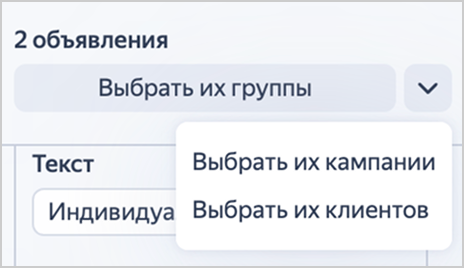
The Campaigns tab opens where the campaigns hosting the chosen ads are selected.
If you have a manager account, you can access information about the managed accounts to which the selected objects belong. To do this, in the navigation section, choose Select their clients.
What's next
You can also go to
