Report library
The report library is a collection of preconfigured reports for various campaign types and analytics tasks. Preconfigured reports help you quickly assess your ad performance and can inspire new analytical insights. The report library makes it easy to get the data you need, even if you're new to Yandex Direct analytics.
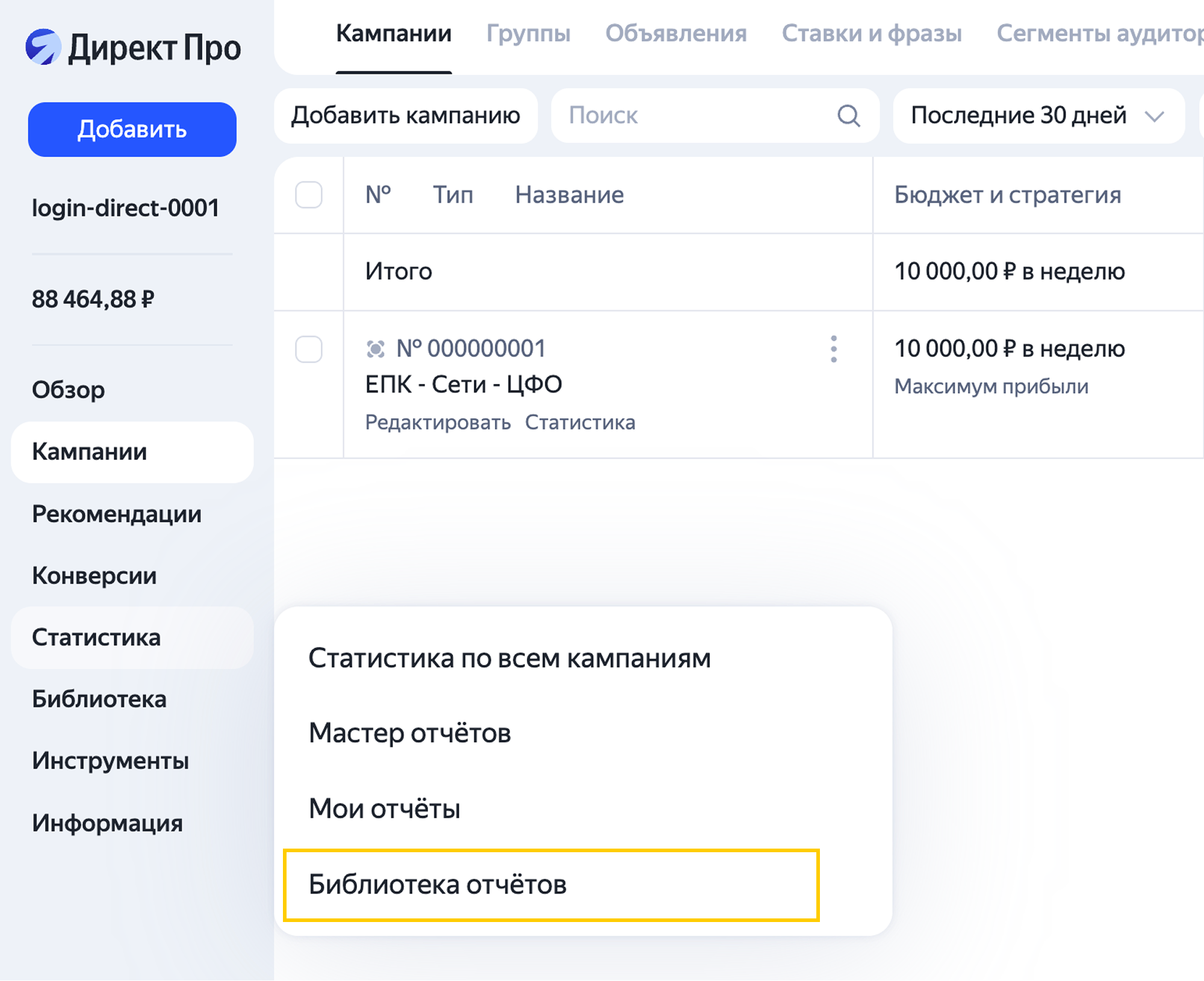
You can access the report library from the Statistics section.
Library reports have preset dimensions, metrics, and filters to help you evaluate your ad performance. For example, in performance campaigns, you can track conversions, expenses, CPA, revenue, and CRR. In reach campaigns, you can track views, viewability, and average CPV.
The library now also includes reports previously scattered across the Yandex Direct interface, such as "Dynamic placements in search results"β and the conversions report. All key library reports are based on the Report Wizard, so you can customize and expand them just like any other report there. add dimensions, select metrics, apply filters, and more.
You can quickly build custom reports based on preconfigured reports to meet your current analytics needs.
See Customize and save reports for details.
Available reports
There are several groups of reports in the library:
-
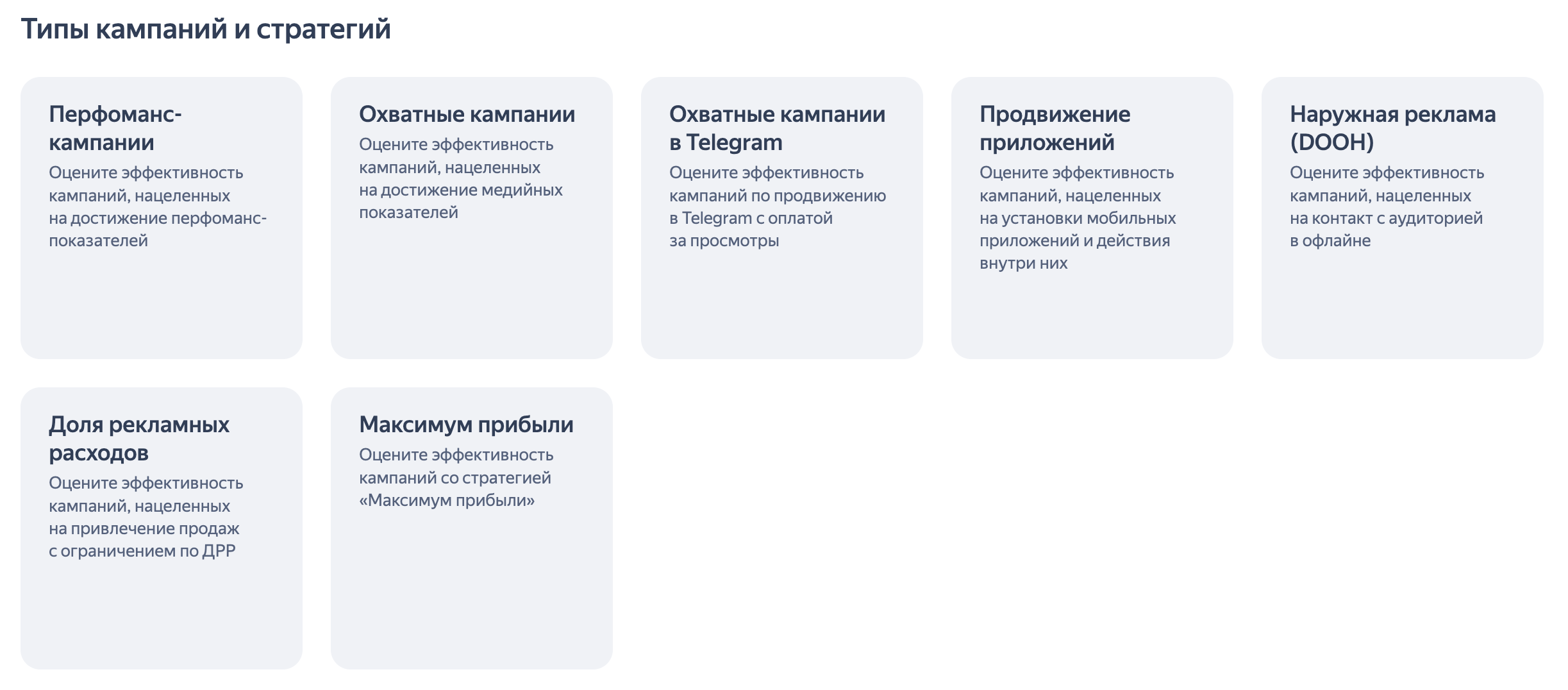
Campaign types and strategies
These reports help you assess the results driven by various campaign types, such as performance campaigns, reach campaigns, catalog channel ads, and outdoor ads (DOOH)β. Some preconfigured reports can be used to analyze campaigns with cost-revenue-ratio limits, which is especially relevant for E-commerce projects. There's also a report that helps you analyze campaigns with the "Maximize revenue"β strategy.
-
Placement optimization
You can use these reports to evaluate specific aspects of your campaigns. For example, they help you analyze keywords and platforms across the Yandex Advertising Network, as well as view statistics broken down by audience demographics and devices. You can also use them to analyze ad elements for efficiency or get insights into products and categories for your online store.
-
Specialized reports
Here you can find extra reports for campaign analytics.
How to work with library reports
See report descriptions for quick info on types of data the reports can help you analyze.
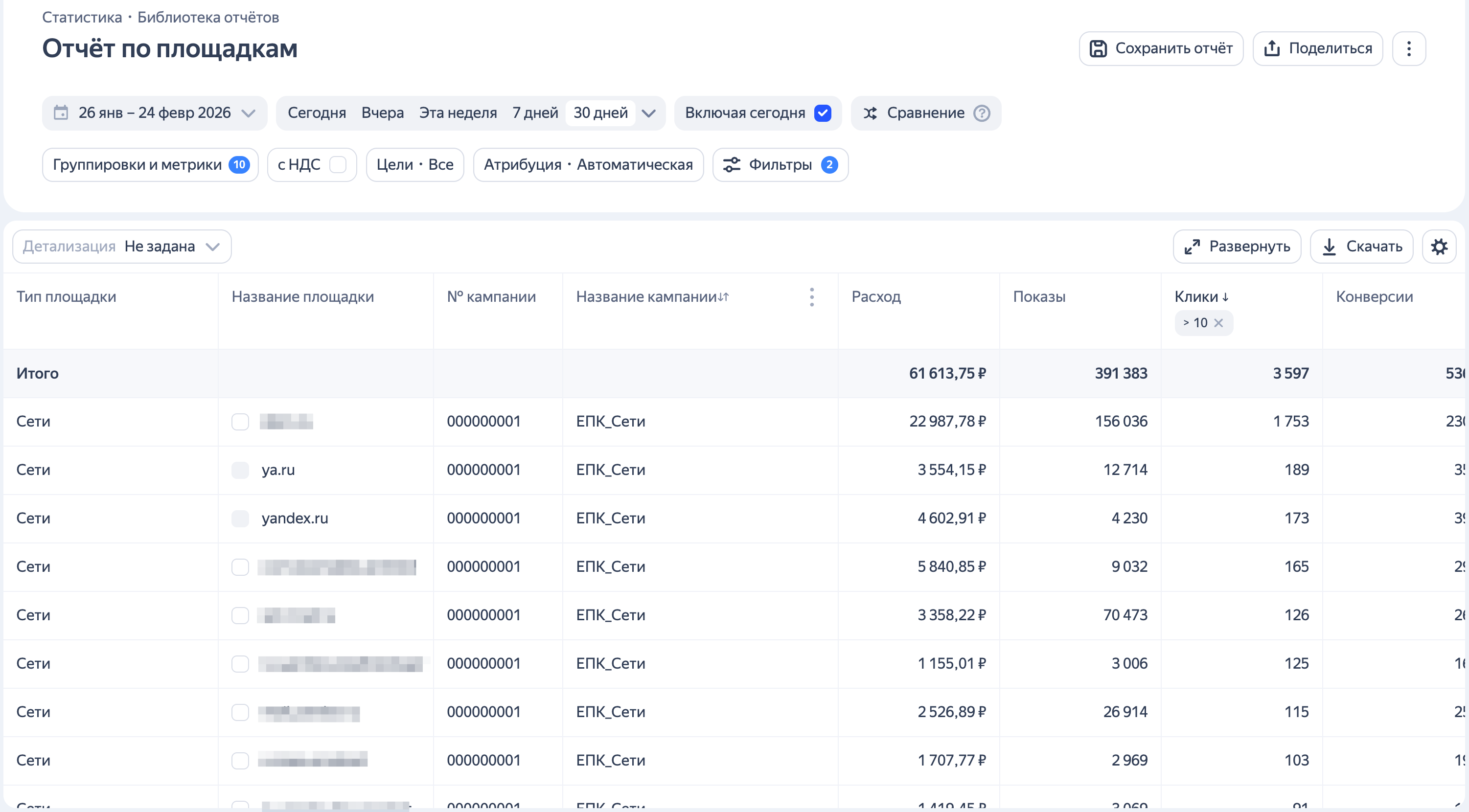
Once you open a report, you'll see that the required dimensions, metrics, and filters are already configured.
For example, the "Platforms" report lets you filter campaigns by ad network and status (such as "Active" or "Stopped").
The report table includes the "Platform type", "Platform name", "Campaign ID", and "Campaign name" dimensions. It also includes these metrics: "Expenses", "Impressions", "Clicks", "Conversions", "CR", and "CPA".
If the preset metrics aren't enough, add your own — such as "Revenue" or "CRR" — using the Dimensions and metrics button.
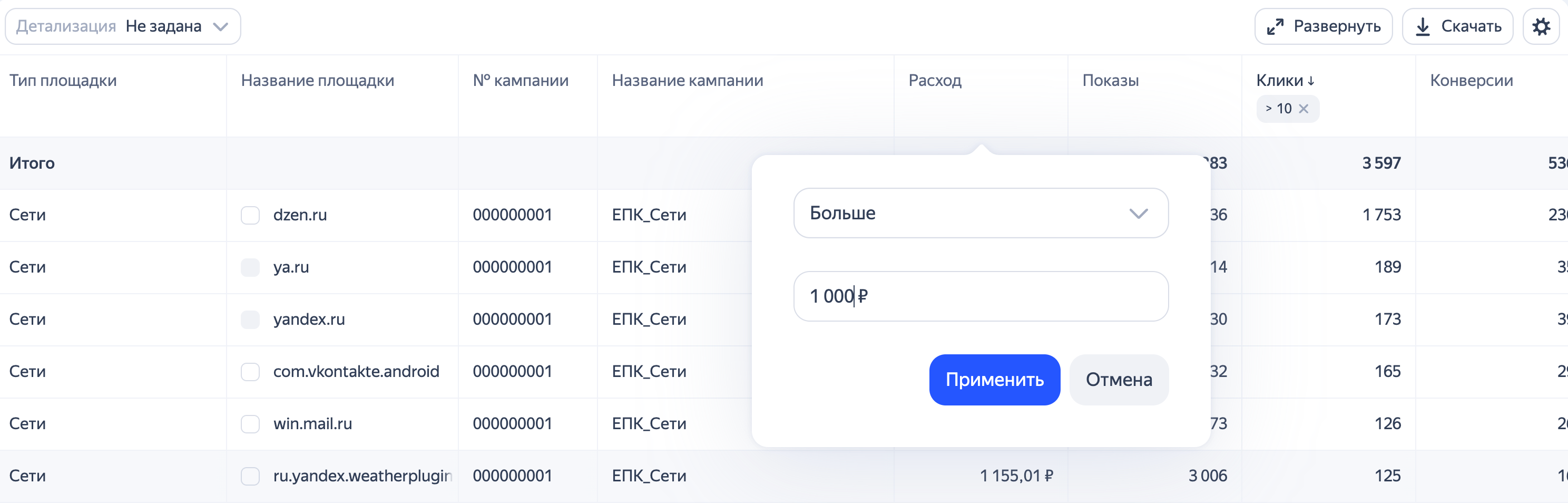
You can also filter columns to show, for example, only platforms with expenses over ₽1000 for the selected period.
Customize and save reports
You can customze preconfigured reports — add the dimensions and metrics you need, then save the settings. The next time you open the report, it will retain your changes. Alternatively, you can save it as new, and it will appear in My reports. If multiple people use your account, you can choose whether the report should be accessible to all of them or just you.
Once the report is saved, you can also access it from the Report Wizard interface when you go to statistics. For example, you can open the customized version of the performance campaign report from Statistics in the campaign list or on the performance campaign edit page.
Note
Some metrics can't be edited in library reports. To edit these metrics, create a new report with the settings you need.
Have questions?
Alert
Our customer support can only assist you with campaigns linked to the username you are contacting us from. You can check your username by opening ya.ru in another browser tab. Our team can access your data only when processing your request.
Scan the QR code or tap it to follow the link.


If you select Telegram or WhatsApp, keep in mind that Yandex does not control and is not liable for how third-party messengers store your data and chat history.