Setup on Android devices
Setting up DoT (private DNS)
-
Open Settings.
-
Select Connections or Connection & sharing.
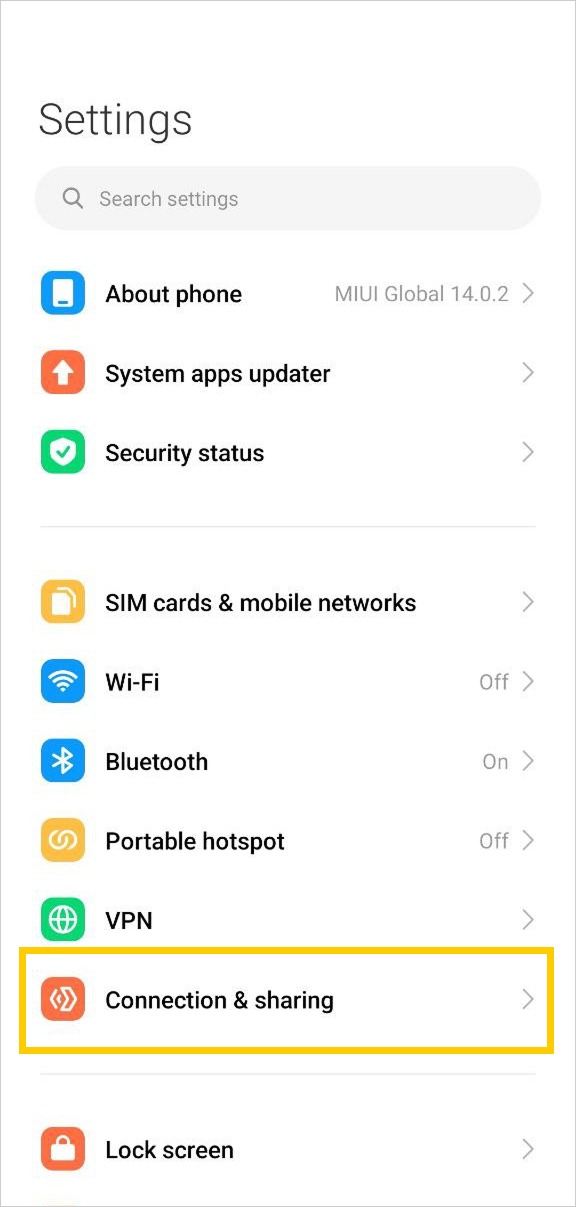
-
Tap More connection settings or Advanced to open the additional options.
Note
On some models of phones and tablets, you can find Private DNS using the search bar in the Settings section.
-
Select Private DNS.
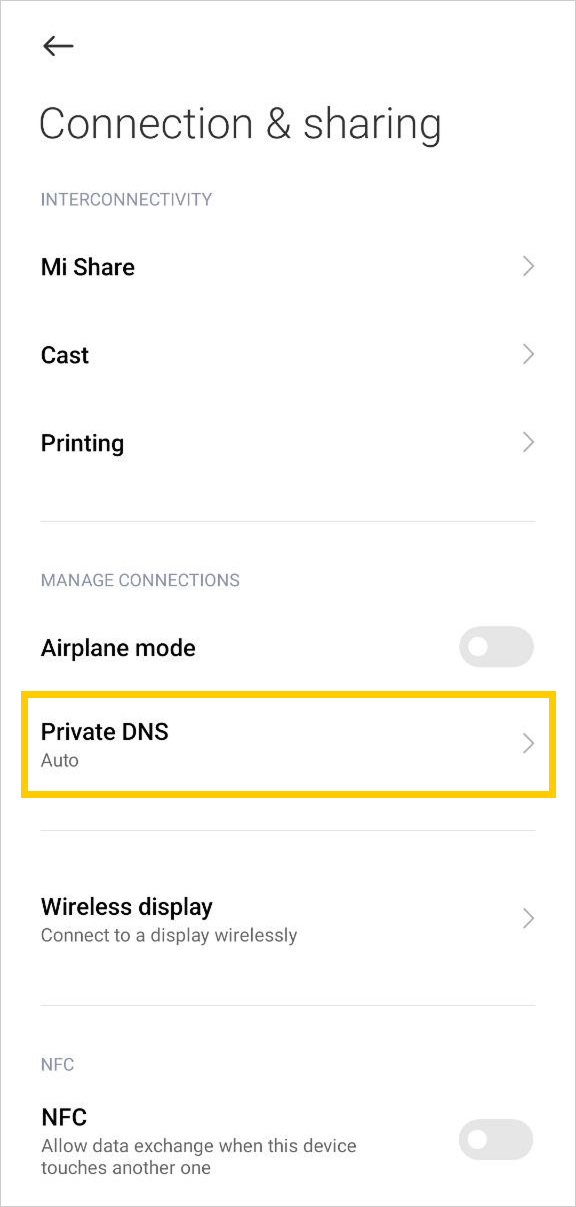
-
Select Private DNS provider hostname.
-
Specify the address of the Yandex DNS server corresponding to your desired filtering type:
- Basic:
common.dot.dns.yandex.net - Safe:
safe.dot.dns.yandex.net - Family:
family.dot.dns.yandex.net
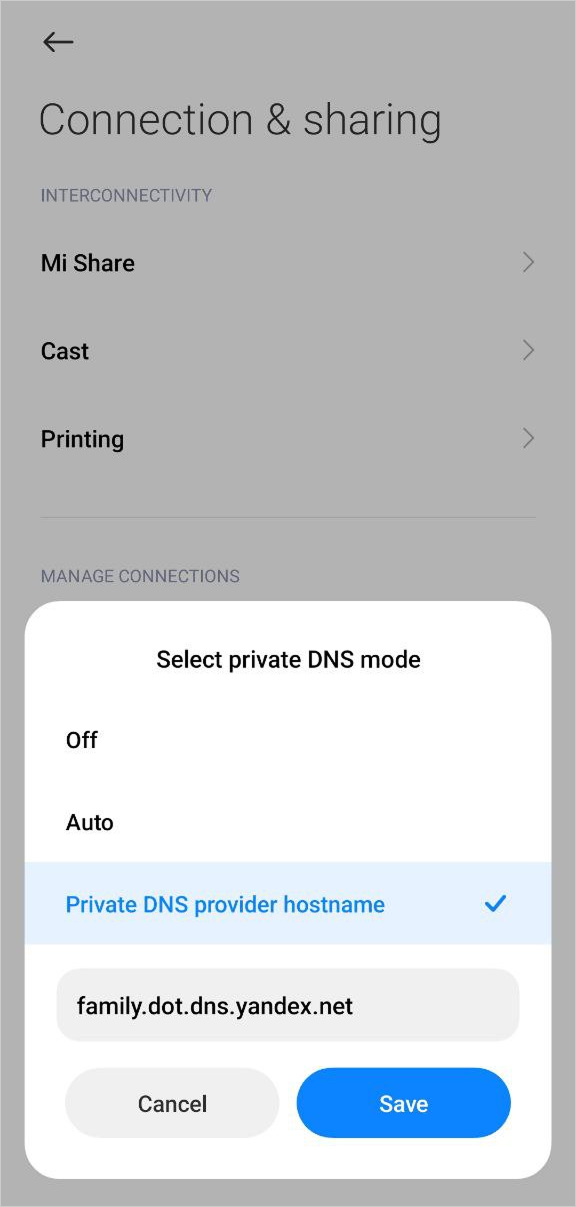
- Basic:
-
Tap Save. The address will appear in your settings.
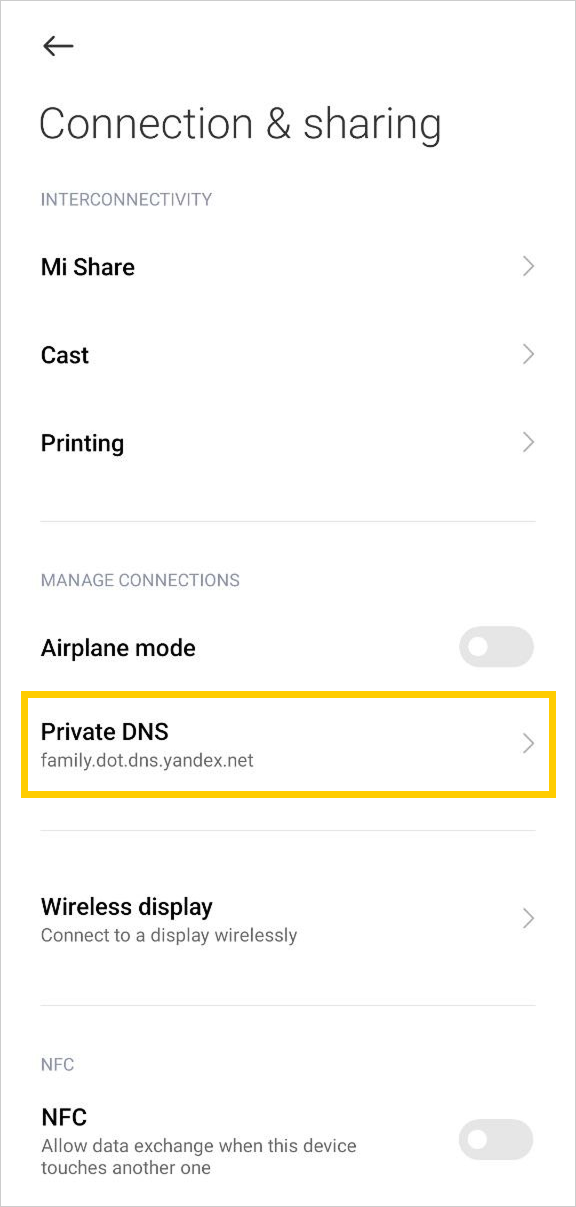
Android 9 and above
-
Open the device settings.
-
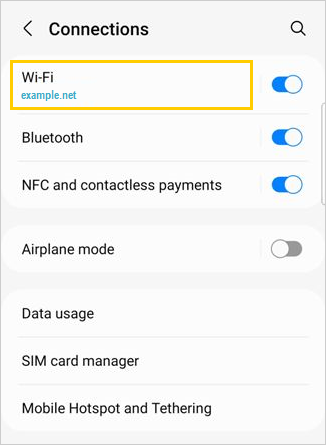
Tap Connections → Wi-Fi, then connect to your network.
-
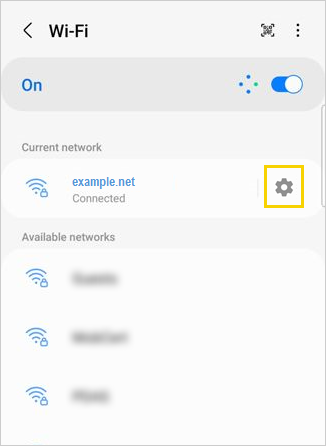
To the right of the network name, tap
 .
.
-
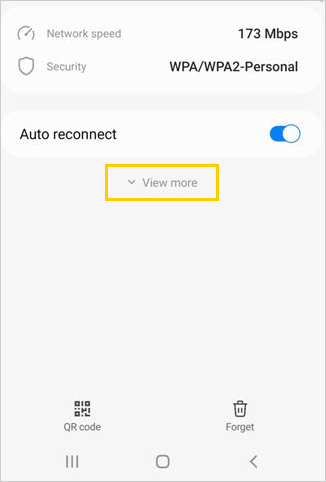
Tap View more and scroll down.
-
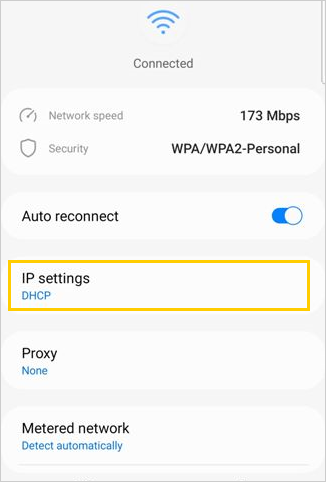
Tap IP Settings, then select Static.
-
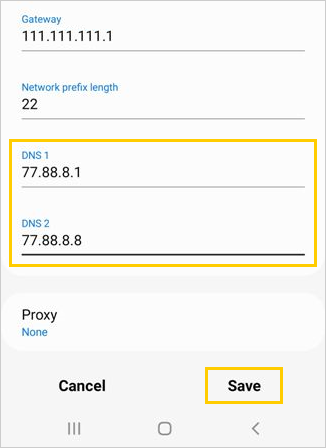
In the DNS 1 and DNS 2 fields, enter the IP addresses of the DNS servers that you selected.
-
Tap Save.
Android 8 and below
-
Open the device settings.
-
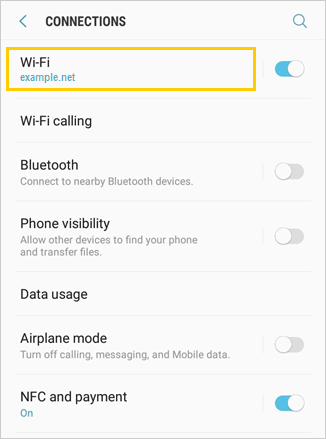
Tap Network & Internet → Wi-Fi and connect to your network.
-
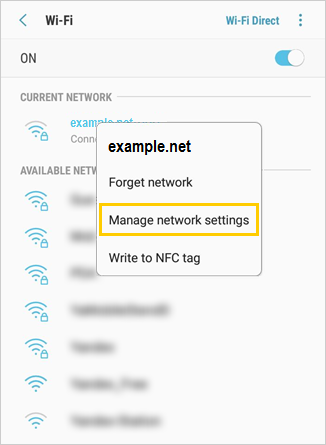
Tap and hold the network name. In the menu that appears, select Manage network settings.
-
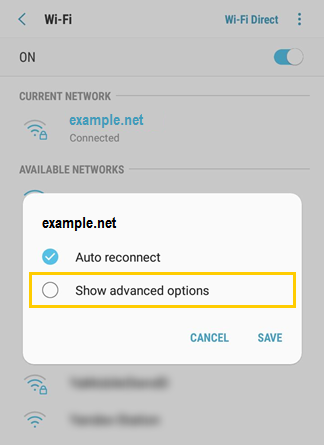
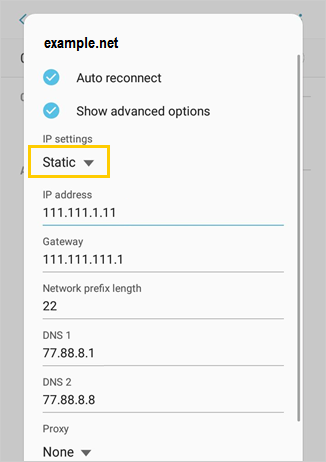
Tap Show advanced options and scroll down the list.
-
Under IP settings, select Static.
-
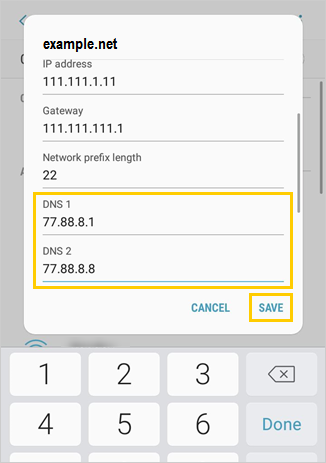
In the DNS 1 and DNS 2 fields, enter the IP addresses of the DNS servers that you selected.
-
Tap Save.
Note
The setup process may vary from device to device.