Date and time
To answer this question, you can enter a date and time in a single answer. For example, you can enter an appointment time or a meeting schedule.
Respondents enter the date and time in their own time zone. When you view responses in Forms, the date and time appear in your time zone.
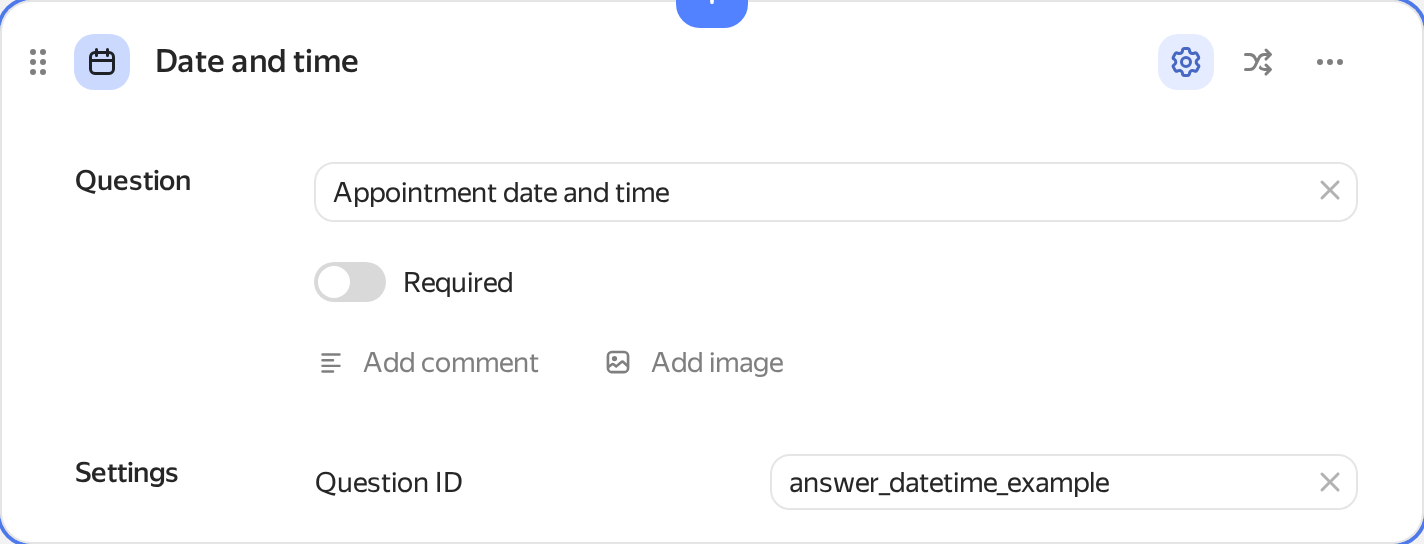
Question
Enter the question title or text.
-
To add a comment or hint to a question, click Add explanation. The text of a comment is displayed using a smaller font size.
To format the text of a question or comment, use Markdown markup.
-
To add an image to the question, click Add image.
-
To make a question required, turn on the Required option in the top right corner of the block.
Required questions are marked with an asterisk (*) in the form. If a user skips a required question, they won't be able to submit the form.
- To show or hide a question based on previous answers, click Display conditions in the top right corner of the block. For more information, see Configure display conditions for questions or pages.
Settings
To reveal additional question settings, click Show settings at the top of the question block. To hide the settings, click the icon again.
Date range
Enable this option to let respondents enter a date range. If you disable it, respondents can enter only one date.
Limiting date selection in an answer
Set the range of dates that respondents can select. For example, use this setting when people register for an event that runs for one week.
Questions IDs
Use the question ID to prefill the form.
Question IDs may contain capital and lowercase Latin letters, numbers, - and _ characters. Make sure all questions in the same form have unique IDs.
Hide question
Enable this option to hide a question in the form. You can use hidden questions to pass service or auxiliary parameters.
Don't select both the Hide question and Required options at the same time. Otherwise, users won't be able to submit the form.