Drop-down list
To answer this question, you can select an item from the drop-down list.
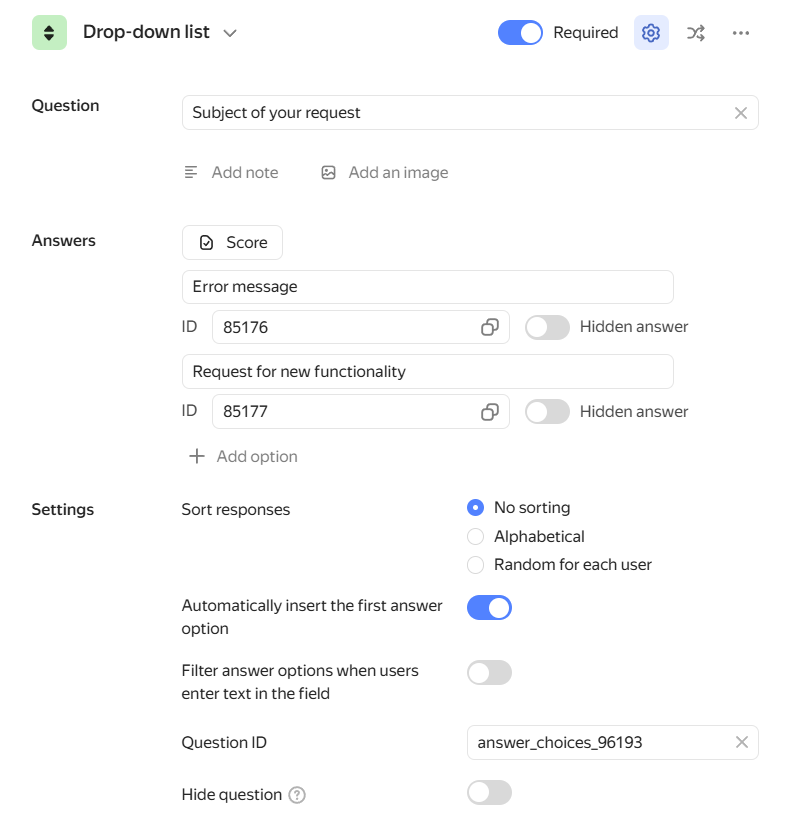
Question
Enter your question.
-
To add a comment or hint to a question, click Add explanation. The text of a comment is displayed using a smaller font size.
To format the text of a question or comment, use Markdown markup.
-
To add an image to the question, click Add image.
-
To make a question required, turn on the Required option in the top right corner of the block.
Required questions are marked with an asterisk (*) in the form. If a user skips a required question, they won't be able to submit the form.
- To show or hide a question based on previous answers, click Display conditions in the top right corner of the block. For more information, see Configure display conditions for questions or pages.
-
To use a question for a test or quiz, click Score under Answers and enter the number of points that users will get for a correct answer. For more information, see Conducting a test.
-
To add an explanation, click Explanation for the correct answer or Explanation for the incorrect answer, then enter text in the field that appears. Repeat for the other answer type if needed.
Answers
Specify options that users can choose from:
-
To add an answer option, click Answer option and enter the answer text.
-
You can use Markdown for formatting.
-
To add a picture to an answer option, click .
-
To relocate an answer option in the list, drag it with .
To reveal additional question settings, click Show settings at the top of the question block. To hide the settings, click the icon again.
Settings
To reveal additional question settings, click Show settings at the top of the question block. To hide the settings, click the icon again.
Sort answers
Select a sorting method:
- Alphabetical.
- Random for each user. Select this sorting method if you don't want the order of answers to impact a user's choice.
Automatically insert the first answer option
Enable this option to display the first answer option in a field with a drop-down list. The field is empty by default.
Sorting answers affects which answer option is auto-filled.
Filter answer options when users enter text in the field
Enable this option to display a search box for finding answer options in the drop-down list.
Questions IDs
Use the question ID to prefill the form.
Question IDs may contain capital and lowercase Latin letters, numbers, - and _ characters. Make sure all questions in the same form have unique IDs.
Hide question
Enable this option to hide a question in the form. You can use hidden questions to pass service or auxiliary parameters.
Don't select both the Hide question and Required options at the same time. Otherwise, users won't be able to submit the form.