GET parameters in the URL
You can use GET parameters to add attributes to the form URL. Using the GET parameters, you can automatically fill in the fields of the form that you publish by link or embed on the page using an iframe, for example:
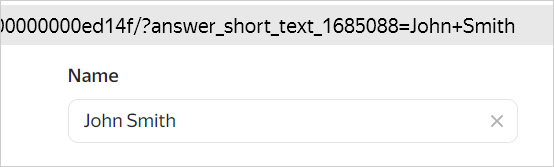
To set up pre-filling of form fields:
-
Get the question ID and answer option ID (for multiple-choice questions).
-
In the form URL, add a question mark (
?) followed by the question and answer IDs. The parameter format depends on the question type.
Examples of filling in different types of questions
Specify your parameters in the form URL after the question mark ?:
-
For questions with an input field, such as
Short text
orEmail
:<question_ID>=<answer_text>If there are multiple words in the response text, replace the spaces with a
+sign. For example:https://forms.yandex.com/u/5e2ac2d********/?answer_short_text_1685088=Planet+Earth -
For questions with answer options, such as
One answer
orMultiple answers
:<question_ID>=<answer_ID>For example:
-
To select one answer option:
https://forms.yandex.com/u/5e2ac2d********/?answer_choices_1685184=1958524 -
To add another answer option, add the
&symbol and specify the question ID and the second answer option ID again:https://forms.yandex.comu/5e2ac2d********/?answer_choices_1685184=1958524&answer_choices_1685184=1958526
-
-
For
Date
questions:<question_ID>=YYYY-MM-DDFor example:
https://forms.yandex.comu/5e2ac2d********/?answer_date_1685200=2020-01-27 -
For
Yes/No
questions:<question_ID>=TrueFor example:
https://forms.yandex.comu/5e2ac2d********/?answer_boolean_1685199=True -
For
Rate on a scale
questions.
Select an answer by one condition:<question_ID>=<answer_ID>Select answers by multiple conditions:
<question_ID>[<condition_ID_X>]=<answer_ID_X>&<question_ID>[<condition_ID_Y>]=<answer_ID_Y>For example:
https://forms.yandex.com/u/5e2ac2d********/?answer_choices_1686274=231035_231038https://forms.yandex.com/u/5e2ac2d********/?answer_choices_1686274[231034]=231034_231037&answer_choices_1686274[231035]=231035_231038
How to fill in multiple form fields
To fill in multiple form fields at once, add multiple GET parameters separated by &.
https://forms.yandex.com/u/5e2ac2d********/?answer_short_text_1685088=John+Smith&answer_choices_1685184=1958524
Note
URLs may contain no more than 32000 characters. The remaining data is discarded. Keep this in mind when sending a large request.
Configuring pre-filling for multi-page forms
You can create a direct link that opens a specific page of a multi-page form and inserts values into the required fields on previous pages. This will make it easier for users to navigate forms with many pages and fields.
To configure pre-filling for multi-page forms:
-
``In the form URL, add a question mark
?followed by the page parameter and specify the page number.page=<page_number>For example:
https://forms.yandex.com/u/5e2ac2d********/?page=2 -
After the
pageparameter, add answers to the required questions from the previous pages. You may omit answers to optional questions.For example:
https://forms.yandex.com/u/5e2ac2d********/?page=2&answer_one_answer_9008952445400254=1753190690595&answer_choices_815037=63064501