Variables in action settings
When you set up integration of your form with other services, you can send answers or other data from the form to the service. For example, you can insert the user's answers into the body of an email or insert data into issue fields in Yandex Tracker.
To do this, use variables:
-
In the Integration tab of your form, add an action.
-
Select the field and click on the right.
-
In the list, select a variable to add to the field.
-
If using variables like Answer to question or similar, you can choose a filter for the variable values if needed.
-
Click Save.
When data is sent to the service, the variable is automatically converted to a value: an answer to a question, test result, or technical data.
When integrating your form with Yandex Tracker, you can add the employee specified in an answer to a People
question to the Author, Assignee, and Followers fields in Yandex Tracker. To do so, add an Answer to question variable to the field and select this question. Then, in the variable settings, specify that you want to insert the answer option ID rather than its value.
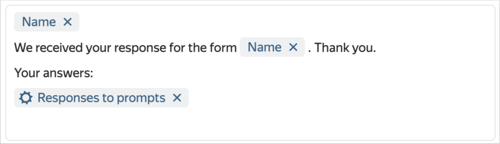
For example, here's the text of an email containing all the user's answers to the form's questions.
Filters
If integration settings contain answers to questions added using variables, errors may occur if the answers do not match the format required for integration. For example, if you add an answer to a Long text
question to the HTTP request body, and this answer contains line breaks, integration will not work.
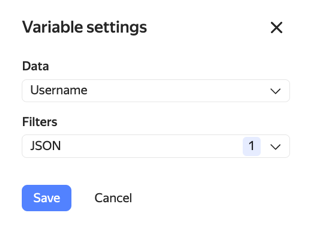
To avoid data format errors, use the following filters for variables:
-
Sanitize string: Remove special characters from the answer.
-
JSON: Convert the answer to a JSON-compatible format.
-
base64: Convert the answer to ASCII encoding.
Formatting answers
If you're using an Answers to questions variable in the integration settings, you can select the format of the answer list.
-
Plain text shows the data as Question - Answer pairs.
-
Old format shows answers as
%% Answer %%. -
New format embeds answers within a code block.
-
JSON shows answers as
"key": "value"pairs.
To send answers to Tracker or Wiki, we recommend using the New format option. For more information about YFM markup, see Wiki Help.
Variable reference
You can use the following variables in action settings:
|
Variable |
Description |
|
User info |
Personal data of the user who completed the form. |
|
Name |
User's name. |
|
Username |
User's username. |
|
|
User's email. |
|
Gender |
User's gender. |
|
Department |
Employee's department (for Yandex Forms for Business users). |
|
Phone |
Employee's work phone number (for Yandex Forms for Business users). |
|
Manager |
Employee's direct supervisor (for Yandex Forms for Business users). |
|
Team |
Employee's teams (for Yandex Forms for Business users). |
|
Company details |
Information from the organization's address book in Яндекс 360 для бизнеса. |
|
Information from the answer to the question |
For questions of the People, Departments, and Teams type, this variable is one of the fields from the employee's or department's card specified in the answer. |
|
User information |
One of the fields of the card of the employee who filled out the form. |
|
Test results |
Test or quiz results. |
|
Maximum test points |
Maximum number of points one can score in the test. |
|
Total questions with points |
Number of question one can score points for. |
|
Points scored |
Number of points scored by the user. |
|
Test results heading |
Header of the segments the user's result fits into. |
|
Description of test results |
Description of the segment the user's result fits into. |
|
Points scored for a question |
Number of points scored for a selected question. |
|
Form |
Form parameters and answers to the form's questions. |
|
Form ID |
Unique form ID. |
|
Name. |
Form name. |
|
Answer to question |
User answers to a specific question in the form: select the question and set up filters. Only the answers to the question you selected are passed to this variable. |
|
Answers to questions |
User answers to multiple questions: select the questions and set up filters and question formatting. The selected questions and the answers to them are passed to this variable as Question : Answer pairs. |
|
Answers to questions in JSON |
User answers to multiple questions: select the questions and set up filters. The selected questions, the answers to them, and the information about the form (ID, creation date, and other parameters) are passed to this variable in JSON format. This format can be useful when working with HTTP requests. |
|
Response ID |
Unique ID of the completed form. |
|
Response date |
Date when the form was submitted. |
|
Time of sending the answer |
Date and time when the response was submitted (UTC). |
|
Start time of filling in |
Date and time when the user started filling out the form (UTC). |
|
Filling time in seconds |
Time spent filling out the form, in seconds. |
|
Form author's email |
Email of the user who created the form. |
|
Browser |
User's browser and operating system info. |
|
OS family |
Operating system type. |
|
OS name |
Operating system name. |
|
OS version |
Operating system version. |
|
Browser name |
Name. |
|
Browser version |
Version. |
|
Request |
Technical parameters of the HTTP session. |
|
Host |
Domain name of the server the request came from. |
|
URL |
Form's address. |
|
All GET parameters |
Values of all request parameters. |
|
GET parameter |
Value of a specific request parameter (specify the parameter name). |