Creating a queue from scratch
Choose this option if you are an experienced Tracker user and know which workflow your team needs.
Start creating a queue
- In the left panel, select Queues, then click at the top.
- Select the Create from scratch option.

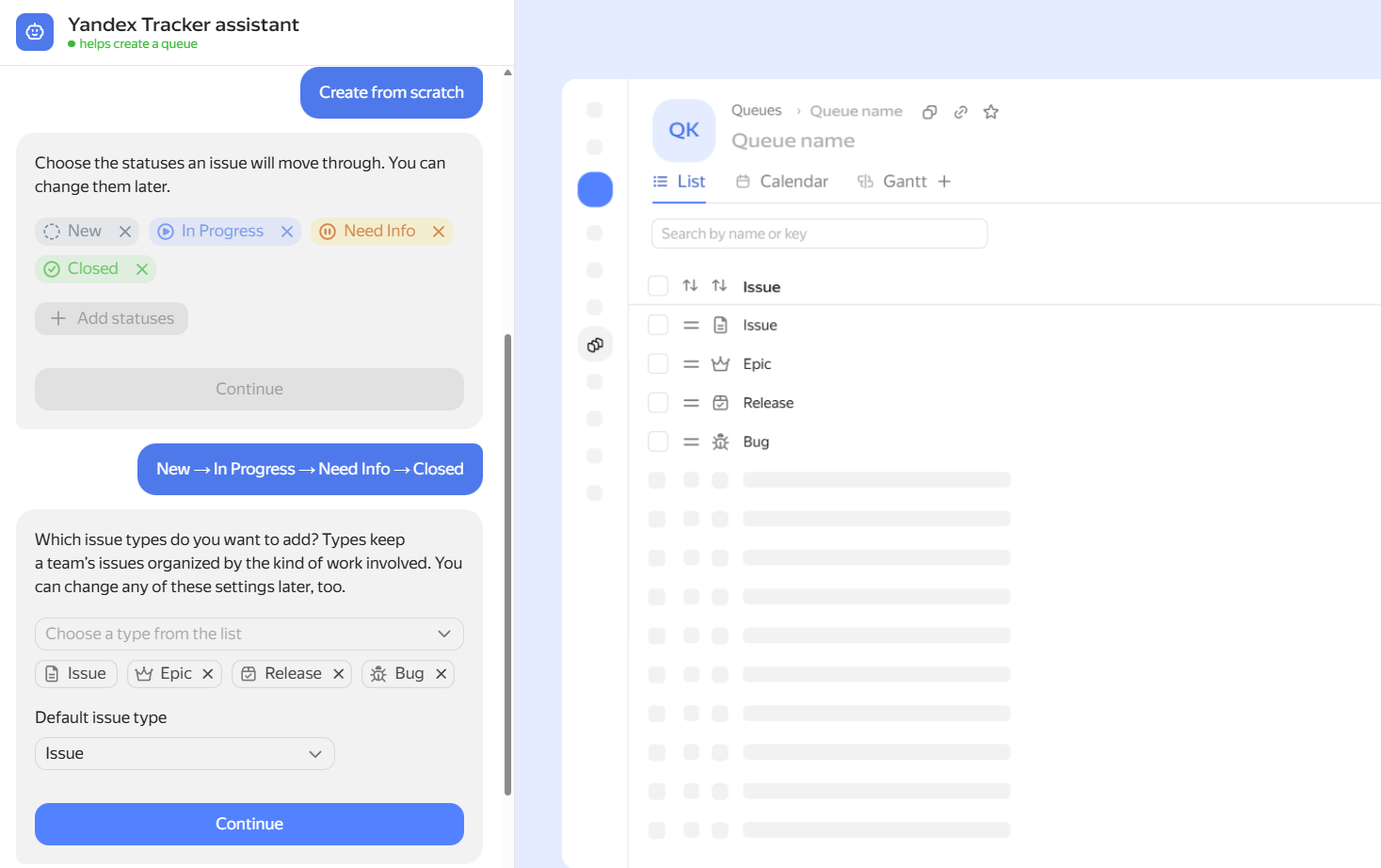
Select the basic queue settings
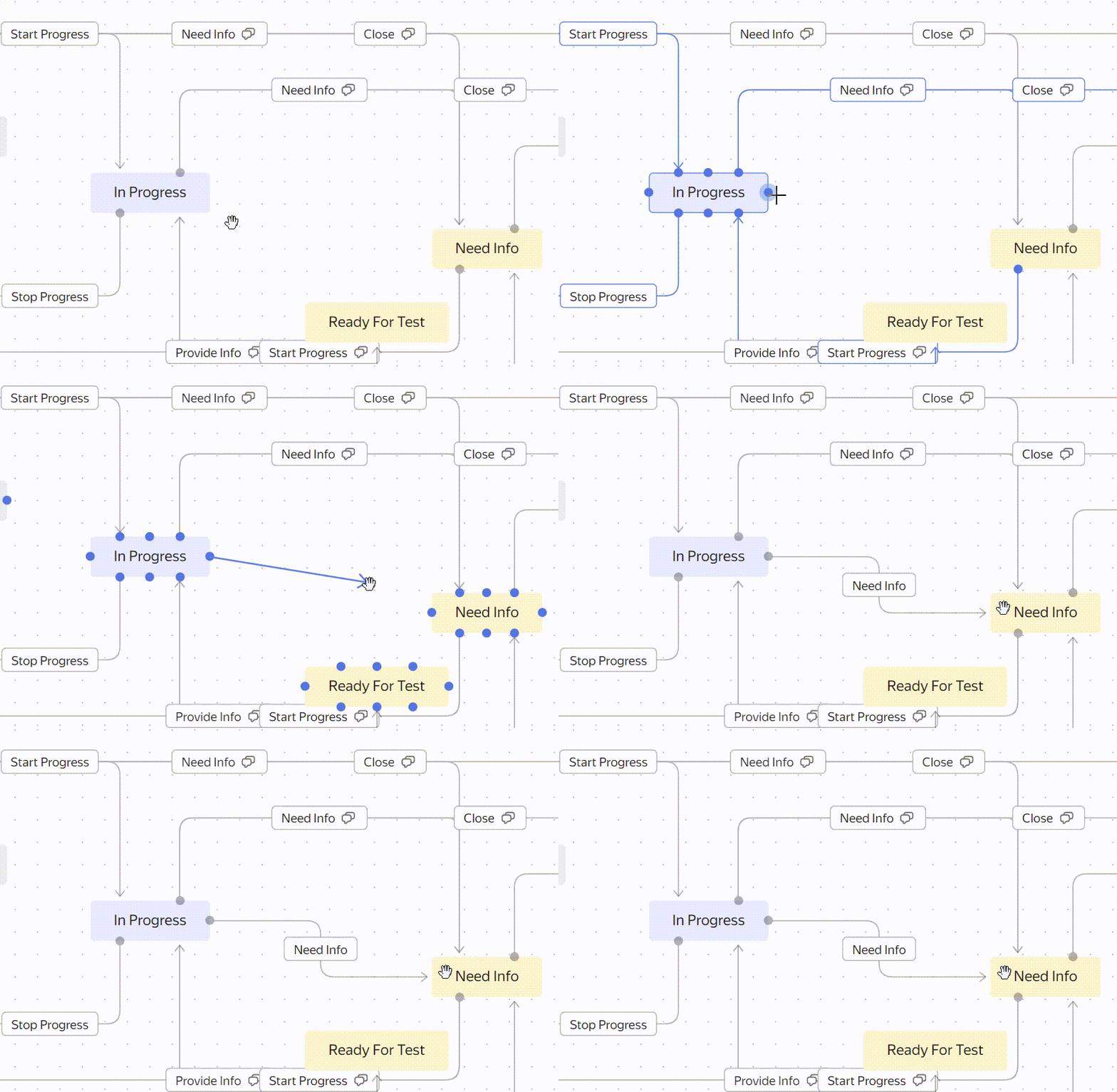
In the workflow designer, add statuses and issue types. Then select the issue views you are used to working with, such as a board or Gantt chart.
Come up with a name and key
To create a queue, you need to come up with a key and a name. Try using the keys that reflect the purpose of the queue. For example, the HR key is suitable for issues in the Human Resources department, while SUPPORT is good for Support issues.
A queue key is a unique code that enables you to identify the queue. Each issue in the queue is assigned an issue key that consists of the queue key and a sequential number.
Queue keys must meet the following requirements:
- A key can only include Latin characters without spaces or special characters.
- The queue key must be unique: a new queue can't be assigned a key that was previously used by a deleted queue.
- The queue key must be allowed. There are several keys you can’t use for a queue, such as
ADMINorSETTINGS.
Confirm queue creation
Check the settings and click Open queue. The new queue will appear in the Queues section of the left panel.
Add rules for transitioning between statuses
In a new queue, an issue can be moved to any status. You can restrict such transitions: for example, prevent closing an issue without going through the Согласование status.
Go to Queue settings → Workflows. For details on how to configure everything, see the article Add a transition between statuses.