Configure the issue page in a queue
By default, only the queue owner can configure the queue.
To configure the issue page parameters in a queue:
-
In the left-hand panel, click Queues and select a queue.
-
In the top right corner of the queue page, click Queue settings.
-
Go to the Basic tab.
-
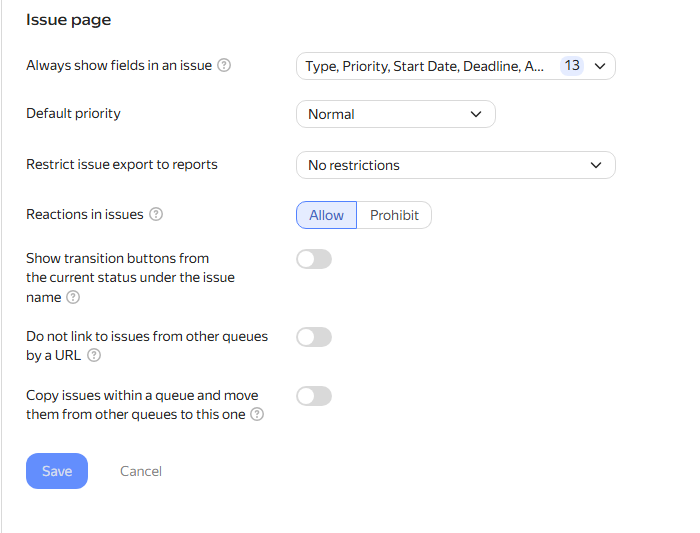
Under Issue page, configure the parameters:
- Always show fields in an issue — parameters that will be displayed on the issue page regardless of the user's settings.
- Default priority — the priority that will be used by default when creating issues.
- Restrict issue export to reports — partially or completely restricts exporting issues to reports.
- Reactions in issues — allow or forbid users from leaving reactions on comments in queue issues.
- Show transition buttons from the current status under the issue name — show buttons for changing the issue status.
- Do not link to issues from other queues by a URL — do not add a link if an issue key from another queue is inserted in the comment or issue description.
- Copy issues inside a queue and move them from other queues to this one — if issue creation in the queue is only allowed through a form, this option allows all users with access to create issues to copy and move issues to the queue.
-
Click Save.