Managing forms in a queue
You can link one or more forms from Yandex Forms to a Yandex Tracker queue. These forms are displayed on the issue creation page and used as templates.
There are two ways you can set up a form for creating issues:
- Using the form builder in Yandex Tracker: Integration in the Yandex Tracker interface.
- Adding a ready-made form from Yandex Forms: How to link a form to a queue.
You can manage forms for creating issues on the queue settings page.
Managing the queue's forms requires the Queue management access rights.
You can add up to 20 forms to one queue.
Change the form order on the issue creation page
-
In the left-hand panel, click Create issue.
-
To change the form order on the issue creation page, click and drag the form.
Disable creating issues without a form
You can choose to hide the default issue creation form on the issue creation page for users — this way, they won't see the page where all of the form's fields are completable. This can be helpful when you need to mark certain fields as required when creating an issue.
-
In the left-hand panel, click Queues and select a queue.
-
In the top right corner of the queue page, click Queue settings.
-
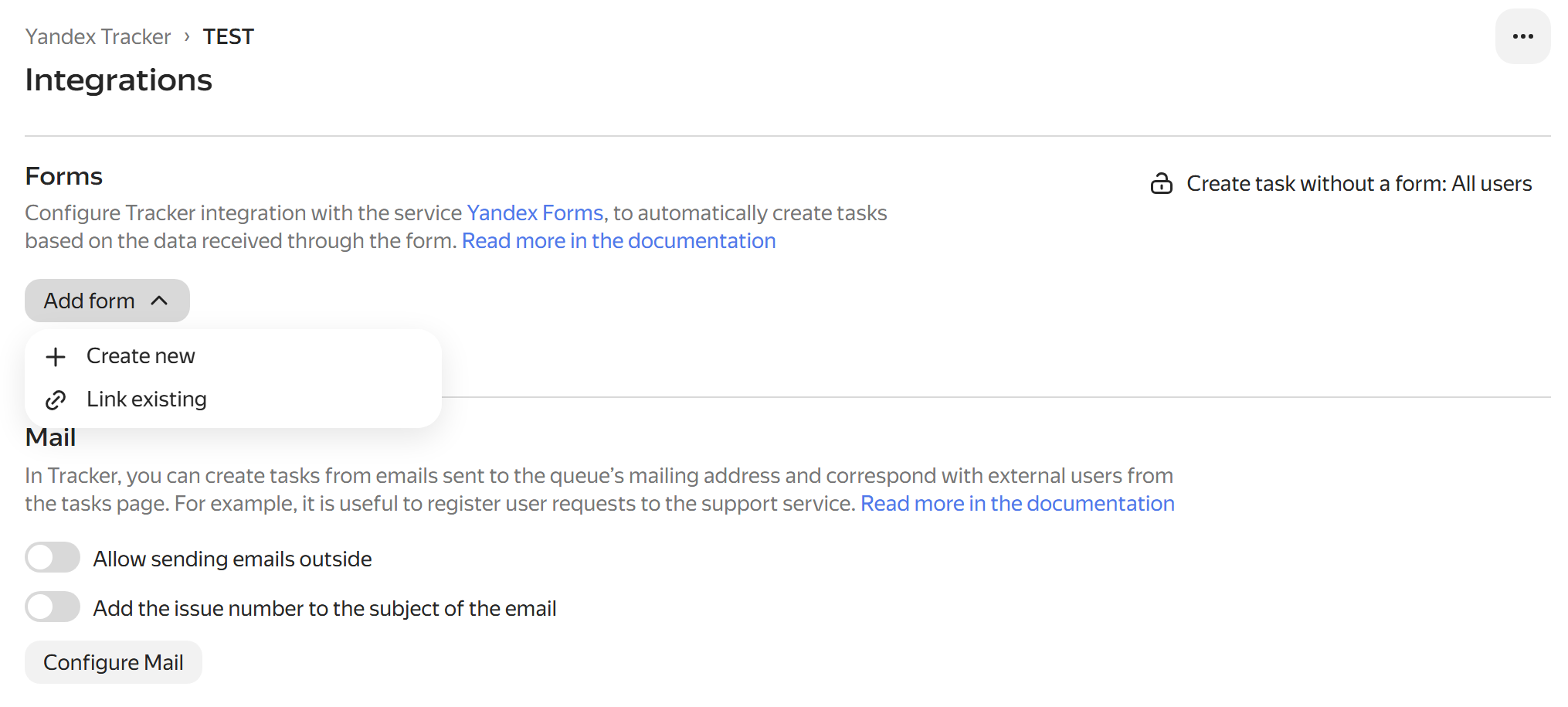
Open the Integrations tab and select Forms.
-
In the upper-right corner, click Create issue without a form: and select an option:
-
All users: The default form is always shown on the issue creation page (selected by default).
-
Queue team only: The default form is only shown to the queue team.
-
Forbidden: The default form is not shown on the issue creation page.
-
If creating issues without a form is disabled, you can enable Copy issue within a queue and move from other queues to this one in the queue settings. This option allows any user with create issue permissions to copy and move issues to the queue: Changing queue description.
Manage forms
Forms can be managed by the queue owner and users with permission to edit the queue settings.
To view the queue forms:
-
In the left-hand panel, click Queues and select a queue.
-
In the top right corner of the queue page, click Queue settings.
-
Open the Integrations tab and select Forms.
-
Click Go to form list.
Copy a link to a form
You can share the link to your form with a colleague or external user who has no access to Yandex Tracker. Any user can follow a direct link to fill out the form. As a result, an issue with the form data will appear in the queue.
To copy the link, select the appropriate form and click Copy in the Link field.
You can also restrict access to filling out a form via a direct link. To do this, go to the full version of Yandex Forms.
Learn more about setting up access to filling out forms.
Change form parameters
-
Select the form and click .
-
Select Change name and description.
-
Enter a new name and description for a form and click Save.
Edit a form
-
Select the form and click .
-
Select Edit form.
-
Edit the questions in the form builder and set up integrations with Yandex Tracker, just as you would when creating a form: Integration in the Yandex Tracker interface.
Delete a form
-
Select the form and click .
-
Select Delete from queue.
A queue is a space for issues related to a single process, product, team, or department. A queue helps you store issues in one place and manage work according to common rules.