How to plan workload in a portfolio
Workload planning in a portfolio helps a manager balance work across multiple projects within a single business unit: they can see which employees are busy and on which projects, balance their workload between projects, and plan deadlines for the entire unit more accurately. This is especially useful when the same people are involved in different projects within the portfolio.
You can plan the workload on the Resources tab of the portfolio page. The tab shows all assignees and all issues that have been added to the resources of the nested projects. This lets you distribute work across the unit and assess each employee's total workload without switching between individual projects.
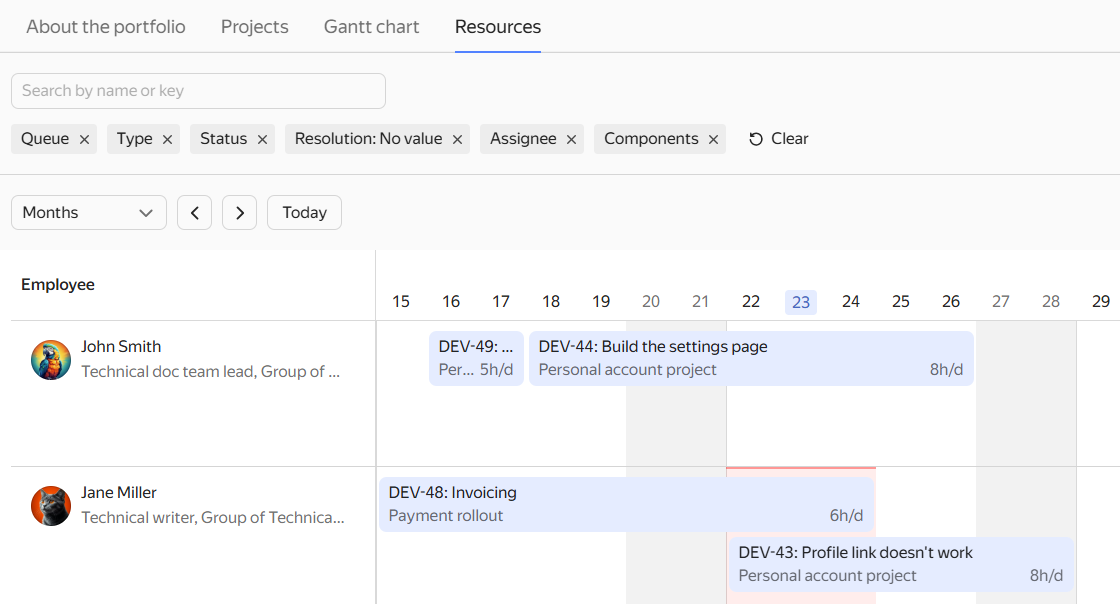
Portfolio Resources tab
To open the portfolio resource diagram:
-
In the left panel, click Projects and portfolios and open the portfolio page.
-
Go to the Resources tab.
The tab works the same way as in a project: add issues to the plan, add assignees, and distribute issues on the diagram. These steps are described in detail on the How to plan workload in a project page.
You can filter the list of issues and assignees: for example, leave only issues from a specific queue or assignee on the diagram. To group unscheduled tasks differently, switch between the Projects and Responsible tabs on the panel. How to filter issues on the resource diagram
Unscheduled tasks in a portfolio
On the portfolio's Unscheduled tasks panel, issues are grouped by the projects that belong to the portfolio. Next to each project name, you can see how many of its issues are not yet scheduled.

To add an issue to the plan:
-
Above the diagram, click Unscheduled.
-
Find the desired project in the list and click Add issue.
-
Select New or Existing issue, fill in the Issue estimate and Hours per day fields, then click Add.
If an issue is added to a project, it won't appear on the Unscheduled tasks panel if its Issue estimate field is empty. For more information, see the Add issues to the plan section.
Distributing tasks
Drag an issue card from the Unscheduled tasks panel to the row of the desired employee. You can also draw the issue directly on the diagram. On the portfolio resource diagram, just like in a project:
- issue deadlines are determined by the Start date and Deadline fields;
- issues that are not part of the current portfolio's projects are marked in gray;
- time intervals when an employee is overloaded are highlighted in red, taking into account issues from all projects in the portfolio and queues.