Changing a queue icon and cover
You can customize an icon and cover for each queue. The icon appears next to the queue name and helps you find the queue in the list. The cover is displayed at the top of the queue page and defines its visual style.
The queue icon and cover can be selected by the Tracker administrator, the queue owner, and users with Queue settings access. How to configure queue access

Selecting a queue icon
-
In the left-hand panel, click Queues and select a queue.
-
To the left of the queue name, click its icon.
-
Choose how the new icon will look:
EmojiIcon from the listCustom iconTo have Tracker pick an icon for you, click the button at the bottom of the window until you see a combination you like. If you already have an icon in mind, create it:
-
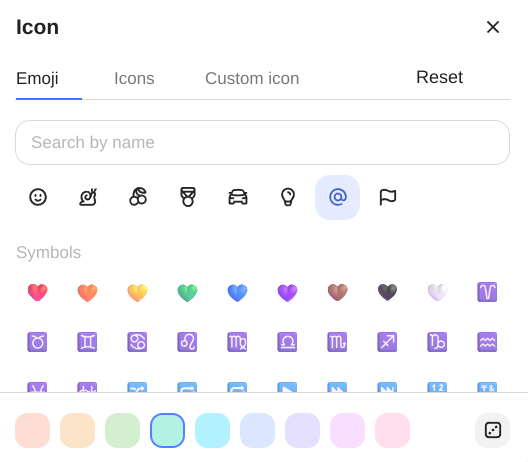
Find the needed emoji in the list. They are grouped by topic, for example Smileys and people, Symbols. You can also search for an emoji by its name: enter a general word, for example
smile, and matching options will stay in the list. -
Below, select the background color.
To restore the default icon, click Reset.
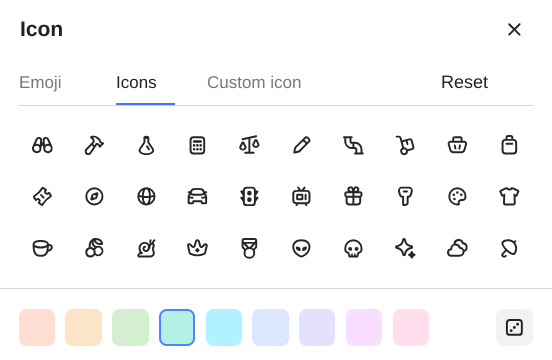
Go to the Icons tab.
To have Tracker pick an icon for you, click the button at the bottom of the window until you see a combination you like. If you already have an icon in mind, select the needed icon and its color from the list.
To restore the default icon, click Reset.
-
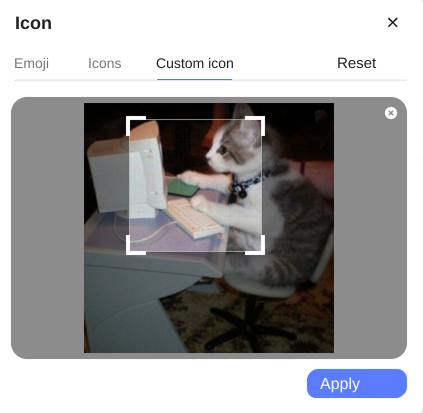
Go to the Custom icon tab.
-
Upload an image in JPEG or PNG format up to 2 MB. The recommended resolution is 64 × 64 px.
If the image is larger than the recommended size, select the area that will be displayed on the icon: drag the frame over the image.
To restore the default icon, click Reset.
-
Selecting a queue cover
-
In the left-hand panel, click Queues and select a queue.
-
In the upper-right corner of the page, click → Select cover.
-
Choose the cover type:
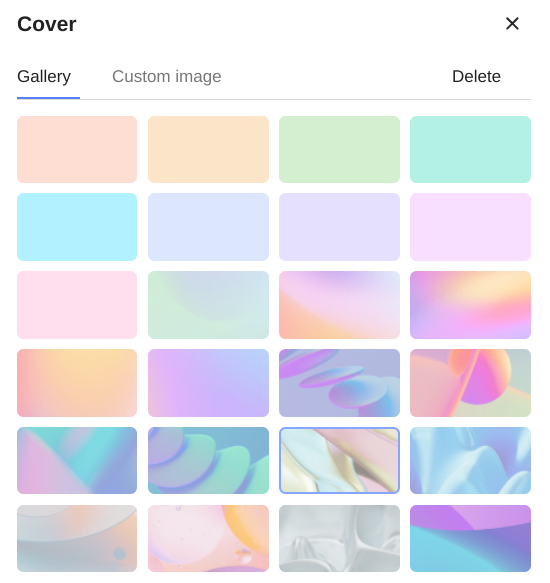
Image from the galleryCustom imageSelect an image on the Gallery tab.
To remove the cover, click Delete.
-
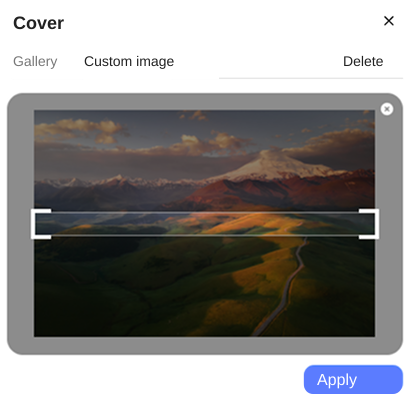
Go to the Custom image tab.
-
Upload an image in JPEG or PNG format up to 2 MB. The recommended resolution is 1500 × 60 px.
If the image is larger than the recommended size, select the area that will be displayed on the cover: drag the frame over the image.
-
Click Apply.
To remove the cover, click Delete.
-