Connecting a shared mailbox on a Yandex 360 domain
Connecting a shared mailbox on a Yandex 360 domain
If your organization has a connected Yandex 360 domain, you can set up a shared mailbox. A shared mailbox doesn't have a single owner and can be used by multiple employees at the same time.
To learn more about shared mailboxes, see Yandex Mail Help:
You can connect a shared mailbox to a Yandex Tracker queue for receiving and sending messages.
Before you begin, open the queue settings and click Configure email addresses.
Select On any email server.
Setting up a shared mailbox for receiving messages
To set up a shared mailbox for receiving messages on a Yandex 360 domain:
-
In the Email field, enter the full shared mailbox address, such as
post@company.ru. The shared mailbox domain must match the current organization domain.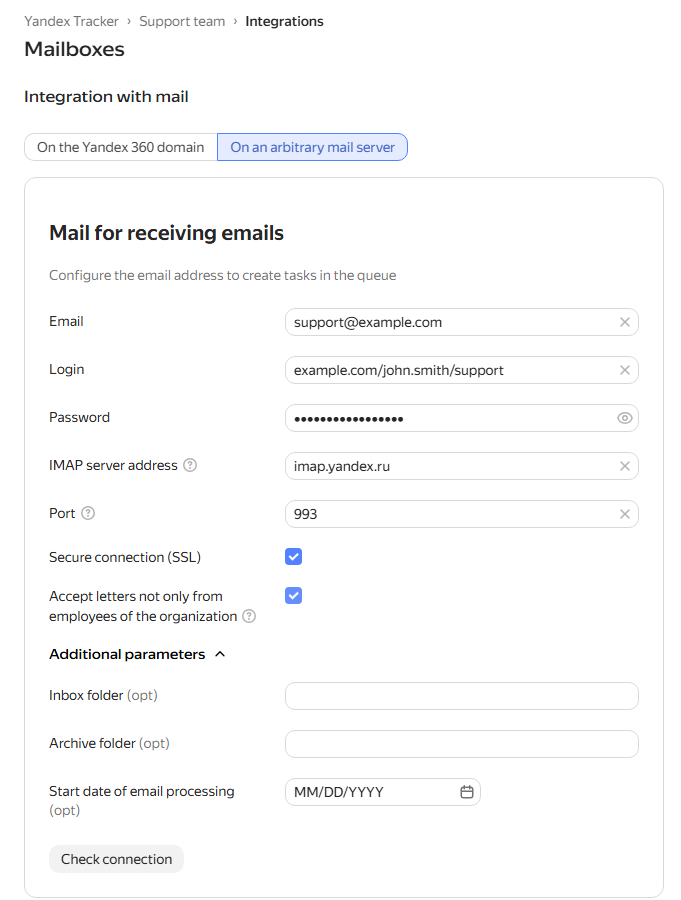
-
In the Login field, enter the following:
<organization_domain>/<user_login>/<shared_mailbox_address_without_domain>.For example, if the shared mailbox address is
post@company.ruand the user's email address isuser@company.ru, entercompany.ru/user/postin the Login field. -
In the Password field, enter the application password for the user account. Learn more about application passwords in the Yandex ID documentation.
For example, if the shared mailbox address is
post@company.ruand the user's email address isuser@company.ru, enter the application password foruser@company.ruin the Password field. -
In the IMAP server address field, enter
imap.yandex.ru. -
In the Port field, enter
993. -
To process messages from external users as well as employees of your organization, enable Receive messages not only from company employees.
-
Specify the parameters for issues created from received messages: [issue type](*issuetype) and [components](*component).
You can use components to search for issues or restrict access to them: Restricting access to issues.
-
Click Save. The email address will become active within one hour of creation.
Setting up a shared mailbox for sending messages
-
To enable a user to send messages from Yandex Tracker through a shared mailbox, assign them one of the following role combinations:
- Restricted email sending via SMTP and Sending email via SMTP;
- Mailbox ownership.
Learn more about configuring shared mailbox access in the Yandex 360 documentation.
-
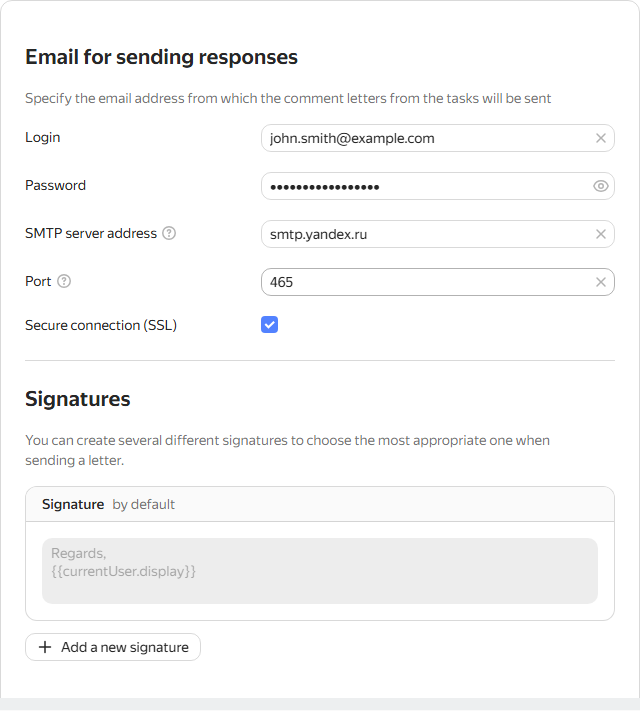
Under Email for replying, click Add email address.
-
In the Login field, enter the login of a user who has access to the shared mailbox.
For example, if the shared mailbox address is
post@company.ruand the user's email address isuser@company.ru, enteruser@company.ruin the Login field. -
In the Password field, enter the same application password that you used to set up the mailbox for receiving messages. Learn more about setting up an application password in the Yandex 360 documentation.
For example, if the shared mailbox address is
post@company.ruand the user's email address isuser@company.ru, enter the application password foruser@company.ruin the Password field. -
In the SMTP server address field, enter
smtp.yandex.ru. -
In the Port field, enter
465.