Tabs in a queue
Using tabs on the queue page, you can choose which view is more convenient for viewing issues: a list, calendar, or Gantt chart:
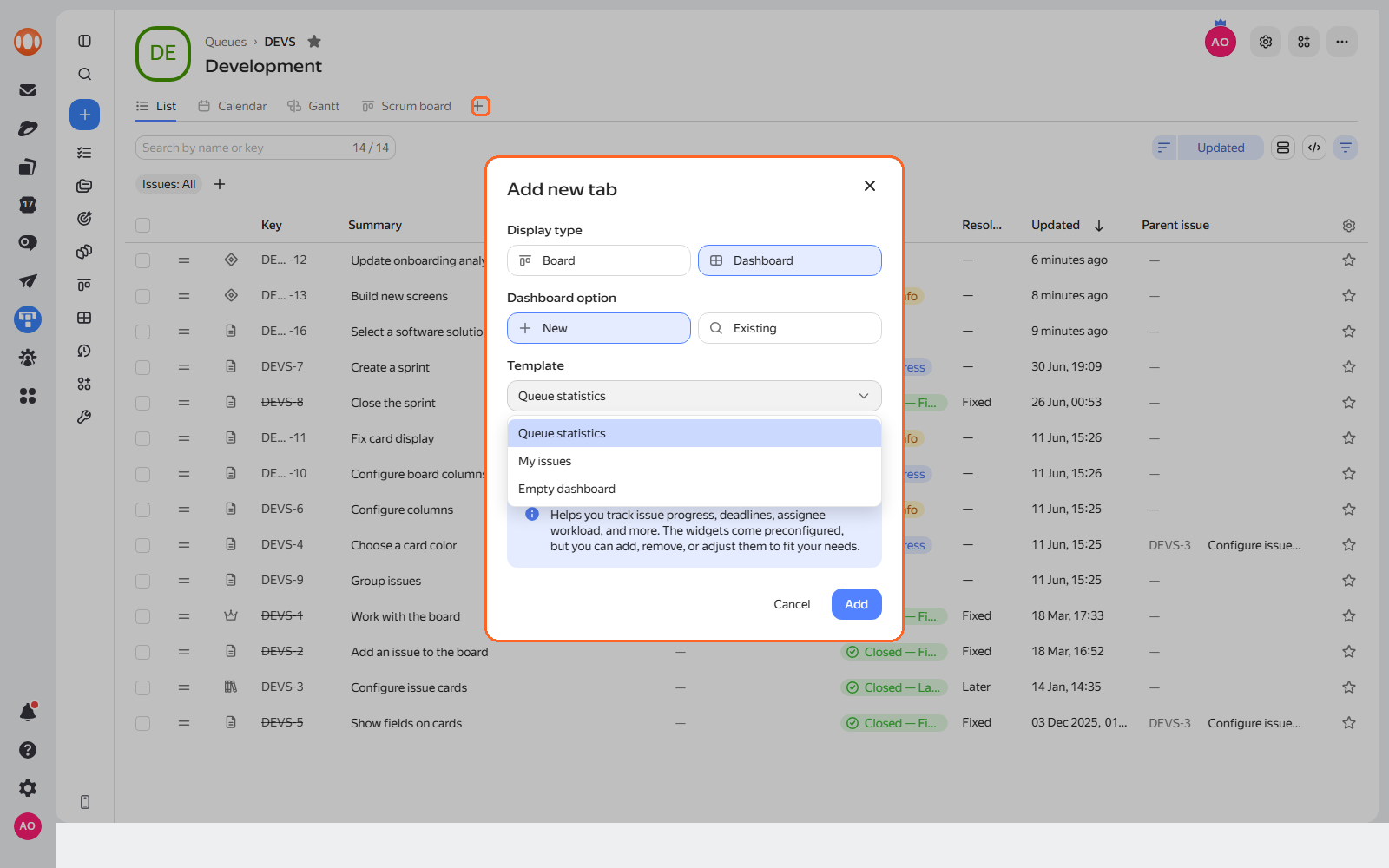
You can also add tabs with issue boards and dashboards to the queue page:
-
Under the queue description, on the right-hand side, click .
-
Select a view: Board or Dashboard.
-
Choose whether to create a new board or dashboard or add existing ones.
Add an issue board
You can add a new or existing issue board to the queue. What is an issue board
New queue issues will automatically appear on the board.
When creating a new board:
- Queue issues are automatically added to it.
- A queue filter is created for the board. Edit it to add issues from other queues to the board.
- Board access permissions are determined by the queue access permissions.
When adding an existing board:
- The previous board address stays functional but will redirect to the board tab in the queue.
- The board filter remains unchanged.
- Board access permissions change to match those of the queue.
You can enable a backlog and other Agile tools on a Basic board added to a queue. How to enable Agile tools
Add a dashboard
You can add a new or existing dashboard to the queue. What is a dashboard
When creating a new dashboard, select a template:
- My issues. The template is configured to track changes in queue issues.
- Queue statistics. The template settings allow you to track the dynamics of issue completion.
- Empty dashboard.
Edit tabs
To edit, hover over a tab and click the icon. The menu opens:
- Set as default — this tab will open first when you go to the queue.
- Rename — change the tab name.
- Move left or Move right — change the order of tabs.
- Delete — delete the tab.
After deleting a tab, the dashboard or board remains available in the navigation as independent resources. Access permissions are copied from the queue at the moment the tab is deleted.
The standard tabs List, Calendar, and Gantt cannot be deleted.