How to assess employee workload
Workload assessment helps a manager monitor the balance of workload in the team: see which employees are overloaded and which are underloaded, understand who is busy with which projects, and redistribute work in time so that issues and projects meet their deadlines.
You can assess workload at three levels: in a project, in a portfolio, and globally — across all projects of the organization at once.
Learn how to plan workload on the How to plan workload in a project and How to plan workload in a portfolio pages.
On the Resources tab of a project or portfolio, the workload is visible right on the chart: each employee's issues are placed on a single row, making it easy to spot periods with too much work or, conversely, not enough. In a portfolio, all assignees and issues from nested projects are visible on a single chart, allowing you to assess the team's workload across the entire business unit. For more information, see the How to plan workload in a portfolio page.
Assess workload across all projects
On the Manage resources page, you can find any employees of the organization, view their total workload across all projects, and generate a report.
For example, a manager can find all employees from their department and check if any of them are over- or underutilized.
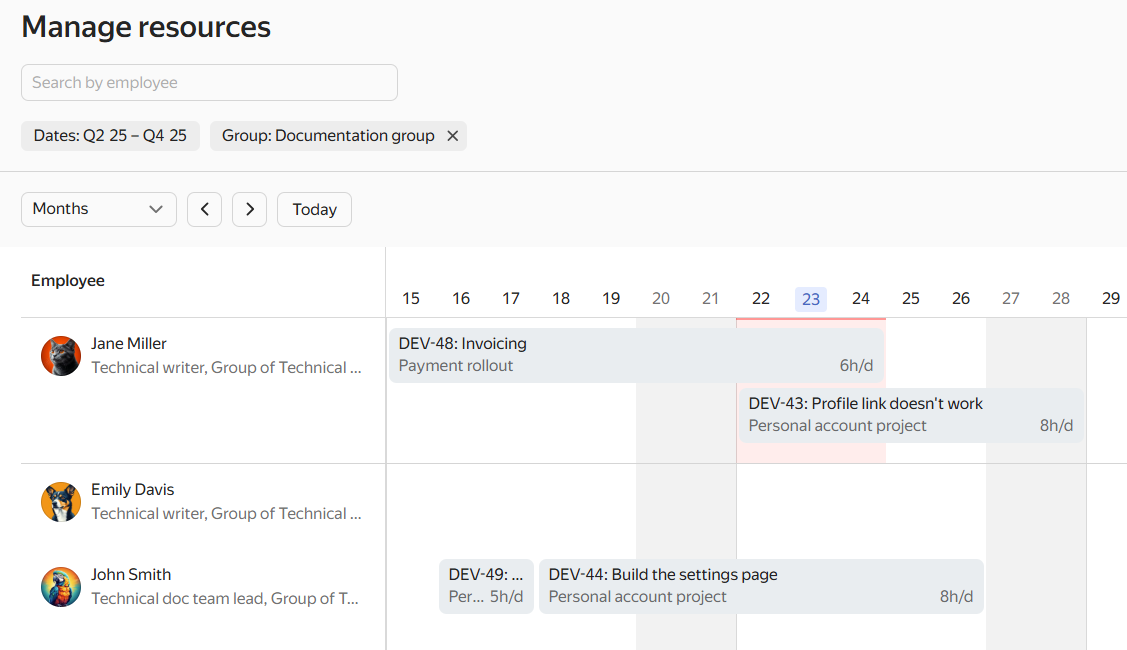
Workload of documentation employees across all projects
Open the page: in the left panel, click Projects and portfolios → Manage resources or follow the link https://tracker.yandex.com/pages/resources .
Employee workload is shown on the general chart: each employee's row contains their issues from all projects.
- You can switch the scale between Months and Quarters.
- Time intervals when an employee's total workload exceeds their available working time are highlighted in red. Overload takes into account issues from different queues and projects.
Find employees by parameters
To display the filtering parameters, click Filters on the right.
-
Use the Dates parameter to specify the time period for checking employee workload. You can enter the period in days, months, quarters, or years.
-
To see a list of employees from a group or department, click Group and start typing its name. You can select multiple groups.
-
To quickly find a specific employee, enter their name or username in the search bar.
