By default, each queue uses one of the standard workflows that the queue owner selects when creating it. If the standard workflow in the queue doesn't suit you or you want to change its settings, you can create a new workflow or copy an existing one.
To simplify creating a workflow and avoid errors during setup, we recommend copying the workflow that's set up in the queue by default and adding the missing elements.
Creating a copy of an existing workflow
In the left-hand panel, click Queues and select a queue.
In the top right corner of the queue page, click Queue settings.
Go to the Workflows tab and, on the standard workflow card, click Duplicate.
If you click Edit on the standard workflow card, a copy of it is created automatically and the workflow editor opens.
To edit the workflow copy you created, click Edit on its card; the workflow editor opens:
In the left-hand panel, click Queues and select a queue.
In the top right corner of the queue page, click Queue settings.
On the Workflows tab, in the upper-right corner, click Copy workflow from a different queue.
In the window that opens:
Select the queue to copy the workflow from.
Select the workflow to copy.
Enter a name for the new workflow in your queue.
Click Copy.
When you copy a workflow from a different queue, the workflow diagram is transferred with all statuses, transitions, and their settings. Issue types and resolutions from the other queue aren't transferred.
Creating a new workflow
To create a workflow:
In the left-hand panel, click Queues and select a queue.
In the top right corner of the queue page, click Queue settings.
Go to the Workflows tab and click Create workflow in the upper-right corner. The workflow visual editor opens.
In the workflow editor, add statuses and transitions between them:
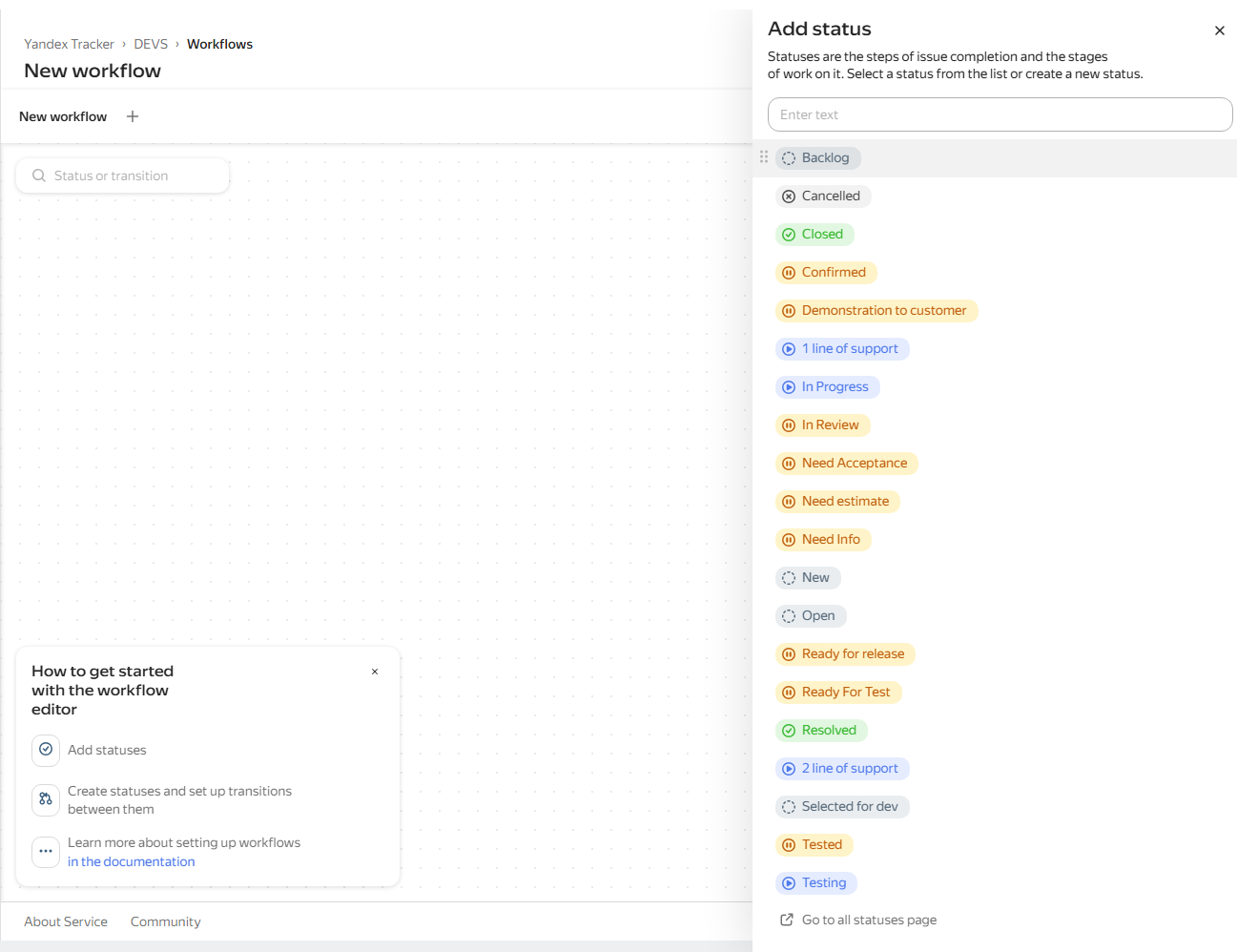
For all transitions to a final status, such as Closed, we recommend setting up a transition screen that requires filling in the resolution: How to set up a transition screen. The resolution can affect closed issue tracking and searching with filters.
When you finish setting up the workflow, click Save in the upper-right corner.
In the window that opens, add issue types and resolutions to the workflow:
Click Add issue type, then select a type from the list.
For each issue type, add resolutions: next to the issue type, in the Resolution column, click and select the ones you need from the list.
Click Apply.
Deleting a workflow
You can't delete a workflow that is active for at least one issue in the queue. Before deleting a workflow, we recommend moving its issue types to a different workflow: Backward compatibility.
To delete a workflow:
In the left-hand panel, click Queues and select a queue.
In the top right corner of the queue page, click Queue settings.
Go to the Workflows tab.
From the workflow you want to delete, remove the resolutions and issue types.
Delete the workflow itself: on the workflow card, click .
A widget is a visual element on the dashboard that automatically pulls issue data and displays it as a list, table, or chart.
Dashboard
A dashboard is a page that helps users monitor the status of important issues and view statistics. You can add issue lists, tables, charts, and notes to the dashboard.
Issue board
An issue board is a tool that helps you easily monitor and update issue statuses. On the board, issues are shown as cards distributed across columns of the board depending on their status.
Issue
In Yandex Tracker, you can use issues to register tasks, requests, and other types of work. An issue has a name, assignee, deadline, and other parameters.
Issue key
An issue key is the unique ID of an issue. It consists of the queue key and the sequence number, for example: TEST-123. You can use this key to access the corresponding issue via a link: https://tracker.yandex.com/TEST-123.
Queue key
A queue key is a unique code consisting of Latin characters that helps identify the queue. For example: TEST. You can use this key to access the corresponding queue via a link: https://tracker.yandex.com/TEST.
Queue
A queue is a space for issues that share a common workflow or focus on the same product. Queues can also be used as an issue list meant for a specific team or department. Queues enable you to order your issues and see who is responsible for their execution. How to set up queues
Project
In Yandex Tracker, a project is a set of issues that aim to achieve a common goal within a certain time frame. Every project has a deadline and a lead. Projects can include issues from different queues, which makes them useful for grouping tasks that involve various teams.
Filter
In Yandex Tracker, you can use filters to search for issues by parameters. For example, you can find all issues in queues where you have the author or assignee status.
A queue is a space for issues that share a common workflow or focus on the same product. Queues can also be used as an issue list meant for a specific team or department. Queues enable you to order your issues and see who is responsible for their execution. How to set up queues
A widget is a visual element on the dashboard that automatically pulls issue data and displays it as a list, table, or chart.
Dashboard
A dashboard is a page that helps users monitor the status of important issues and view statistics. You can add issue lists, tables, charts, and notes to the dashboard.
Issue board
An issue board is a tool that helps you easily monitor and update issue statuses. On the board, issues are shown as cards distributed across columns of the board depending on their status.
Issue
In Yandex Tracker, you can use issues to register tasks, requests, and other types of work. An issue has a name, assignee, deadline, and other parameters.
Issue key
An issue key is the unique ID of an issue. It consists of the queue key and the sequence number, for example: TEST-123. You can use this key to access the corresponding issue via a link: https://tracker.yandex.com/TEST-123.
Queue key
A queue key is a unique code consisting of Latin characters that helps identify the queue. For example: TEST. You can use this key to access the corresponding queue via a link: https://tracker.yandex.com/TEST.
Queue
A queue is a space for issues that share a common workflow or focus on the same product. Queues can also be used as an issue list meant for a specific team or department. Queues enable you to order your issues and see who is responsible for their execution. How to set up queues
Project
In Yandex Tracker, a project is a set of issues that aim to achieve a common goal within a certain time frame. Every project has a deadline and a lead. Projects can include issues from different queues, which makes them useful for grouping tasks that involve various teams.
Filter
In Yandex Tracker, you can use filters to search for issues by parameters. For example, you can find all issues in queues where you have the author or assignee status.
A widget is a visual element on the dashboard that automatically pulls issue data and displays it as a list, table, or chart.
Dashboard
A dashboard is a page that helps users monitor the status of important issues and view statistics. You can add issue lists, tables, charts, and notes to the dashboard.
Issue board
An issue board is a tool that helps you easily monitor and update issue statuses. On the board, issues are shown as cards distributed across columns of the board depending on their status.
Issue
In Yandex Tracker, you can use issues to register tasks, requests, and other types of work. An issue has a name, assignee, deadline, and other parameters.
Issue key
An issue key is the unique ID of an issue. It consists of the queue key and the sequence number, for example: TEST-123. You can use this key to access the corresponding issue via a link: https://tracker.yandex.com/TEST-123.
Queue key
A queue key is a unique code consisting of Latin characters that helps identify the queue. For example: TEST. You can use this key to access the corresponding queue via a link: https://tracker.yandex.com/TEST.
Queue
A queue is a space for issues that share a common workflow or focus on the same product. Queues can also be used as an issue list meant for a specific team or department. Queues enable you to order your issues and see who is responsible for their execution. How to set up queues
Project
In Yandex Tracker, a project is a set of issues that aim to achieve a common goal within a certain time frame. Every project has a deadline and a lead. Projects can include issues from different queues, which makes them useful for grouping tasks that involve various teams.
Filter
In Yandex Tracker, you can use filters to search for issues by parameters. For example, you can find all issues in queues where you have the author or assignee status.