Adding comments to issues
You can use comments to leave notes about the work progress, ask questions about the issue description, and invite your teammates to discuss the issue.
To view all comments or add a new one, scroll the issue page down to the Comments section.
Leaving a comment
Enter your text in the New comment box at the bottom of the screen and tap . To expand the comment box to full screen, tap .
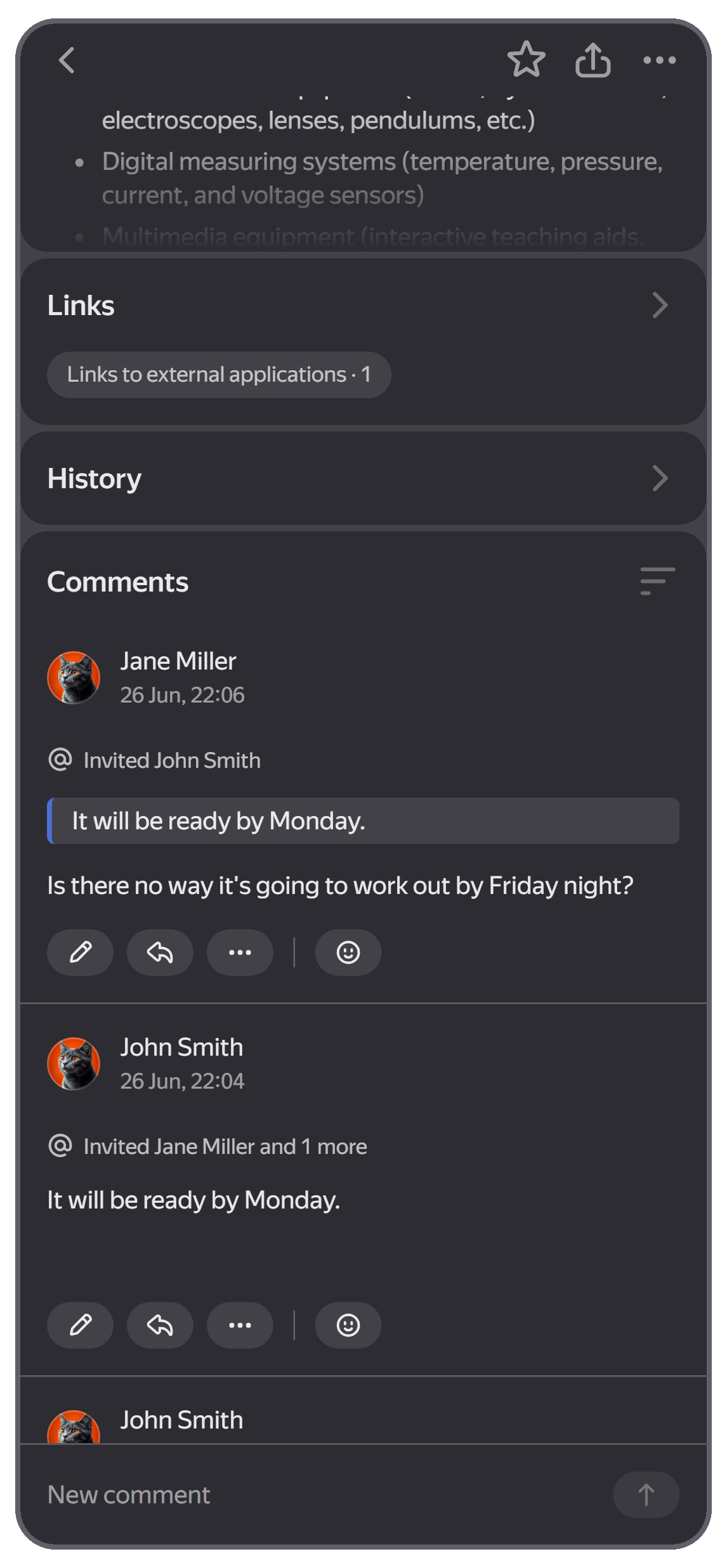
In comments, you can:
-
To format your text, use YFM markup or formatting controls. For more information about markup, see Formatting text.
-
Specify the key of any other issue, and Tracker will automatically link them together. To learn more, see Adding a link. The key must be in uppercase letters. For example:
TEST-1234.
Replying to comments
-
Tap under your comment. The comment you are replying to will be quoted in the response.
-
Make some changes and tap .
Editing comments
-
Tap → Edit under your comment.
-
Make some changes and tap .
Any changes to comments are saved in the History.
Inviting to comment
To invite other users to discuss an issue:
-
Tap in the comment box.
-
Enter the login or name of the user you want to summon to the issue and tap Save. You can invite multiple users at once.
-
Enter your comment and tap .
Users invited to comment will be notified by email, and their names will appear in the Pending reply from issue parameter.
If you add a user to the issue's Pending reply from parameter but don't summon them in a comment, the user won't receive an email notification.
Adding reactions to comments
To enable or disable user reactions to comments, go to the queue settings in the desktop version (see Changing queue description. Reactions are enabled by default.
To react to a comment, tap and choose an emoji from the drop-down list. If someone has already added a reaction to the comment, tap it to add the same reaction. To remove your reaction, tap it again.
You can add multiple reactions to the same comment.
Attaching a file
-
Tap in the comment box.
-
Upload a file from your phone, select an image from your gallery, or take a photo .
If you haven't uploaded files before, you'll need to allow access to your phone's camera and storage.
-
Enter your comment and tap .
You can find all attachments from the description and comments under Files on the issue page. To open a file or expand an image to full screen, tap it.
After opening the attachment, you'll be able to do the following:
- To share a link to the attachment, tap → Copy link.
- To download the attachment, tap → Download.
- To delete the attachment, tap → Delete.
To download all attachments, go to the Files section and select Download all.
Sharing a comment
To copy a comment link, tap → Share under the comment.
Deleting a comment
To delete a comment, tap → Remove under the comment.
Sorting comments
By default, comments are listed chronologically. To view the latest comments first, tap to the right of the Comments section. In the list, select the sorting order: Old comments first or New comments first.
History shows all issue updates, sorted from most recent to oldest.
Creating an issue based on a comment
If, while having a discussion with your teammates, you decided to create a new issue, you can do so directly from the comment:
-
Under the comment, tap and select Create issue from comment, then select the link type.
-
Fill in the fields as you do when creating a regular issue. To learn more, see How to create an issue.
-
Tap Create.