Editing a project or portfolio in the Tracker mobile app
In the app, you can change project and portfolio parameters, create links between objects, and attach widgets.
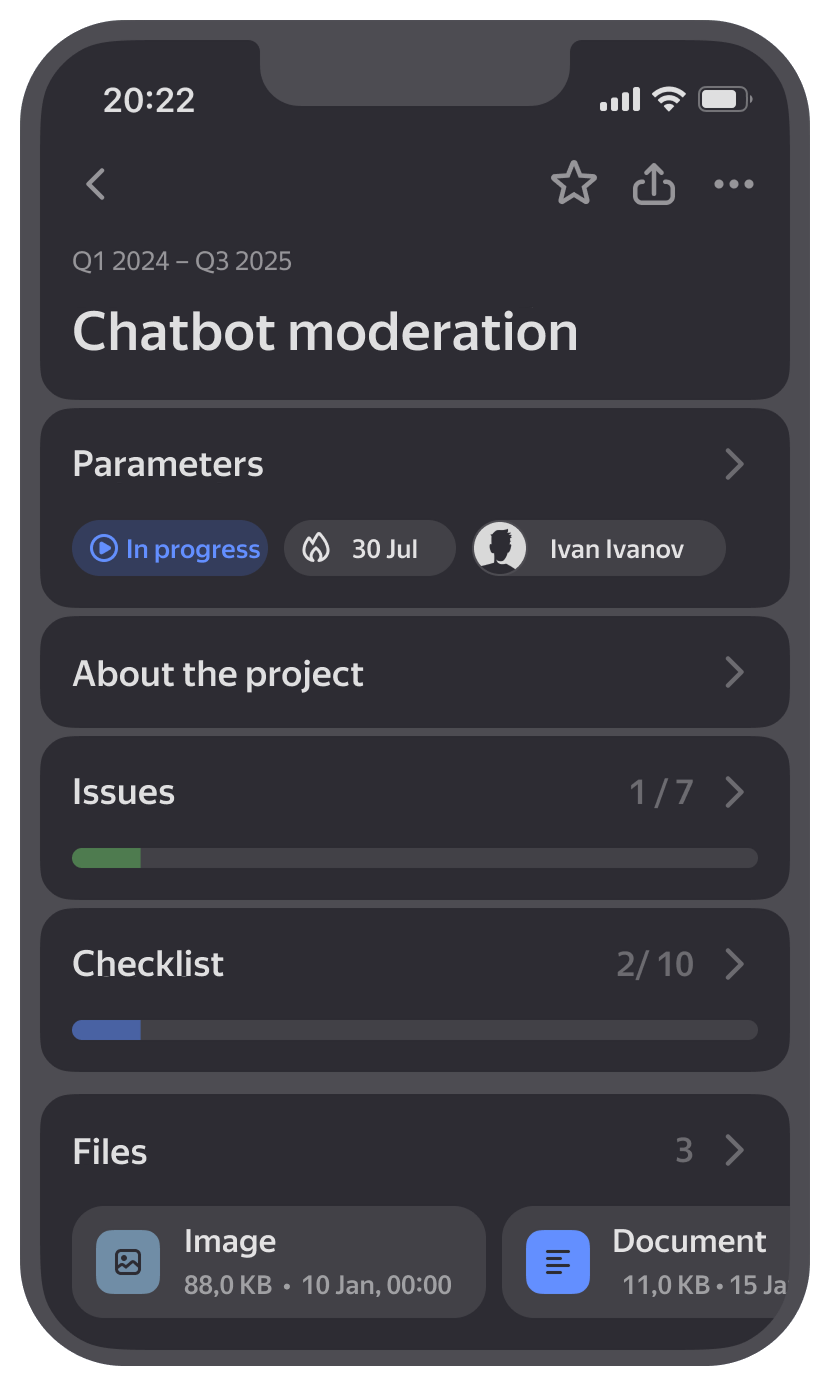
Changing basic parameters
-
To change the name, tap it and edit the text.
-
To change the description, go to the About the project section and tap Edit at the bottom.
-
To change the status, deadline, or owner of the project or portfolio, go to the Parameters section, tap the current value, and select a new one.
Creating a link
If objects share the same line of work, nest them within one another: issues in a project, projects in a portfolio. If objects belong to different lines of work but affect each other's completion, create a link between them.
Adding an issue to a project
Nest an issue in the project it belongs to:
-
Open the project.
-
Go to the Issues section and tap at the bottom.
-
Select which issue you want to link:
New issueExisting issue-
To create a new issue, stay on the New tab. Enter the issue name and the queue where it will be created.
If you can create an issue in the queue only using a form, you'll see the Select form button on the screen.
-
Select the link type.
-
Select the issue type.
-
Tap Create.
The new issue page opens.
-
If the issue already exists, go to the Existing tab. Start typing the issue key or name, then select it from the list.
-
Select the link type.
-
Tap Add.
-
Adding a project to a portfolio
Nest another portfolio or a project on the same topic in the portfolio:
-
Open the portfolio.
-
Go to the Projects and portfolios section and tap at the bottom.
-
Select which object to add: Project or Portfolio.
-
Create a new object or add an existing one:
NewExisting-
Stay on the New tab and enter the name and description of the new project or portfolio. You can change them later.
-
Set a deadline.
-
Tap Create at the bottom.
The new project or portfolio page opens.
-
If the object already exists, go to the Existing tab.
-
Select the object from the list.
-
Tap Add at the bottom.
-
Specifying a dependency between objects
Add a link between objects if one of them blocks the completion of the other:
-
Open the portfolio or project.
-
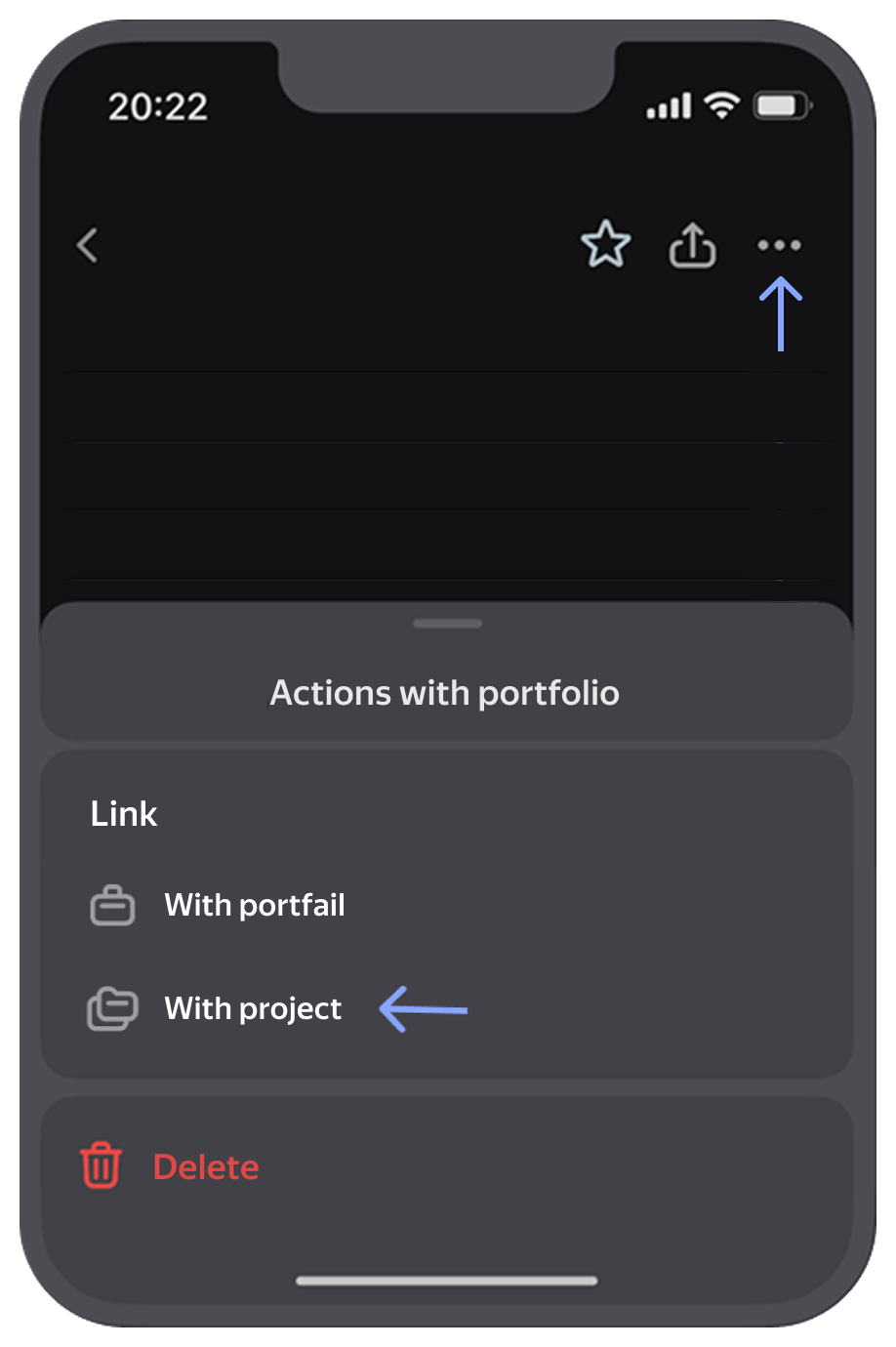
Tap at the top and, under Link, select a value: With project or With portfolio.
-
Create a link to the object:
NewExisting-
Stay on the New tab and enter the name and description of the new project or portfolio. You can change them later.
-
Set the link type and deadline.
-
Tap Create at the bottom.
The new project or portfolio page opens.
-
If the object already exists, go to the Existing tab.
-
Select the object from the list and set the link type.
-
Tap Add at the bottom.
-
Adding a metric
To attach a widget to a project or portfolio:
-
Open the desktop version of Tracker, select a widget on the dashboard, and tap → Copy link for iframe in the upper-right corner.
-
Open the project or portfolio in the mobile app.
-
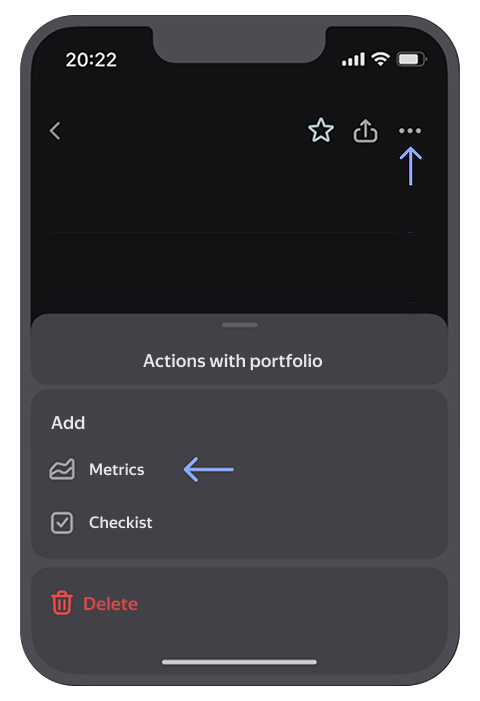
Tap at the top and, under Add, select Metric.
-
Enter the metric name. Below, paste the link to the widget.
-
Tap Add.
Adding a checklist
-
Open the project or portfolio.
-
Tap at the top and, under Add, select Checklist.
To learn how to edit checklist items, see Editing a checklist.
Deleting a project or portfolio
To delete a project or portfolio you created, tap → Delete at the top and confirm the action.
An issue key is a unique identifier contained in the issue link. It consists of the queue key and a number, for example TEST-123.