Viewing project or portfolio information in the Tracker mobile app
In the app, you can view all updates in a project or portfolio and stay informed about the work progress even when you're out of the office.
Viewing parameters
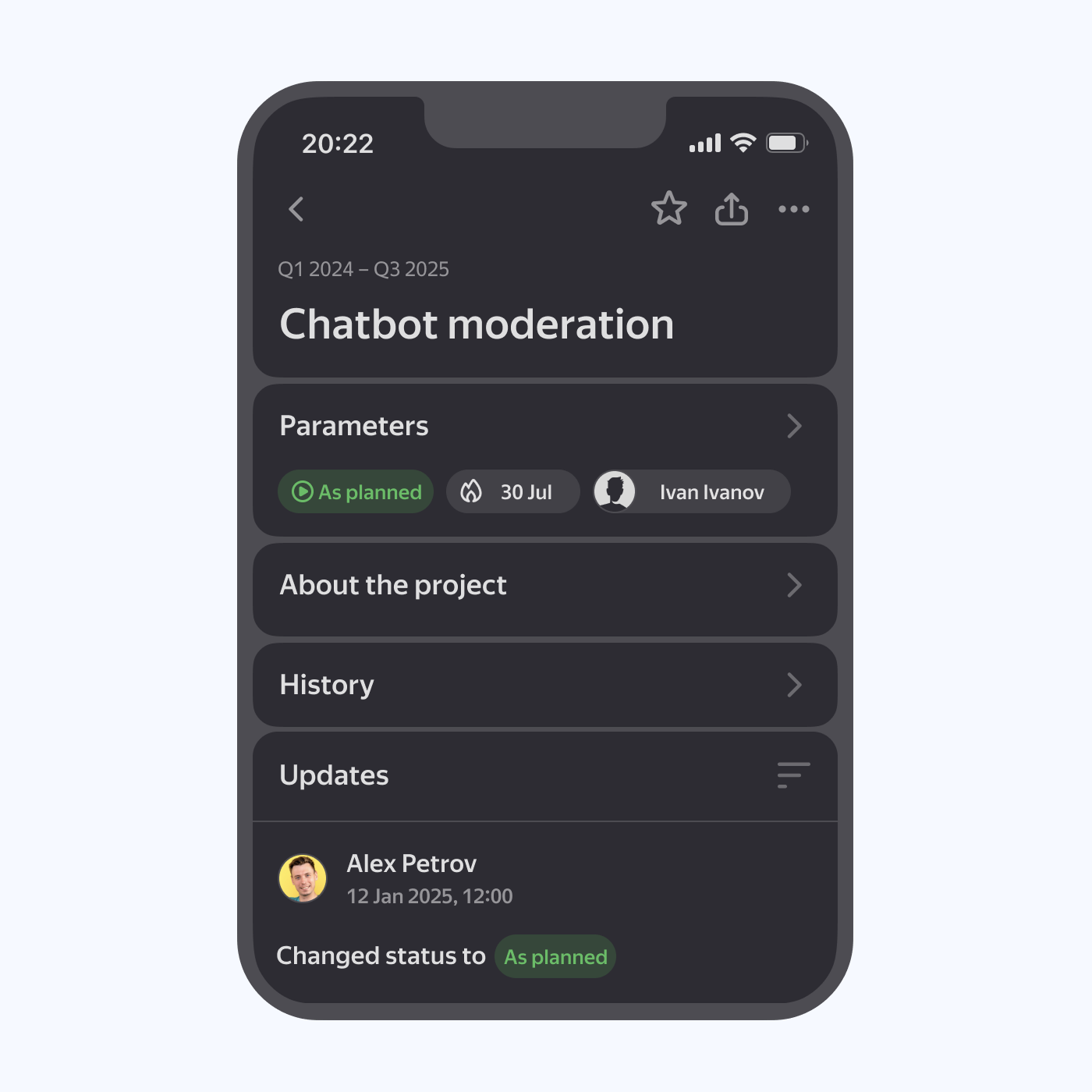
The project or portfolio page shows its main parameters: status, deadline, and the person responsible. To view the list of all project participants and other information, tap the Parameters section.
If the project or portfolio description is long, part of the text is hidden. To read the full description, tap the About the project or About the portfolio section.
Viewing comments and updates
-
To view all comments or add a new one, scroll down the project or portfolio page to the Updates section.
The Adding comments to issues page explains how to work with comments, for example, how to reply to a comment or add a reaction. -
To view all actions in the project and the names of the authors of those changes, tap the History section.
Viewing project or portfolio files
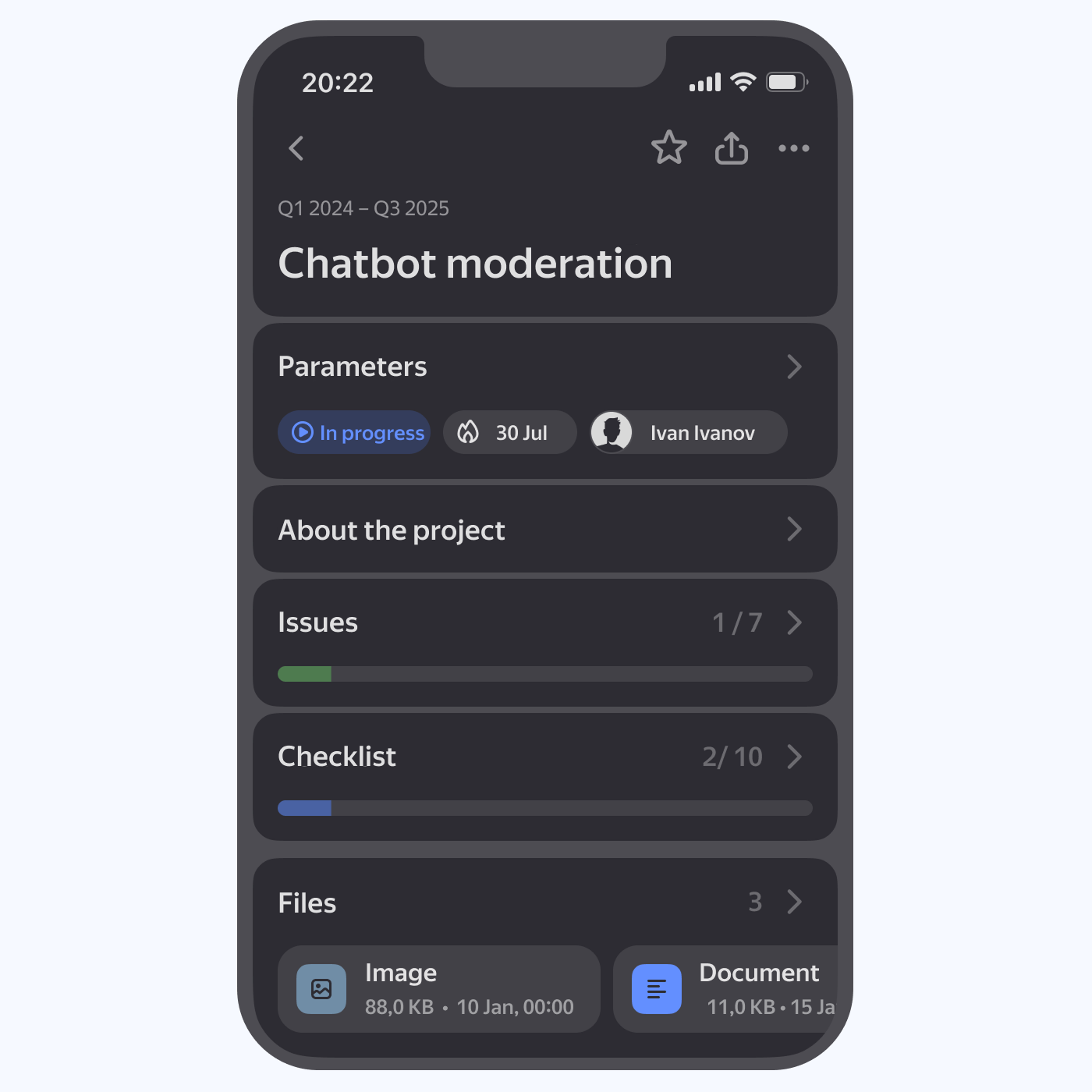
You can find all attachments from the description and comments under Files on the issue page. To open a file or expand an image to full screen, tap it.
After opening the attachment, you'll be able to do the following:
- To share a link to the attachment, tap → Copy link.
- To download the attachment, tap → Download.
- To delete the attachment, tap → Delete.
To download all attachments, go to the Files section and select Download all.
Viewing progress
The project progress is shown on the indicators below the Issues and Checklist section headings.
The length of the bars on the indicator shows the number of closed issues or checklist items.
Viewing project issues
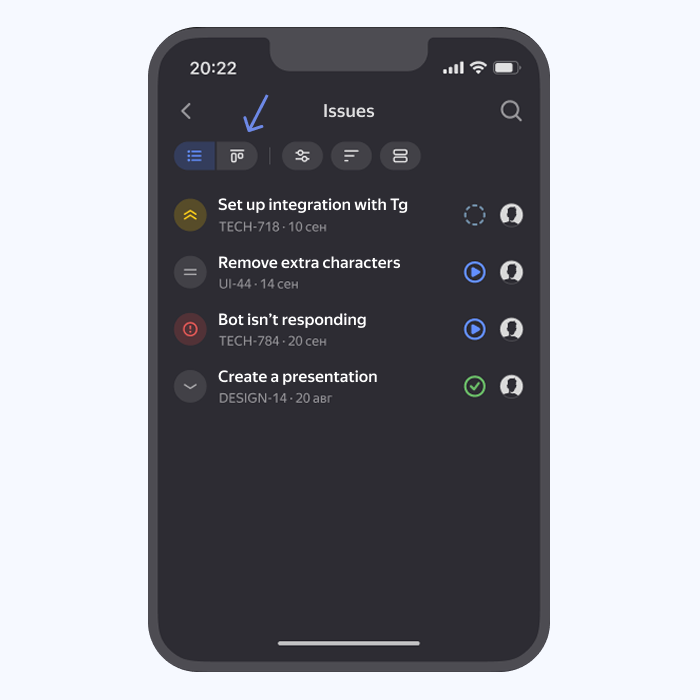
In the Issues section, you'll find all the issues nested in the project. To learn how to add issues to a project, see Adding an issue to a project.
You can view nested issues in two formats:
- List — the standard view. You can filter the issue list using the buttons at the top of the screen.
Adding search parameters - Board — to switch to this view, tap in the upper-left corner.
Boards.
The portfolio page has a similar Projects and portfolios section that shows the list of objects nested in that portfolio.
Viewing a metric
If a widget was added to the project or portfolio, the Metrics section appears on the page. Tap it, and then tap the name of the widget you need.
The metric opens in full screen. To exit the viewing mode, tap at the top of the screen.