How to manage plugins in an organization
A plugin is an extension that adds new features to Tracker that are not included in the standard set of capabilities. For example, a new interface element, an integration with an external system, or an AI assistant. Using plugins, organizations and their employees can solve narrow or team-specific tasks on their own, without waiting for the required features to be implemented in the Tracker core.
Not only the service team can create plugins for Tracker. Third-party developers can also create plugins for their organization's employees or add them to the public catalog to share their plugins with all Tracker users. How to create a plugin.
Employees can find plugins in the catalog and enable them or request permission from the administrator. Plugins are divided into categories, while search and filters help users find a solution for a specific task. The rating and number of installations show how popular the plugin is among other users. A ready-made solution from the catalog can solve a task faster and easier than developing a new tool from scratch.
In addition to plugins from the general catalog, your organization's employees can develop their own plugin and publish it only for internal use, without publishing it in the general catalog. Such a plugin must be approved by the administrator. How to approve a plugin developed in the organization
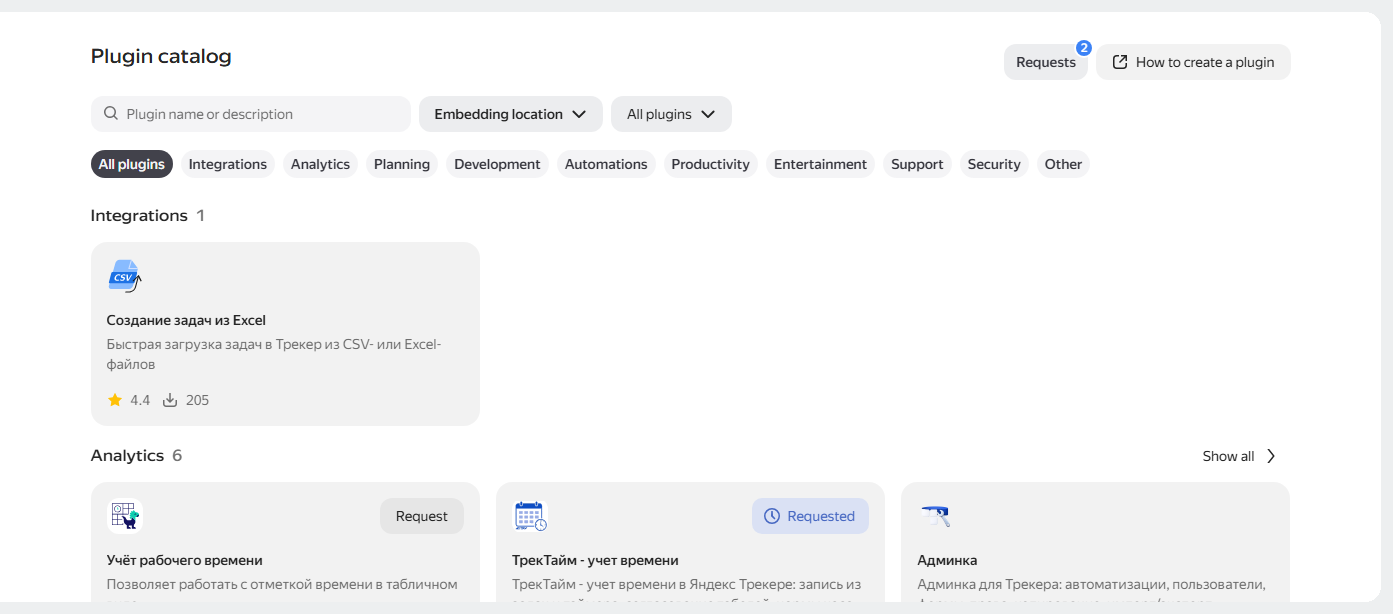
Plugin catalog
Only a Tracker administrator can enable and remove plugins at the organization level.
Access to plugins and data
The administrator controls which plugins are available to the organization's employees. Until the administrator adds a plugin to the organization, employees will not be able to enable it. How to find and enable a plugin
Before adding a plugin, the administrator can review the list of permissions it requests. The platform isolates plugins and allows them to perform only the stated actions.
The plugin performs actions on behalf of the user and cannot obtain data that is not available to that user.
Add a plugin to an organization
-
Open Tracker and log in to the administrator account. Sign in to Tracker
-
In the left panel, select Plugins, then click Plugin catalog at the top of the page.
-
Find the desired plugin using the search or in the list of categories and click the plugin card.
-
To allow employees to use the plugin, click Add to organization.
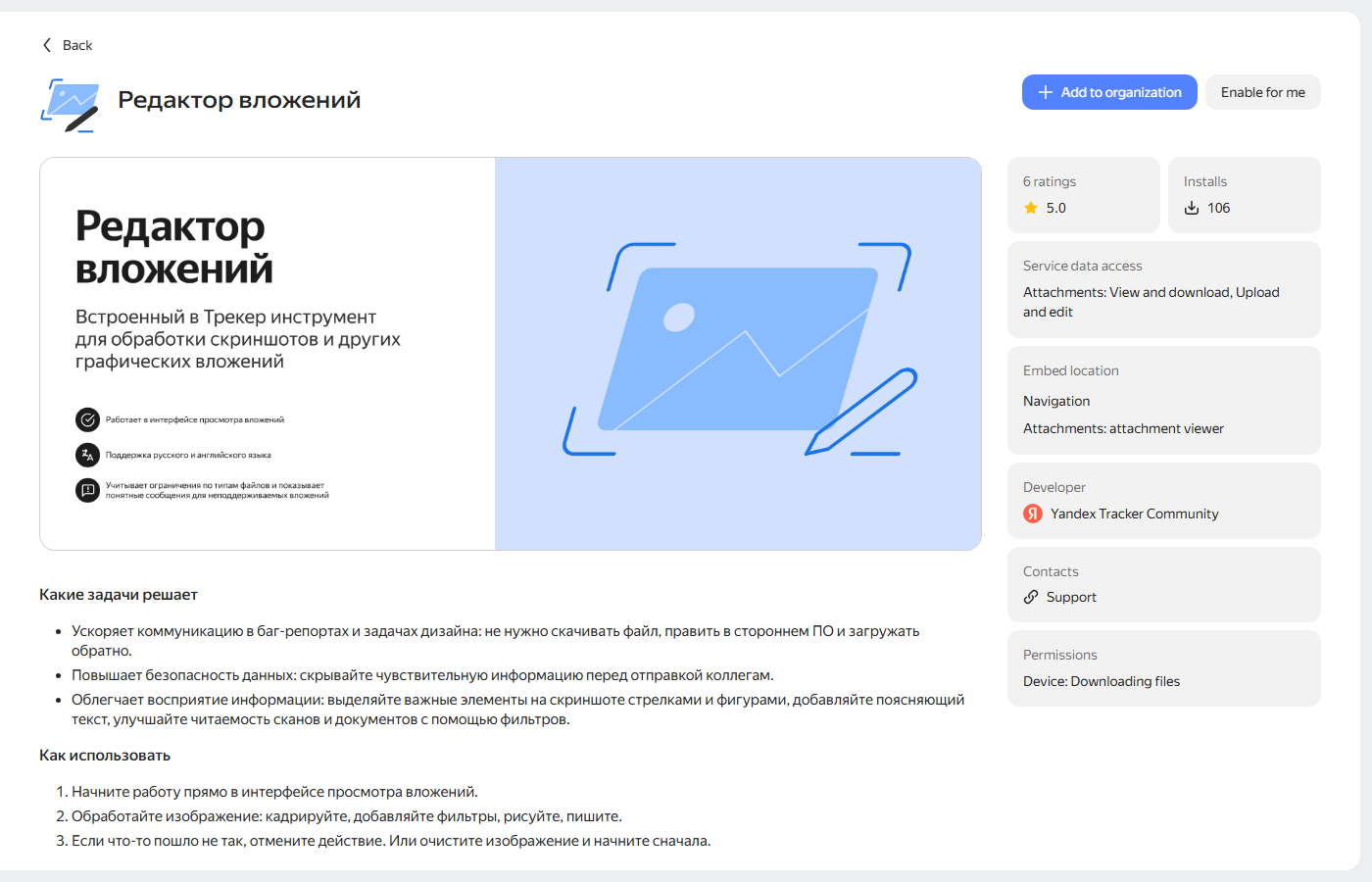
If you want to test the plugin before making it available to employees, click For me.
-
Review the list of permissions requested by the plugin: for example, access to issues, queues, or Tracker fields, as well as to the device's camera, microphone, or clipboard.
-
Click Allow.
A plugin is a third-party developer's application. By enabling it, you grant it access to the data from the permissions list. For questions about the use of this data, contact the plugin developer. Contact the plugin developer
After that, the plugin gets the In organization status. Employees can enable it for themselves, and queue administrators can enable it for the queues where they have administrative rights. The plugin can be enabled both ways at the same time. How to connect and use plugins
Configure a plugin
A Tracker administrator can enable a plugin for all organization users or for selected queues. These settings are independent of each other.
-
In the left panel, select Plugins, then click Plugin catalog at the top of the page.
-
Find the plugin with the In organization status and open its page.
-
In the upper-right corner, click . The Connection settings page opens.
-
To enable the plugin for all organization users, turn on Enable for everyone by default.
-
To enable the plugin for selected queues, under Queues, click Enable.
To enable a plugin for a queue, click Enable, enter the queue name or key, and select it from the list. Then click Add.
Queue administrators will also be able to enable this plugin for their queues. How to enable a plugin for a queue
Approve an employee's request to enable a plugin
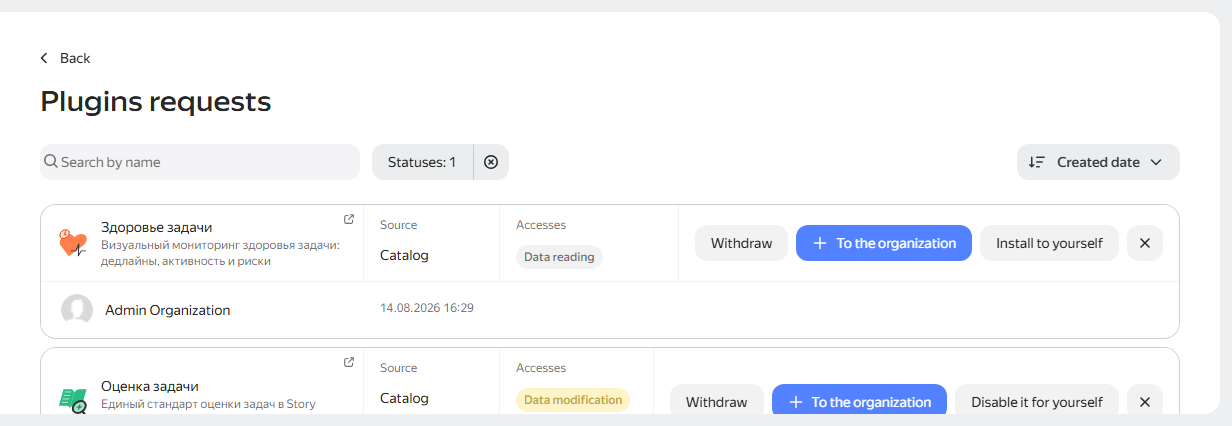
If an employee submits a request to enable a plugin that is not yet in the organization, you will see an icon with a red dot in the upper-right corner of the plugin catalog.
-
Click the icon to open the list of active requests. The list shows the requested plugins and the authors of the requests.
-
To approve the use of the plugin, click Add to organization in the request row. To test the plugin yourself first, click For me next to the desired request.
-
To reject a request, click the ✕ icon in the request row.
Approve a plugin developed in the organization
Your organization's employees can develop their own plugin and publish it only for internal use, without publishing it in the general catalog. How to publish a plugin for an organization
Such a plugin is first reviewed by the Tracker team. After that, an approval request will appear in the plugin catalog — just like a request to enable a plugin from the catalog, it is displayed by the icon in the upper-right corner. Until you approve the plugin, your organization's employees will not be able to enable it.
- Click the icon to open the list of active requests.
- Find the request to add a new plugin and open its page.
- Review the list of permissions requested by the plugin.
- To allow the use of the plugin in the organization, click Add to organization. To reject the request, click the ✕ icon.
After approval, the plugin gets the In organization status — configure it just like a plugin from the general catalog.
Each new version of the plugin requires separate administrator approval.
To make a plugin created in the organization available to all Tracker users in the general catalog, the plugin author should contact support.
Disable a plugin for an organization
- In the left panel, select Plugins, then click Plugin catalog at the top of the page.
- Find the plugin with the In organization status and open its page.
- In the upper-right corner, click , then click Uninstall.
The plugin will disappear from the organization's catalog and will be disabled for all employees who managed to enable it for their queues or themselves.
Block the use of plugins in an organization
A Tracker administrator can allow or forbid the organization's employees to use plugins or debug their own custom plugins in Tracker.
To block the ability to use or debug plugins in your organization:
- Open Tracker and log in to the administrator account. Sign in to Tracker
- In the left panel, select Administration, then Plugin catalog.
- To block the use of plugins, disable the Plugins are available option.
- To block plugin debugging, disable the Plugin debugging is available option.