Slots
The location where a plugin is displayed and the mechanism for invoking it (for example, as a button or as part of a form) is determined by its slot. The slot is specified in the manifest. A plugin can be integrated into multiple slots simultaneously.
Plugin execution context
The plugin execution context is determined by the slot it occupies and contains the following information:
- The current Tracker theme
- The current Tracker language
- Slot context — this is data from the environment of the page where the plugin is running. For example, in the
issue.actionslot, information about the open issue is returned. The context format closely resembles the public API types.
The slot context level is set by the contextLevel parameter in manifest.json. For more information about context levels, see Slot context levels.
Available integration points
Expanding available integration points
We are constantly adding new integration points. You can submit a request to add a new slot using the form.
A slot determines where and how a user will launch your plugin. Choosing the right slot is not about technicalities, but about the moment when the user needs your functionality and where they will look for it.
Before choosing a slot, answer this question: When does the user need your plugin?
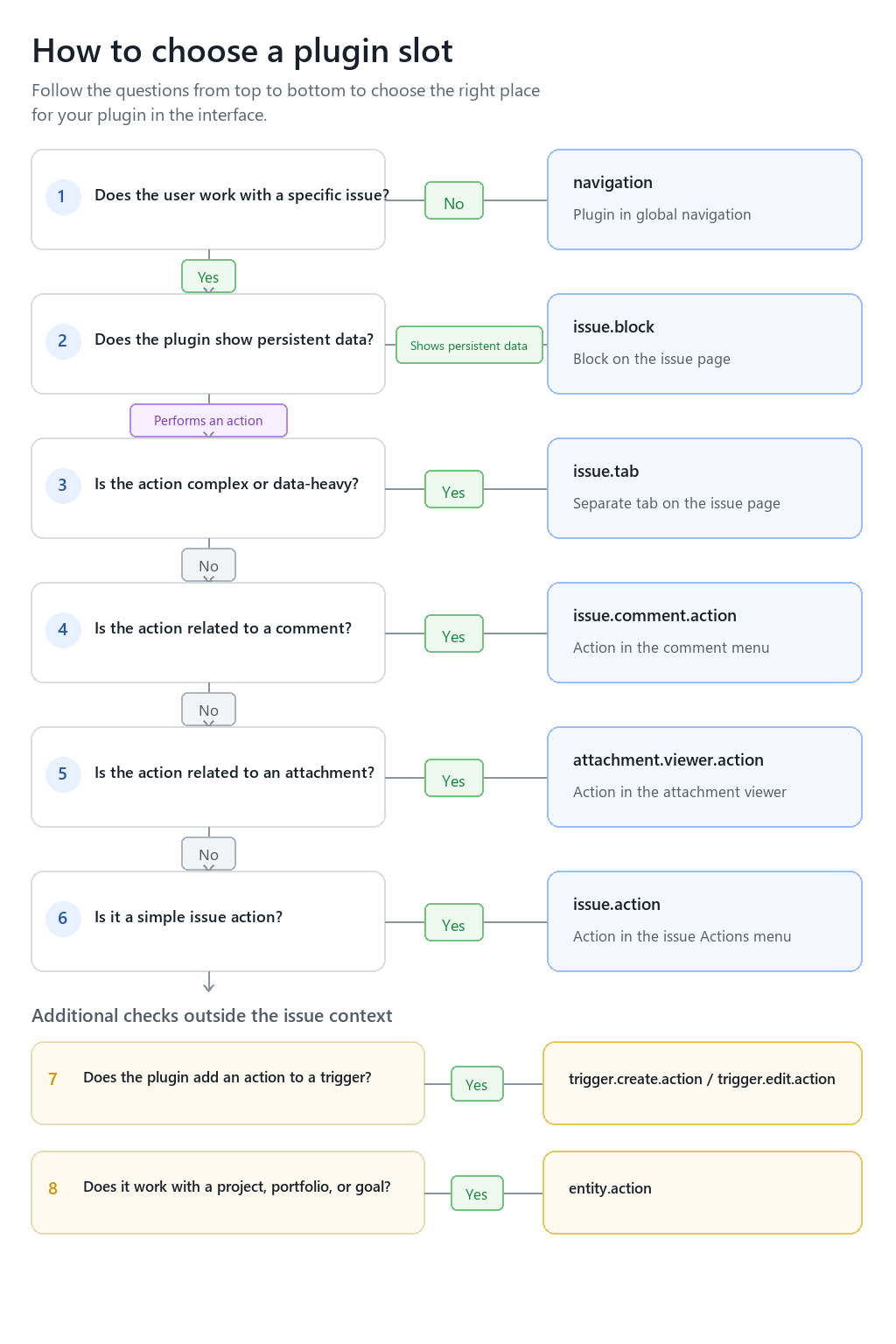
Flowchart: How to choose a slot for a plugin
Global
| Slot | Description | Window Format | Slot Context |
|---|---|---|---|
| navigation | Global left navigation panel, "Apps" section | Plugin opens on a separate page and has its own URL | Empty object |
| attachment.viewer.action | Gallery. Button in the actions menu | Modal window | Attachment data |
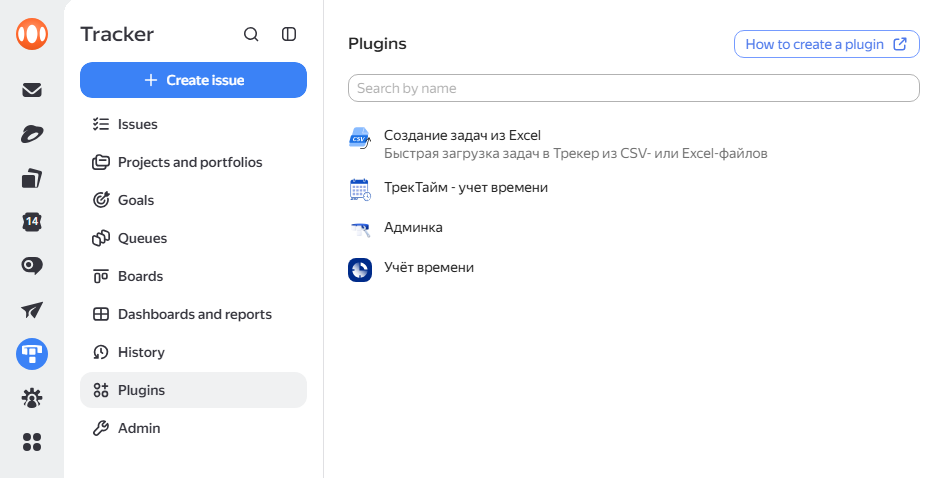
Plugin as a standalone tool — navigation
The user comes to Tracker not to work on a specific issue, but to use your tool: import data, view a report, perform a bulk operation. They go to the left panel — where "Issues", "Projects", and "Dashboards" are located.
This is your slot if:
-
The plugin solves a task independently of a specific issue or queue
-
The user returns to it regularly or it is the entry point for a separate workflow
-
The result of the work is a list, report, or form, not an action on an entity
Not this slot if the plugin is always needed in the context of an issue — the user will not look for it in the navigation.
Format: A separate page with its own URL. This is the most spacious format — you can build a full-fledged interface.
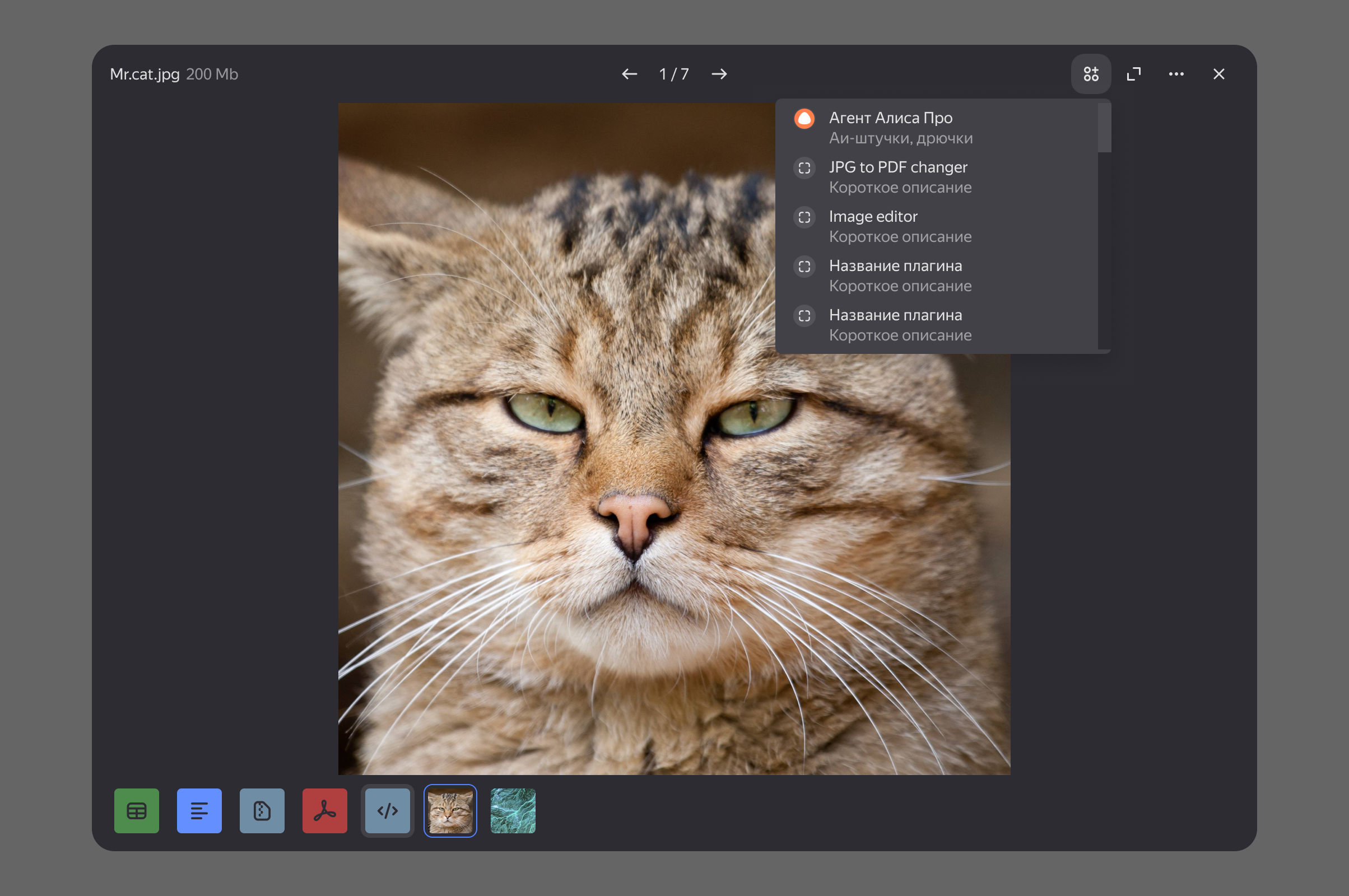
Action on an attachment — attachment.viewer.action
The user is viewing a file in the attachment gallery and wants to do something with it: edit an image, recognize text, convert it. They are inside the viewer and do not want to leave it.
This is your slot if:
-
The plugin needs a specific file — its type, content, URL
-
The action is logically related to viewing the file, not to the issue as a whole
Issue page
| Slot | Description | Window Format | Slot Context |
|---|---|---|---|
| issue.action | "Actions" menu in the top right corner of the issue page. | Modal window | Data of the open issue |
| issue.block | Area below the description in the issue. | Plugin is embedded in the area below the issue links in a collapsible section | Data of the open issue |
| issue.tab | Plugin as a tab on the issue page. | Plugin is embedded in the list of tabs. Has its own URL in the context of the issue. | Data of the open issue |
| issue.comment.action | Actions on a comment. | Modal window | Comment data |
| issue.editor.action | Text editor. Button in the lower panel of the editor. | Pop-up window anchored to the button | Data of the open issue |
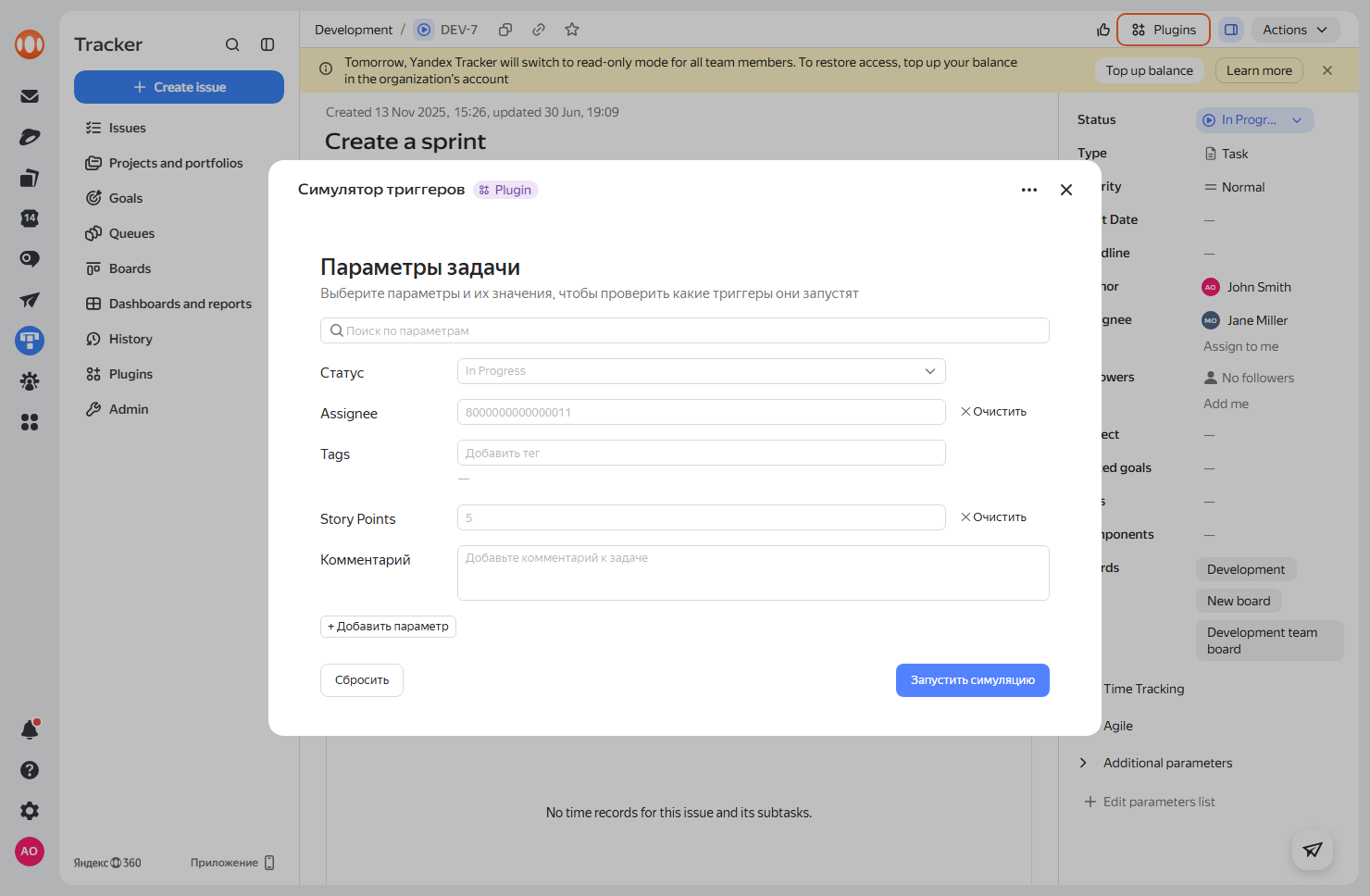
User wants to perform an action on an issue — issue.action
The user is looking at an issue and wants to do something with it: send it, generate something, start a process. They will reach for the "Actions" menu — where similar commands like "Create subtask" or "Copy issue" already reside.
This is your slot if:
-
The plugin is launched by user intent, rather than displaying data automatically
-
The result of the action does not need to be constantly visible on the page
-
The scenario is linear: launch → get result → close
Not this slot if the user should see the plugin's data every time they open the issue — then consider issue.block.
Format: Modal window, containing a single scenario.
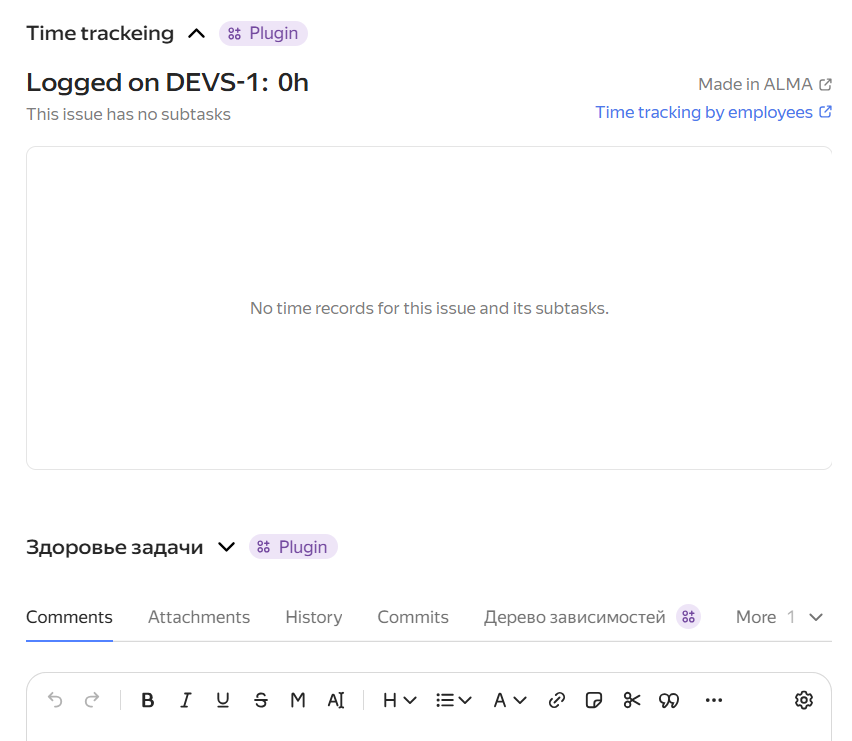
Plugin data is needed every time an issue is opened — issue.block
The user opens an issue and the context from your plugin helps them work — they see deployment status, linked PRs, data from an external system. They don't need to launch anything; the data is just there.
This is your slot if:
-
The plugin shows status or data, rather than performing an action
-
The information is always relevant when the user looks at the issue
-
There is no explicit trigger for launching — the plugin is useful on its own
Not this slot if the data is rarely needed or the plugin requires parameter input before display — then consider issue.action or issue.tab.
Format: Embedded collapsible section below the links block. The user can collapse it if not needed right now.
Important about height: The block loads along with the issue page. Don't make it huge — the height should be justified by the content, otherwise the block will visually "push down" the page.
Complex tool within an issue — issue.tab
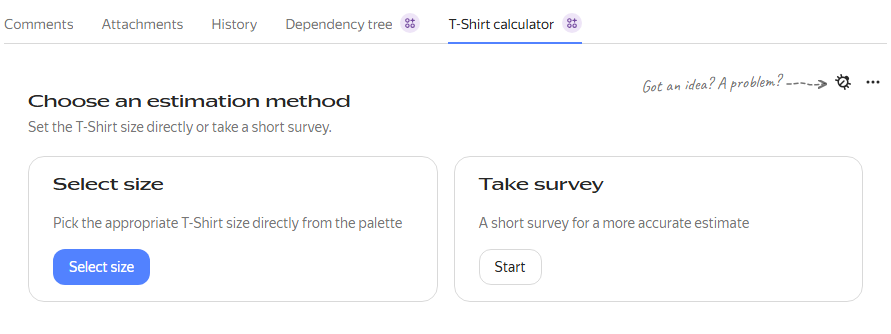
The user is working on an issue and needs a full-fledged tool: lots of data, its own navigation, a large table. They habitually go to a tab — like "Comments" or "History".
This is your slot if:
-
The plugin's content doesn't fit in a block or modal without losing convenience
-
The user needs to switch between the plugin and the issue page
-
There is internal logic: filters, lists, multiple states
Not this slot if the functionality is simple — a tab creates the impression that something big will be there. An empty or almost empty tab looks like an error.
Format: Embedded area in the context of the issue.
Action applies to a specific comment — issue.comment.action
The user is reading a comment and wants to do something with it: create a task, translate it, send it. They will reach for the "⋯" next to the comment — this is the natural place for actions on a specific message.
This is your slot if:
-
The plugin needs the text, author, or date of a specific comment
-
The action only makes sense for one comment, not for the issue as a whole
Format: Modal window, containing a single scenario.
Action inserts content into the editor — issue.editor.action
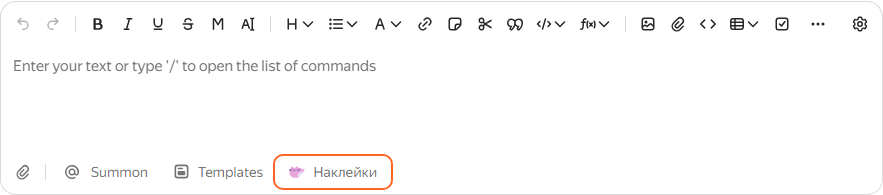
The user is writing a comment or description and wants to insert ready-made content: a template, generated text, data from an external system. They see a button in the lower panel of the editor — next to "Invite" and "Templates" — and launch the plugin without leaving the editor.
This is your slot if:
-
The plugin generates or selects text that needs to be inserted into the input field
-
The result of the plugin's work is a fragment of text or markup, not a separate action on the issue
-
The user launches the plugin while writing, not after
Not this slot if the plugin performs an action on the issue as a whole — then consider issue.action.
Format: Pop-up window anchored to the button. After finishing its work, the plugin inserts the result at the end of the editor's current content.
Queue page
| Slot | Description | Window Format | Slot Context |
|---|---|---|---|
| queue.action | "Actions" menu in the top right corner of the queue page. | Modal window | Data of the open queue |
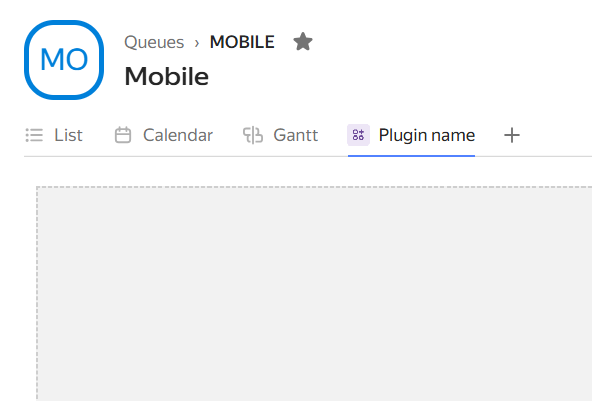
| queue.tab | Plugin as a tab on the queue page. | Plugin is embedded in the list of tabs. Has its own URL in the context of the queue. | Data of the open queue |
User wants to perform an action on a queue — queue.action
The user is looking at a queue and wants to do something with it: start a process, generate a report, perform a bulk operation. They will reach for the "Actions" menu — where similar commands already reside.
This is your slot if:
-
The plugin is launched by user intent, rather than displaying data automatically
-
The result of the action does not need to be constantly visible on the page
-
The scenario is linear: launch → get result → close
Format: Modal window, containing a single scenario.
Complex tool within a queue — queue.tab
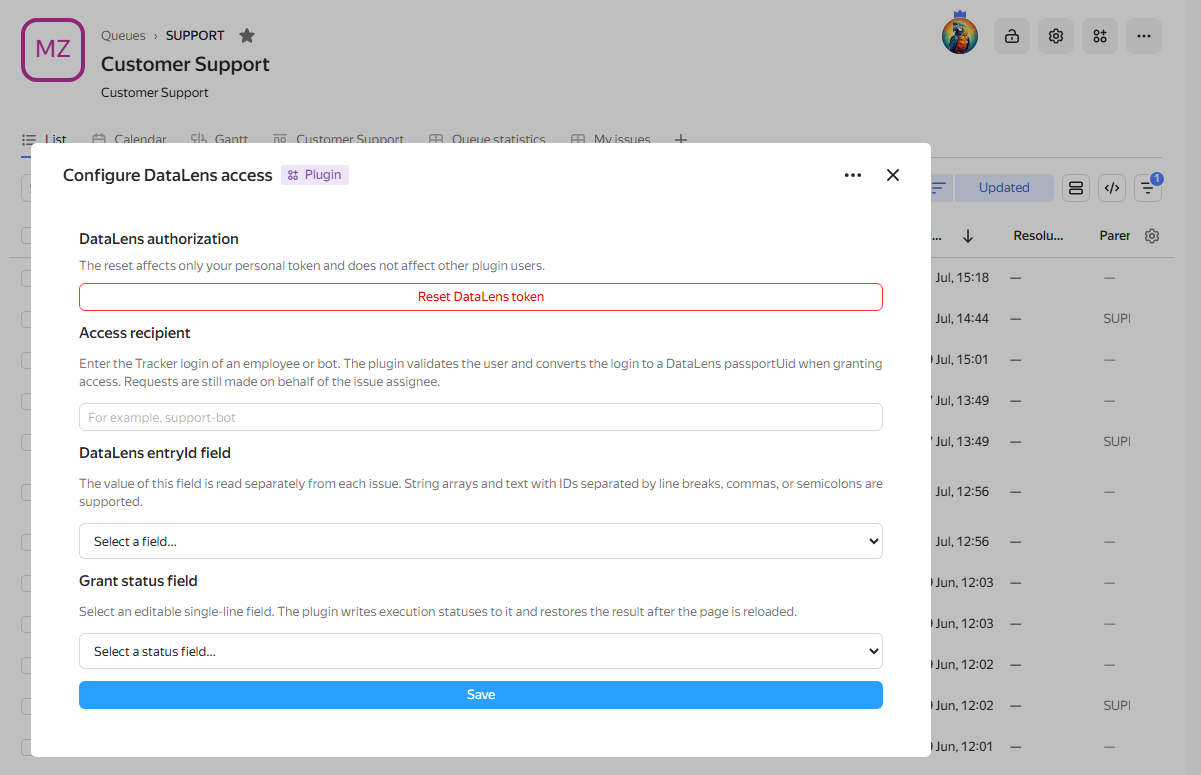
The user is working with a queue and needs a full-fledged tool: lots of data, its own navigation, a large table. They habitually go to a tab — like the other tabs on the queue page.
This is your slot if:
-
The plugin's content doesn't fit in a modal without losing convenience
-
The user needs to switch between the plugin and the queue page
-
There is internal logic: filters, lists, multiple states
Not this slot if the functionality is simple — a tab creates the impression that something big will be there. An empty or almost empty tab looks like an error.
Format: Embedded area in the context of the queue.
Automations
| Slot | Description | Window Format | Slot Context |
|---|---|---|---|
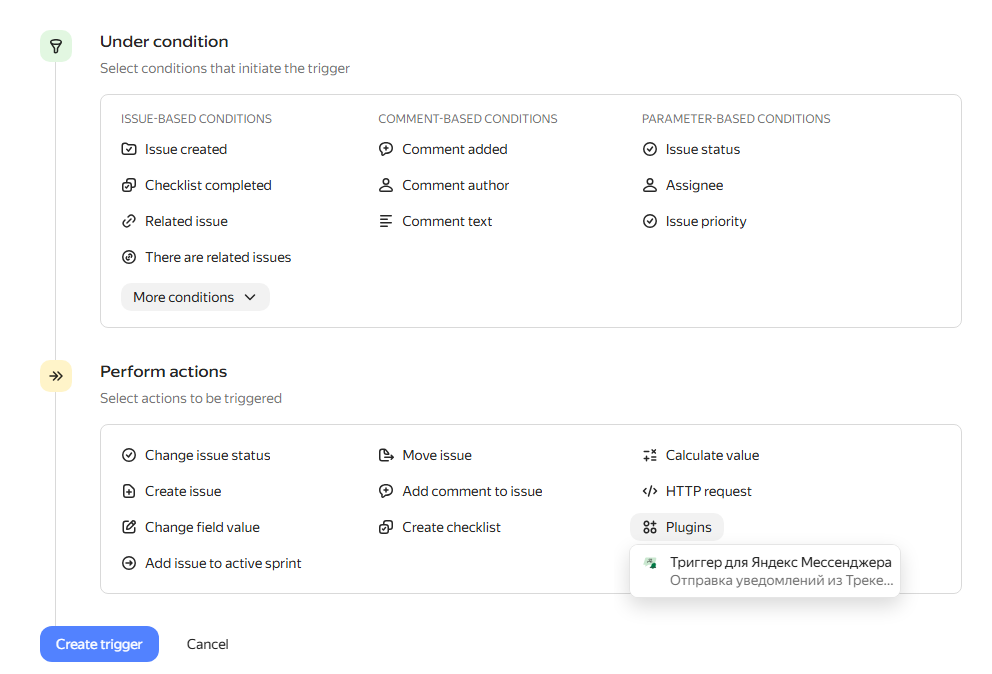
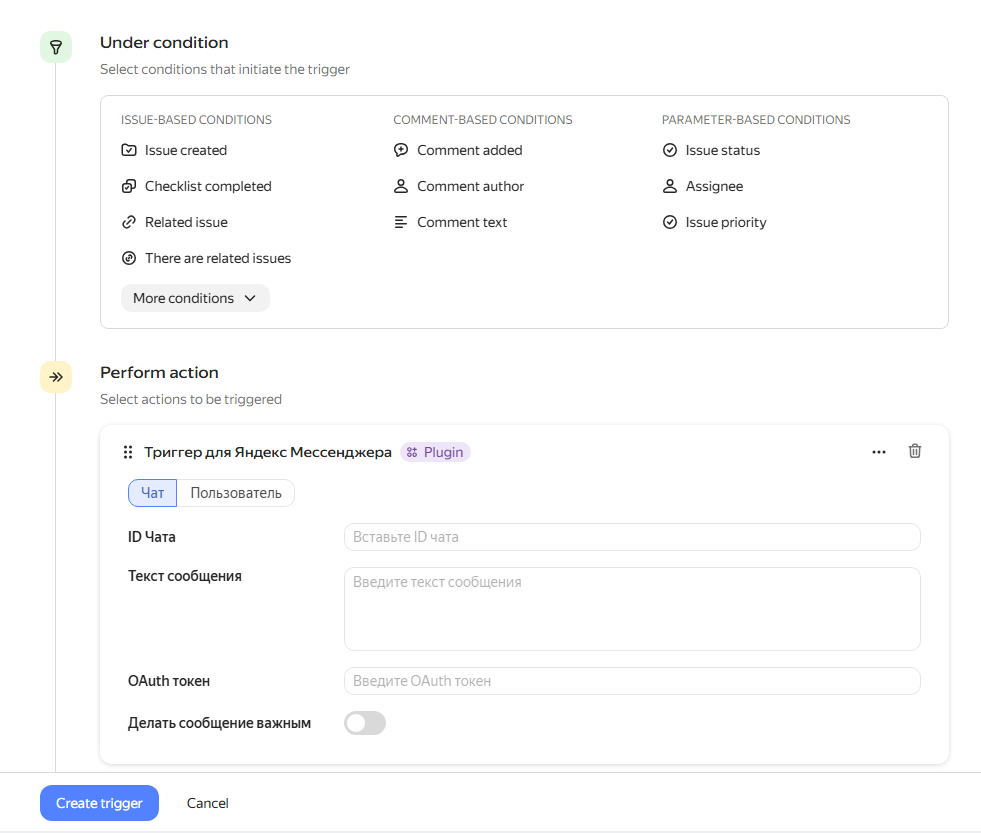
| trigger.create.action | Trigger page. Creating an action. UI plugins for simplifying the webhook creation form; they have no additional logic. | A new action type appears; the plugin provides the action form | Queue key |
| trigger.edit.action | Trigger page. Editing an action. UI plugins for simplifying the webhook editing form; they have no additional logic. | A new action type appears; the plugin provides the action form | Queue key and action data |
New action type in a trigger — trigger.create.action + trigger.edit.action
An administrator is setting up automation and wants to add an action that is not in the standard list: send a notification to their system, run a webhook with custom parameters. They select the action type from the list — the plugin appears there as a new option.
These are your slots if:
-
The plugin adds a new type of automatic action, rather than working with the user in real time
-
A configuration form is needed: the user sets parameters once when creating the trigger
Important: These two slots almost always go together. If you provide the ability to create an action, the user must also be able to edit it — otherwise, when modifying the trigger, they will see an empty form.
Format: Embedded form within the trigger page. Stylistically, it should look like a native part of the automation, without extra frames and headings.
Project
| Slot | Description | Window Format | Slot Context |
|---|---|---|---|
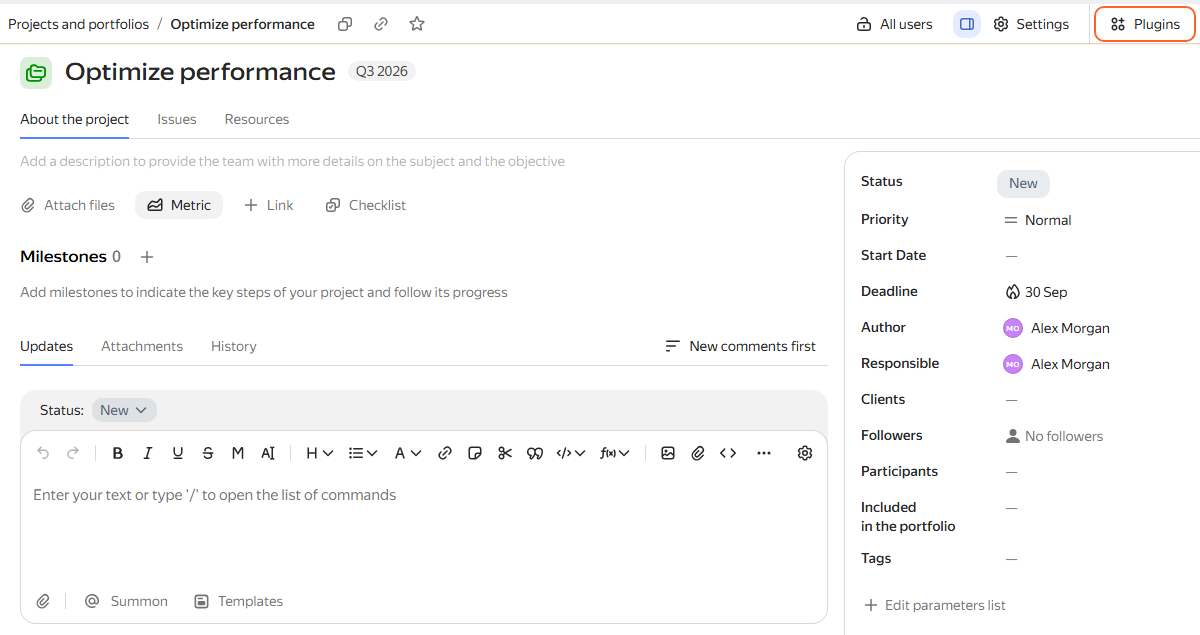
| project.action | Project page. "Project menu" button | Modal window | Project data |
| project.page-tab | Top-level tab on the project page. | The plugin is embedded in the top tab list. On the full page, the tab has its own URL. | Project data |
| project.tab | Plugin as a tab on the project page. | Plugin is embedded in the list of tabs. Has its own URL in the context of the project. | Project data |
| project.block | Area below the project description. | Plugin is embedded in the area below the project links in a collapsible section | Project data |
drawer.project.page-tab is the same slot in the project side panel. Both slots use the same context as project.tab.
Portfolios
| Slot | Description | Window Format | Slot Context |
|---|---|---|---|
| portfolio.action | Portfolio page. "Portfolio menu" button | Modal window | Portfolio data |
| portfolio.page-tab | Top-level tab on the portfolio page. | The plugin is embedded in the top tab list. On the full page, the tab has its own URL. | Portfolio data |
| portfolio.tab | Plugin as a tab on the portfolio page. | Plugin is embedded in the list of tabs. Has its own URL in the context of the portfolio. | Portfolio data |
| portfolio.block | Area below the portfolio description. | Plugin is embedded in the area below the portfolio links in a collapsible section | Portfolio data |
drawer.portfolio.page-tab is the same slot in the portfolio side panel. Both slots use the same context as portfolio.tab.
Goals
| Slot | Description | Window Format | Slot Context |
|---|---|---|---|
| goal.action | Goal page. "Goal menu" button | Modal window | Goal data |
| goal.page-tab | Top-level tab on the goal page. | The plugin is embedded in the top tab list. On the full page, the tab has its own URL. | Goal data |
| goal.tab | Plugin as a tab on the goal page. | Plugin is embedded in the area below the list of tabs. Has its own URL in the context of the goal. | Goal data |
| goal.block | Area below the goal description. | Plugin is embedded in the area below the goal links in a collapsible section | Goal data |
drawer.goal.page-tab is the same slot in the goal side panel. Both slots use the same context as goal.tab.
project.action / portfolio.action / goal.action
The user is working with a project, portfolio, or goal and wants to perform an action in this context. The mechanics are the same: "⋯" button in the top right corner of the page, modal window.
Choose the slot based on what data the plugin needs:
-
Need the ID and parameters of a project →
project.action -
Need portfolio data →
portfolio.action -
Need goal data →
goal.action
If the plugin is universal and should work in all three contexts — you can specify all three slots simultaneously.
Boards
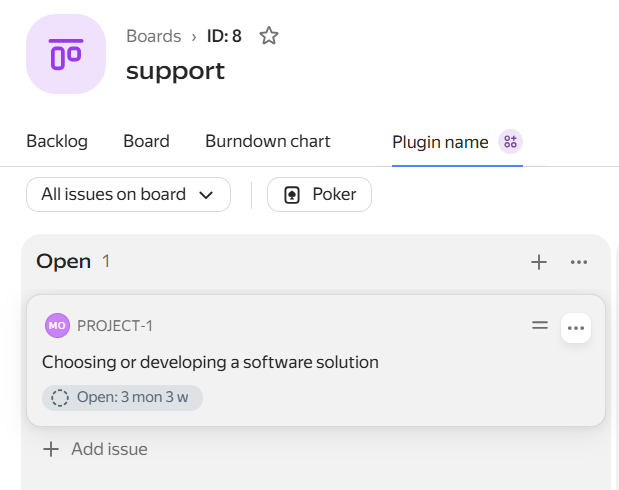
| Slot | Description | Window Format | Slot Context |
|---|---|---|---|
| board.tab | Board page, board tab | Content on the page | Board data |