Set up a planning board
The TRACKER queue already has a basic board: to open it, go to the Board tab.
If you don't use this queue, create a new board by following the instructions in this article.
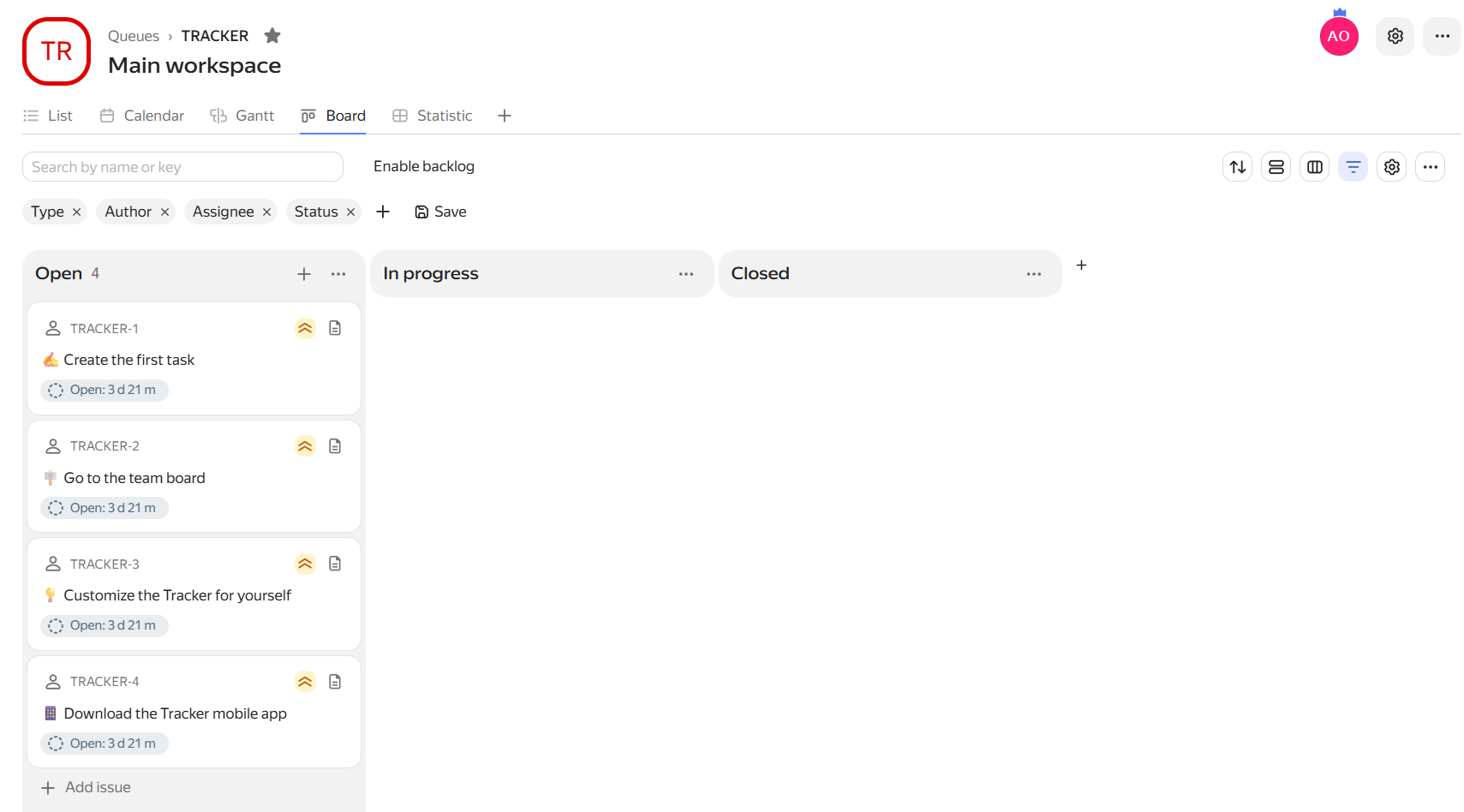
Your first board
Why you need a board
Once you have a queue and your first issues, you can start organizing your data. It's hard to track what's in progress, what's under review, and where delays occur in a simple issue list.
A board helps with daily issue management. It lets your team see the big picture, quickly update statuses, plan workload, and discuss it in meetings.
A board is a visual representation of issues arranged in columns. Each column corresponds to a status, for example , , .
How to create a board
In the left panel, click Issue boards → Create board. Tracker will offer two options: a basic board and a board with backlog and sprints. Choose the one that best fits your work style.
-
Basic — if you work using the Kanban system and issues come in continuously. This is most often chosen by support services, sales departments, and other teams that handle user requests or questions.
-
With backlog and sprints — if you work using the Scrum system and plan issues 1–4 weeks in advance.
The team selects issues from the backlog into a sprint, works on them for a fixed period, and summarizes the results at the end. This is how product teams, development, design, or marketing usually work.
If you're not sure which board you need — choose the basic one
The basic board has fewer settings: you'll understand how to use it faster. You can enable the advanced board version at any time if the basic one becomes insufficient. To do this, click Enable backlog on the basic board.
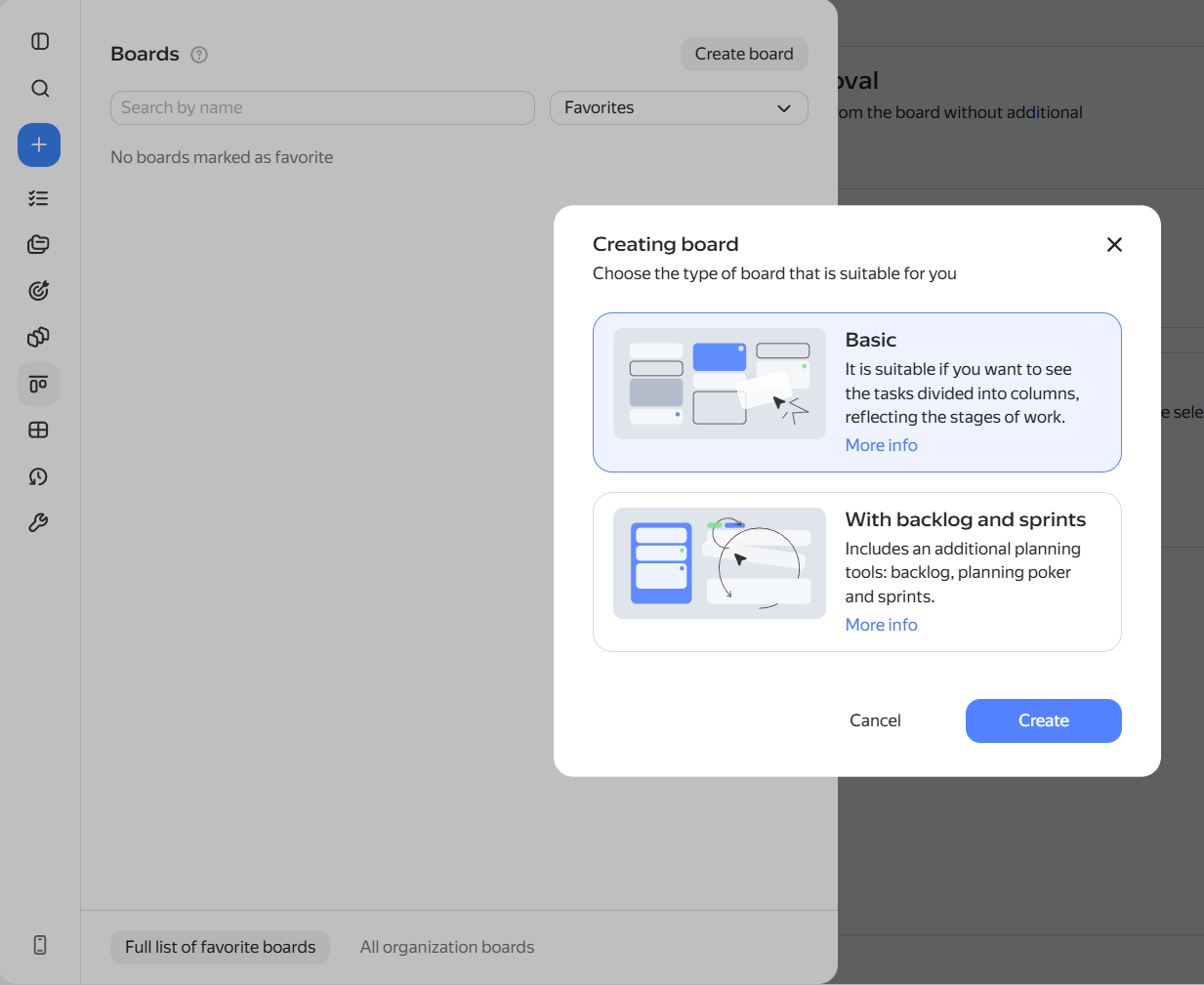
How to set up a board
The board is created empty. To avoid adding issues one by one manually, immediately set up automatic issue addition to the board:
- At the top of the board, click Board settings.
- Under Adding issues to the board, click Add parameters.
- Set search criteria: issues that match them will be added to the board. For example, select the Queue parameter and specify your "Development" queue as the value.
- Click Save.
When the board has many issues, hide unnecessary ones using filters. For example, save a separate filter for each assignee's issues or for each department. Read about filters in Working with issues on a board.
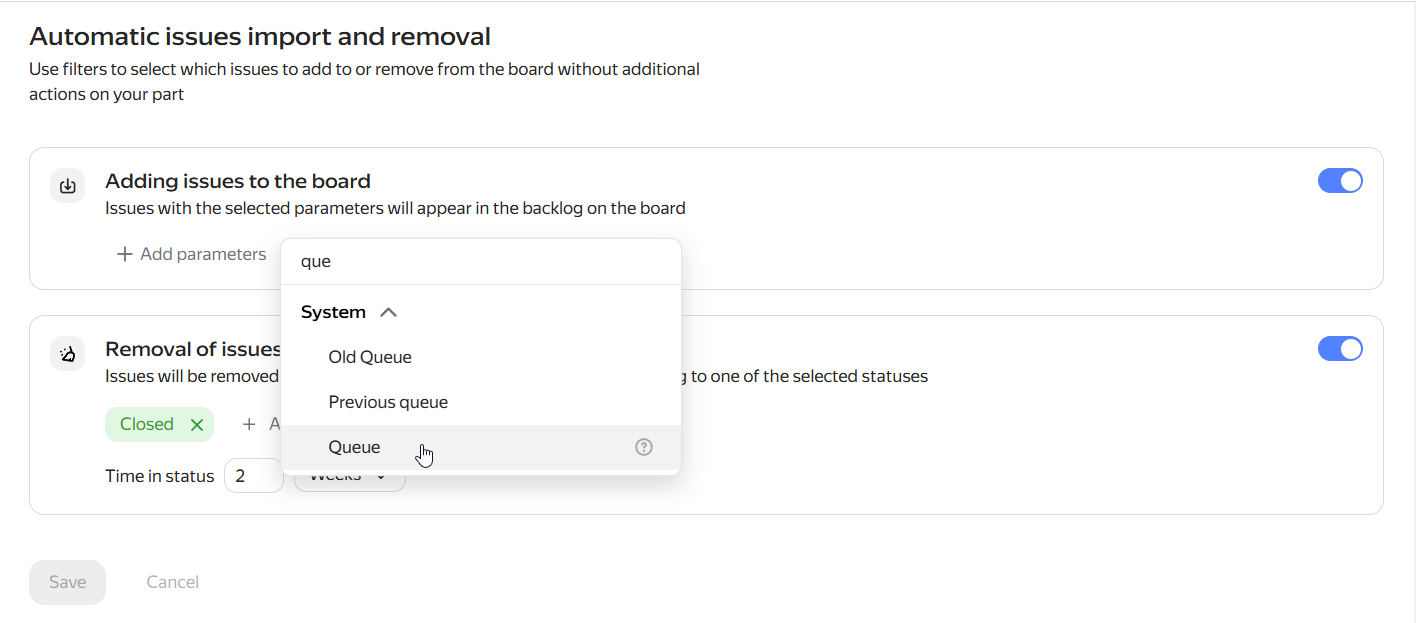
How to add issues to the board automatically
Features of a board with backlog and sprints
The Scrum board has a Backlog tab — this is where you add issues to a sprint and start it. Read how to plan a sprint in Backlog and Planning poker.
After running several sprints, you can evaluate the burn down chart. It shows whether the team is on track and how much work they typically complete per sprint. How to read the issue burn down chart