Create your first issue
Your queue is ready. Now create your first issue in it and describe what needs to be done, who will do it, and when the result is due.
Issue components
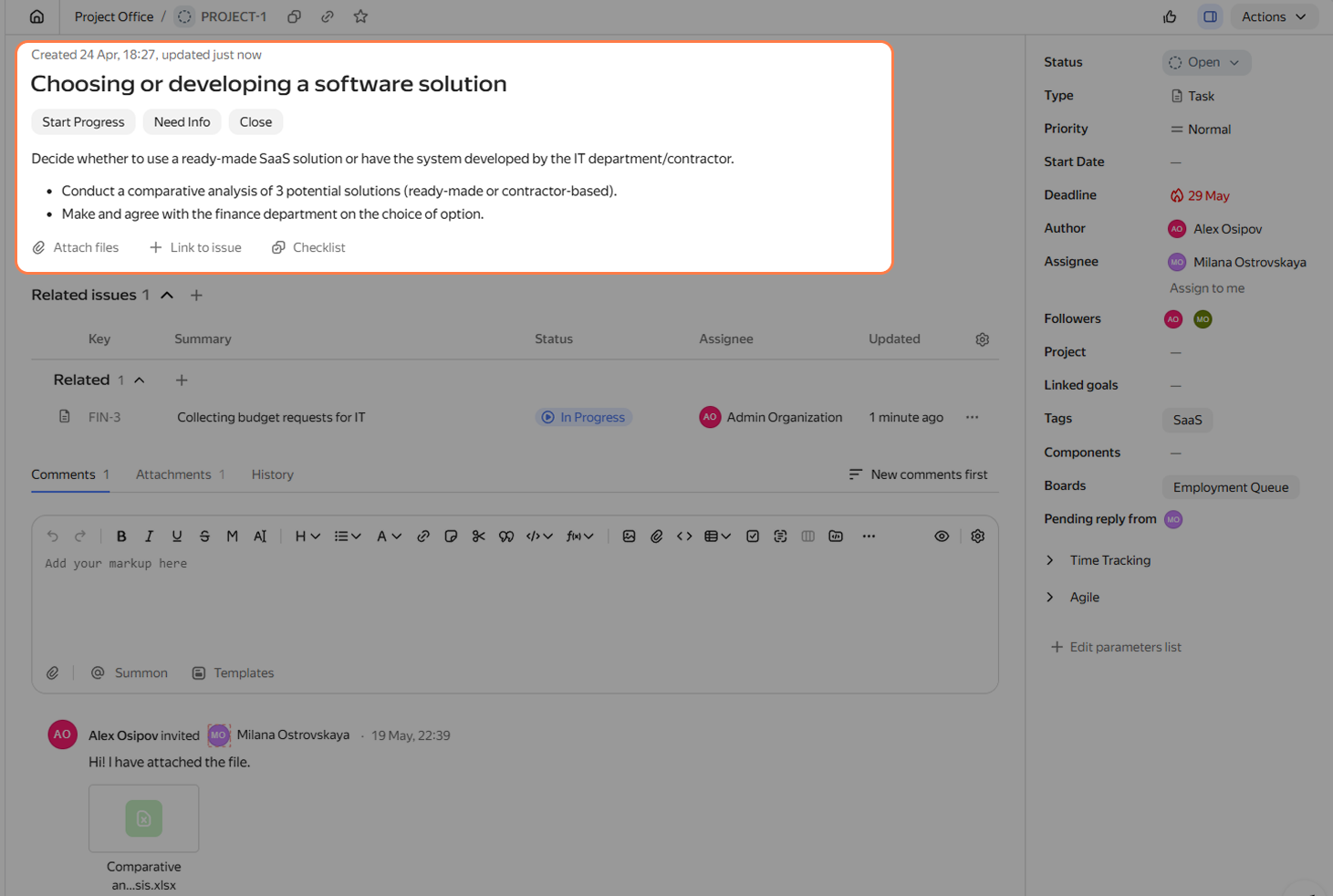
Every issue in Yandex Tracker consists of four main information blocks:
Briefly describe the issue in the summary and add details to the description: the expected result, important conditions, and links.
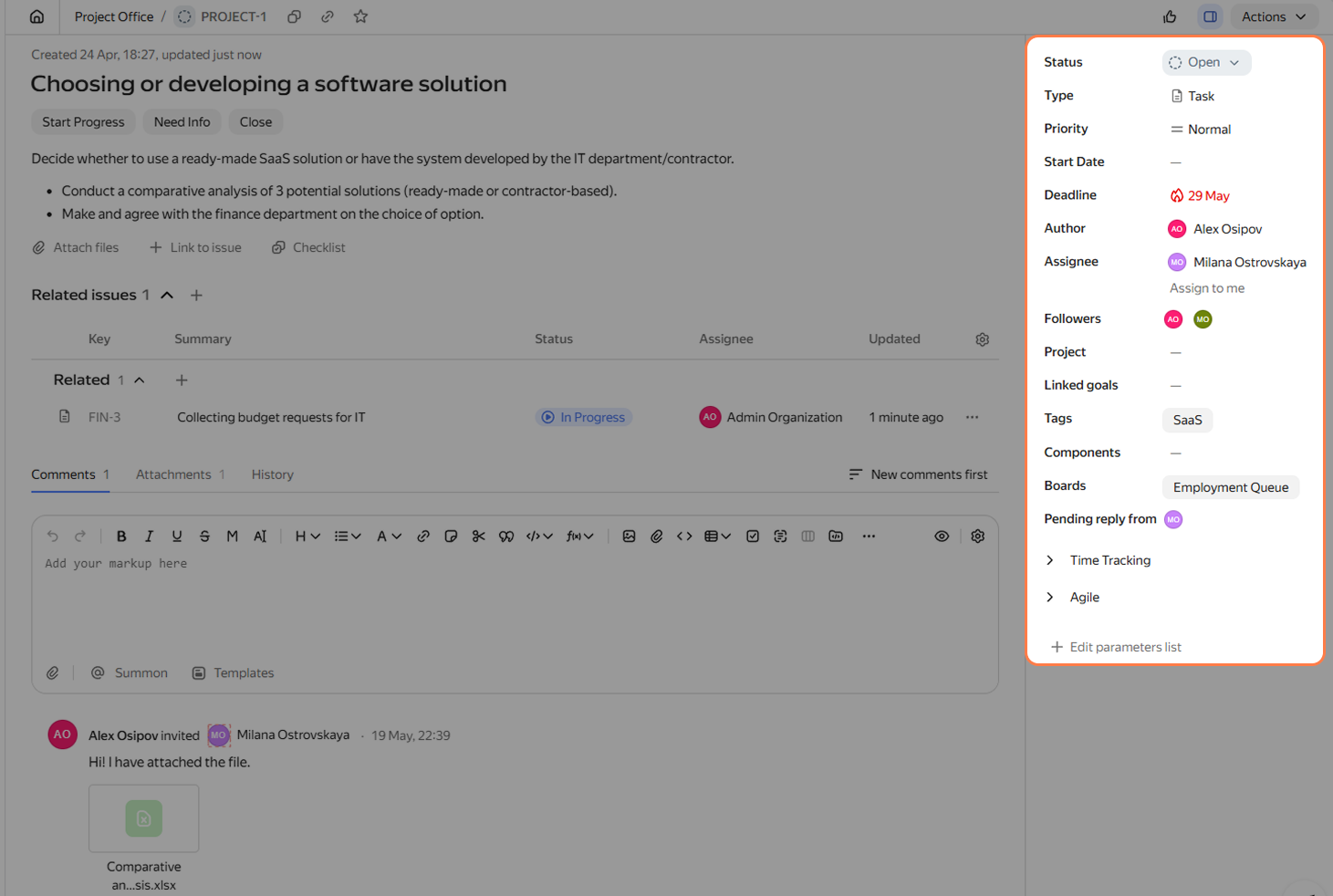
Here you can specify the deadline, assignee, followers, and other data that helps organize the work. Which parameters to fill in
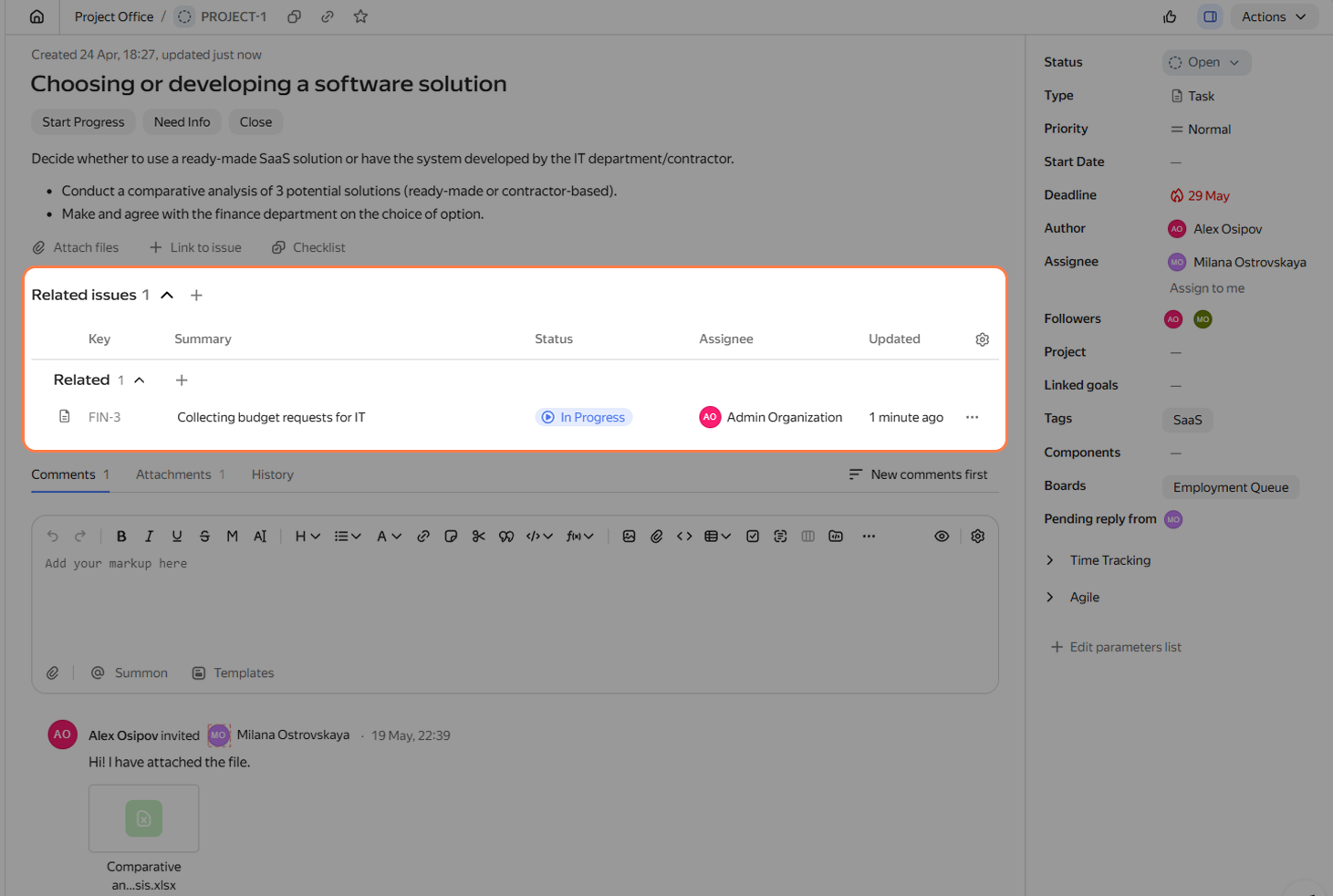
If information from another issue is useful for a new issue, create a link between them. This makes it easier for participants to understand dependencies and context. How to add related issues
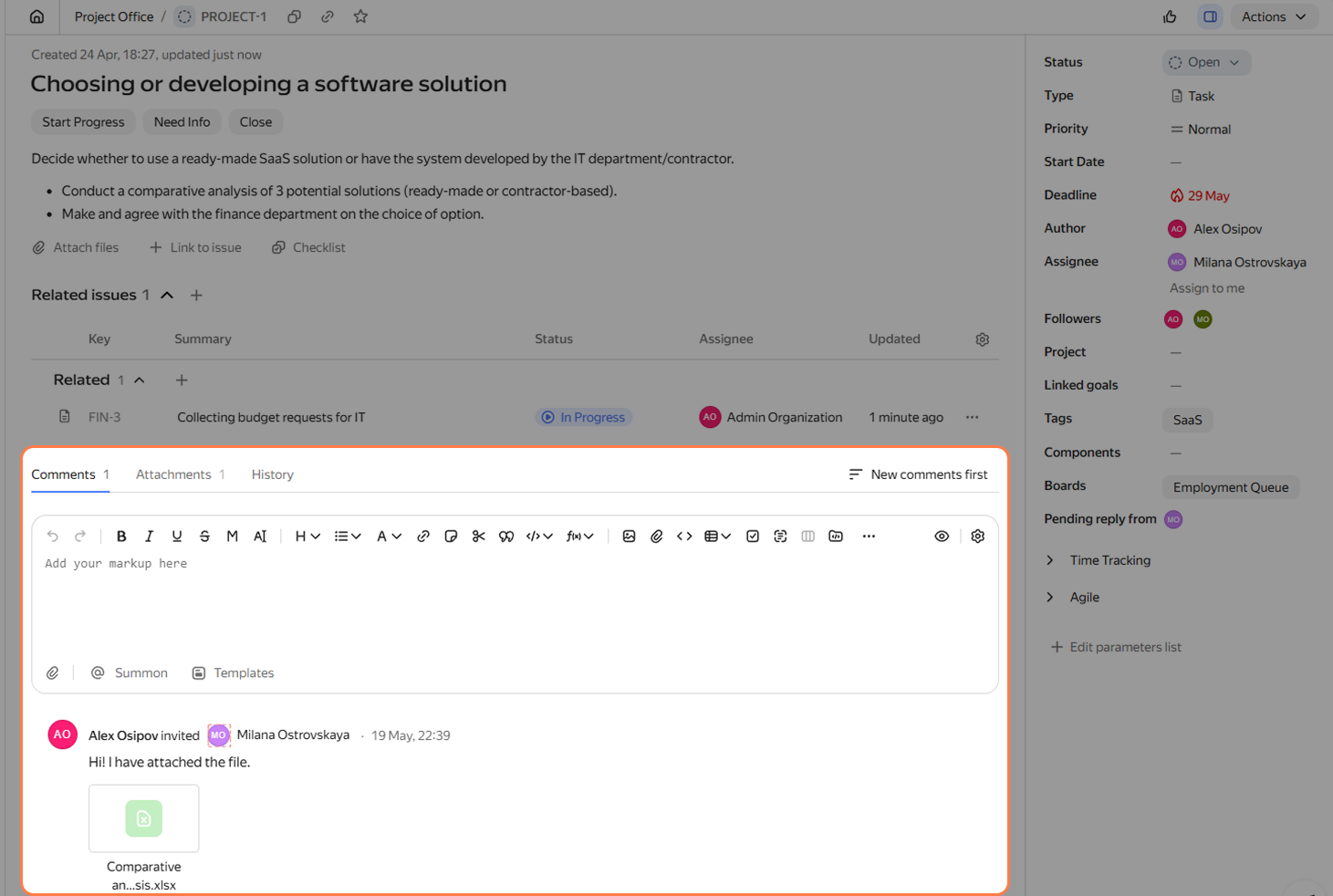
Discuss the work on the issue with your colleagues. Switch between tabs to view the issue's change history or attached files. How to write a comment
Step 1. Create an issue
- In the left panel, click Create issue.
- In the top-left corner, select the queue for the new issue.
- Give the issue a clear and concise name that reflects the essence of the task.
- In the description, provide more details about the required result and list the details that will help complete the issue.
Step 2. Fill in the issue parameters
- In the Deadline parameter, specify when the issue should be ready.
- In the Assignee parameter, specify one employee who should complete the issue. If a manager distributes tasks in your team, leave this field empty and ask them to assign an assignee.
- If there are colleagues who want to stay informed about the issue, add them to the Followers parameter: they will receive notifications when the issue status changes or a comment appears.
Other fields, such as Priority, Type, and Components, are most often used for analytics, search, and planning. Fill them in only if your team uses these parameters.
Add related issues
If information from another issue is useful for a new issue, create a link between them. This makes it easier for participants to understand dependencies and context.
In Yandex Tracker, you can denote dependencies between issues in different ways, for example:
-
Parent issue — Subtask: if a large issue is divided into several parts.
The "Prepare release" issue can be a parent issue, while "Write texts" and "Perform testing" can be subtasks.
-
Dependent issue — Blocking issue: if work cannot be performed until the previous stage is completed.
The "Publish page" issue can be blocked by the "Approve text" issue.
For all link types, see How to change issue links.
Advanced: issues from Yandex Forms
If you often create similar issues that require the same data, set up template-based issue creation using Yandex Forms. For example, you can use a form to accept requests for design, content, internal support, or other processes with recurring requests.
The client doesn't need access to Yandex Tracker: you can place the form on a website or send it in a message. They will fill in the ready-made fields, and an issue with the required description and parameters will appear in Yandex Tracker.
For more information, see How to set up Yandex Tracker integration with Yandex Forms.