Create a queue and workflow
Tracker already has your first queue ready: you can create issues for your team in it. Create your first issue
If one queue is not enough and you want to separate workflows, follow the instructions in this article.
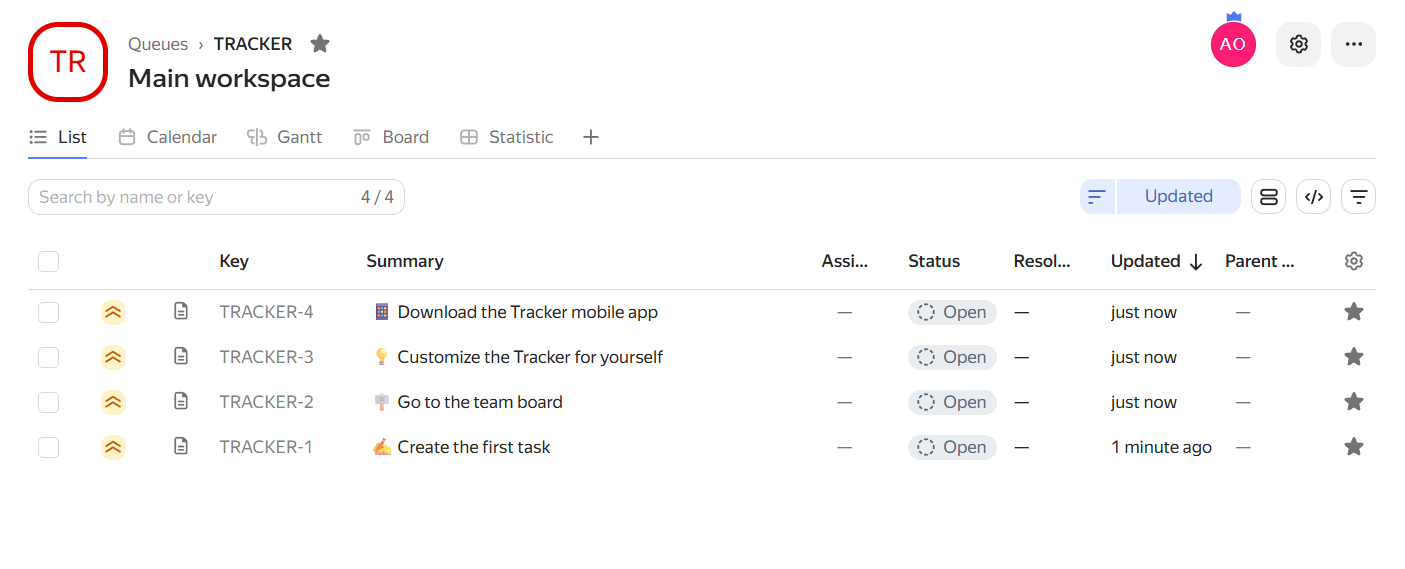
Your first queue
What is a queue
A queue is a space where issues are stored. For example, you can use a queue for a project, product, or line of work.
A workflow in a queue consists of the stages of working on an issue from creation to completion. The process is sometimes also called the issue lifecycle.
Step 1. Select a queue template
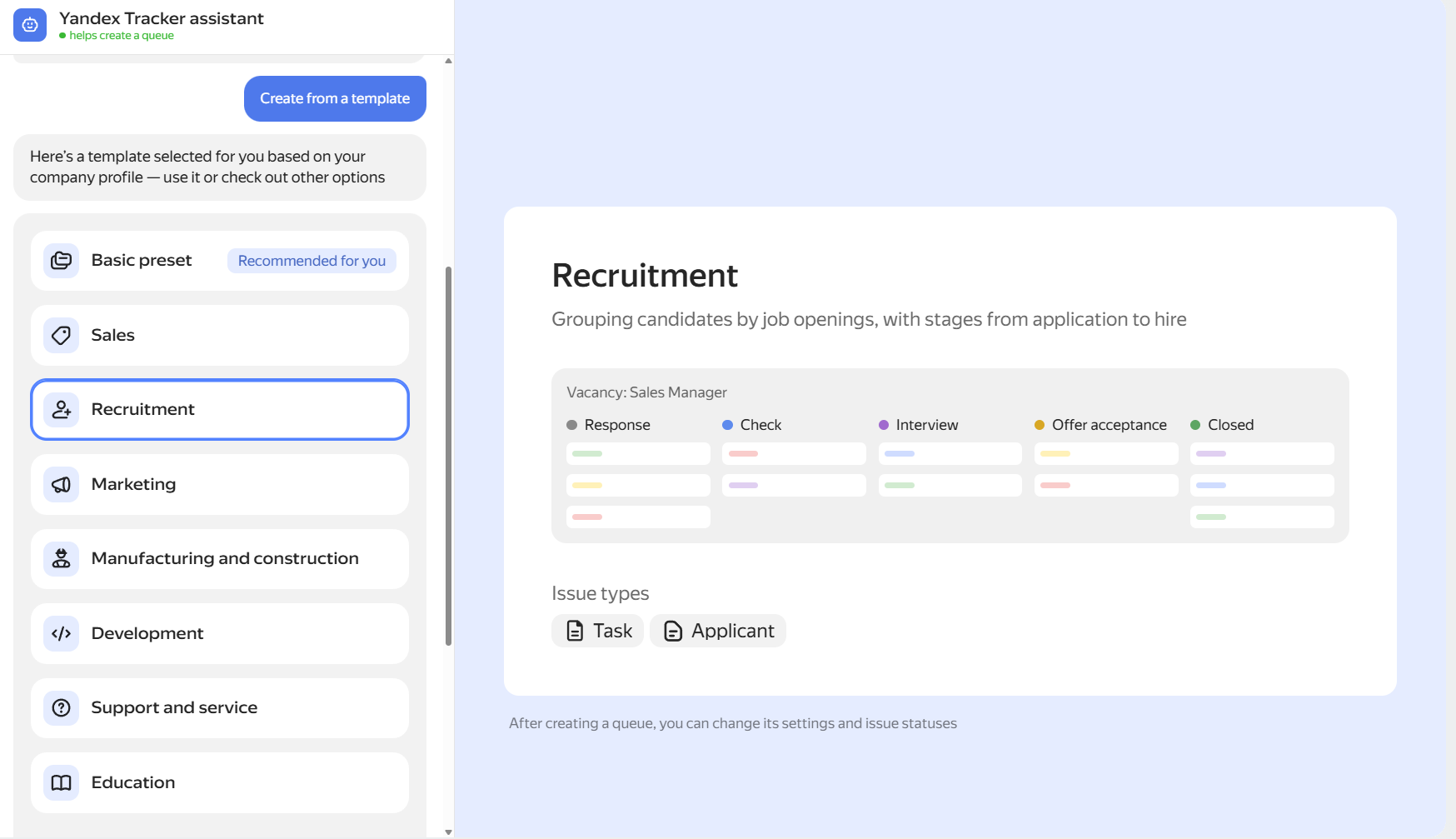
In the left panel, click Queues → Create queue. Tracker will prompt you to select a queue template—this is a preset with all the basic settings. When choosing, base your decision on what your team does.
Step 2. Name the queue
Give the queue a clear name, for example, Разработка сайта or Поддержка клиентов. This will make it easier for you and your colleagues to find it, especially when there are many queues.
In addition to the name, each queue has a key — a unique code made up of Latin letters. It is included in links to queue issues and is required for some settings and API requests. You cannot change the key after creating a queue.
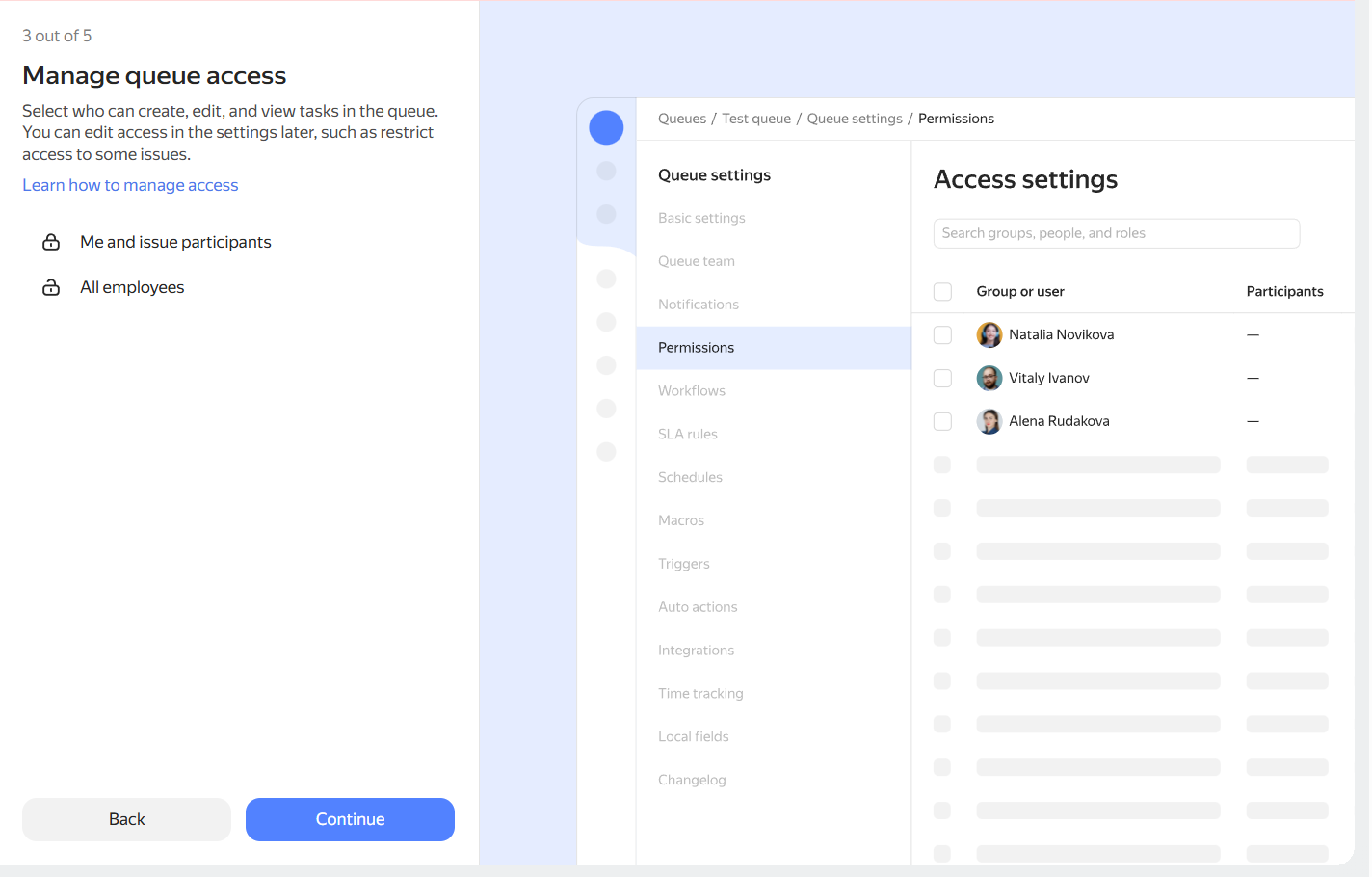
Step 3. Configure queue access
If you are just starting out in Tracker, enable the Add example issues option. In test issues, you can change any parameters and see what changes. They will also help you see how issues with different statuses look on the board or on the Gantt chart.
Add your own settings to the template
Over time, you may notice that your workflow has stages that are not provided for in the template, such as Тестирование or Ожидание ответа от юристов.
You can always add new stages or create transition rules between existing ones: for example, you can prohibit closing an issue without going through the Согласование status. To do this, go to Queue settings → Workflows. For details on how to configure everything, see the article Adding a status to a workflow.
