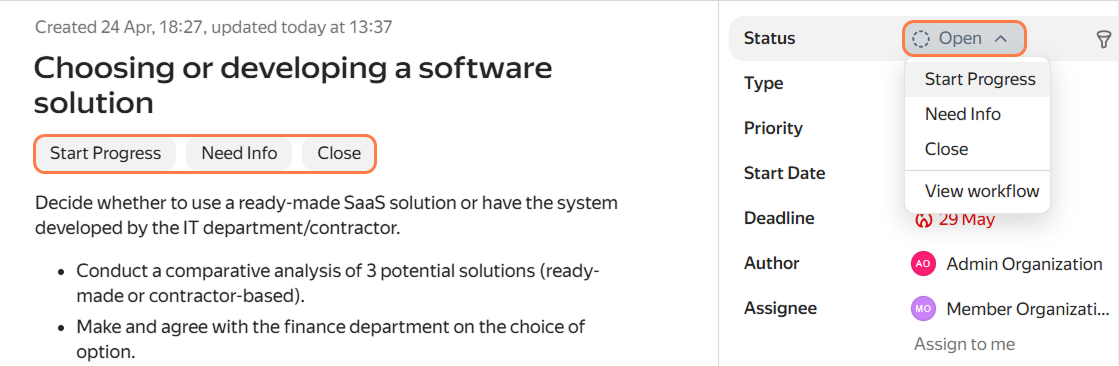
Start working on an issue
Most of the work in Tracker happens within issues. An issue is a single unit of work that describes what needs to be done, who is responsible for the result, and by what deadline it should be completed.
An issue has a name and a description, parameters for assigning responsible employees and tracking progress, and comments for discussing the work.
You need to handle issues according to your team's rules and processes. They might differ from what's described in this article. Here, we've compiled basic actions that you can use as a foundation.
Read the issue name and description
Check the issue before you start working: make sure you understand what needs to be done. If something is unclear, ask the issue author in the comments by clicking the Invite button. How to discuss an issue with colleagues
What to do if I'm the assignee, but the issue isn't mine
Sometimes an issue is assigned to you by mistake, or you realize it's not within your area of responsibility.
- If it's clear who should handle it: change the assignee in the right panel and leave a brief comment explaining why you're reassigning it. You can mention the new assignee in the comments using the Invite button—so they don't miss this change.
- If it's unclear who should handle it: don't change the assignee, but write a comment mentioning the issue author or manager. For example:
It seems this issue isn't within my area. Could you suggest who to reassign it to?.
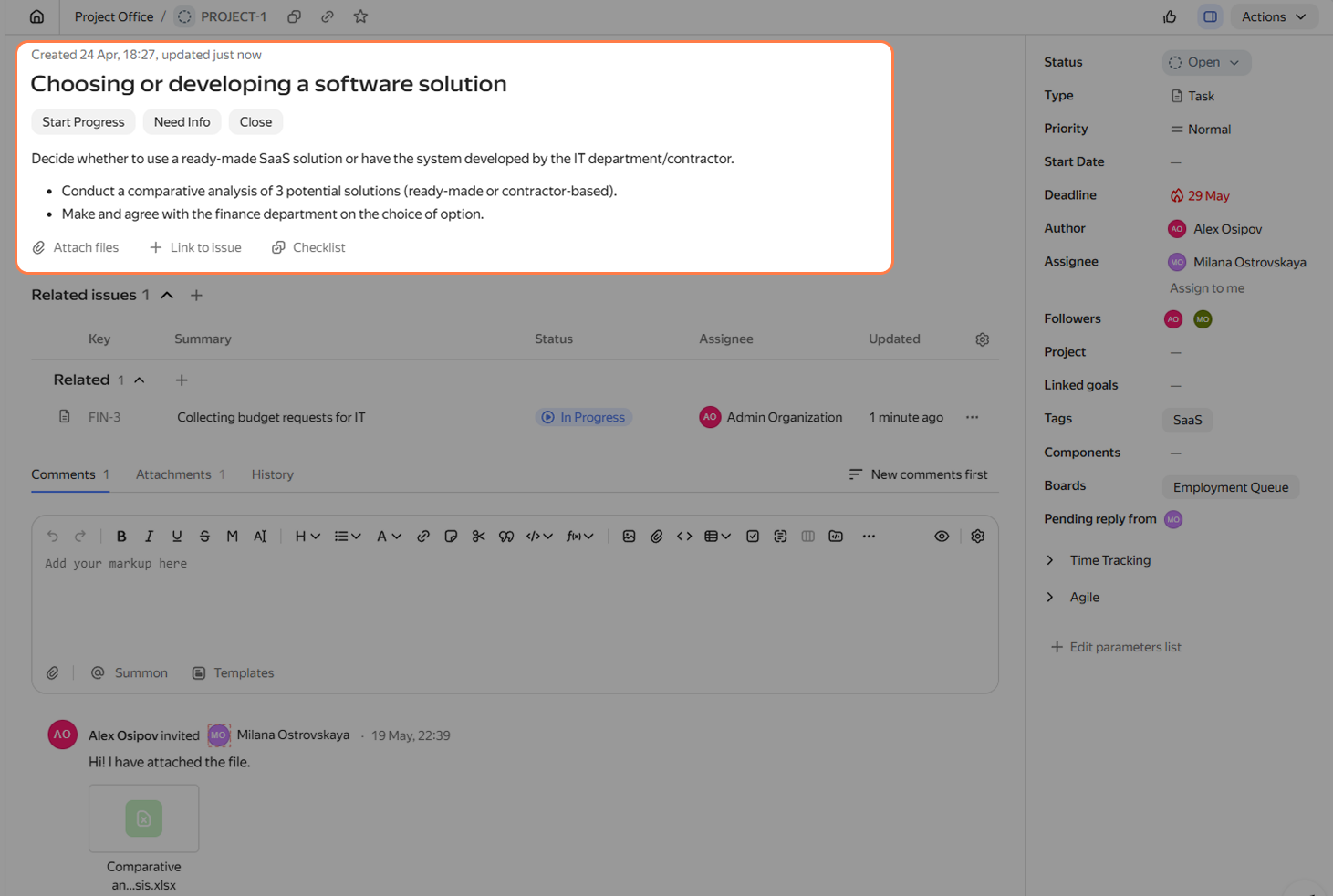
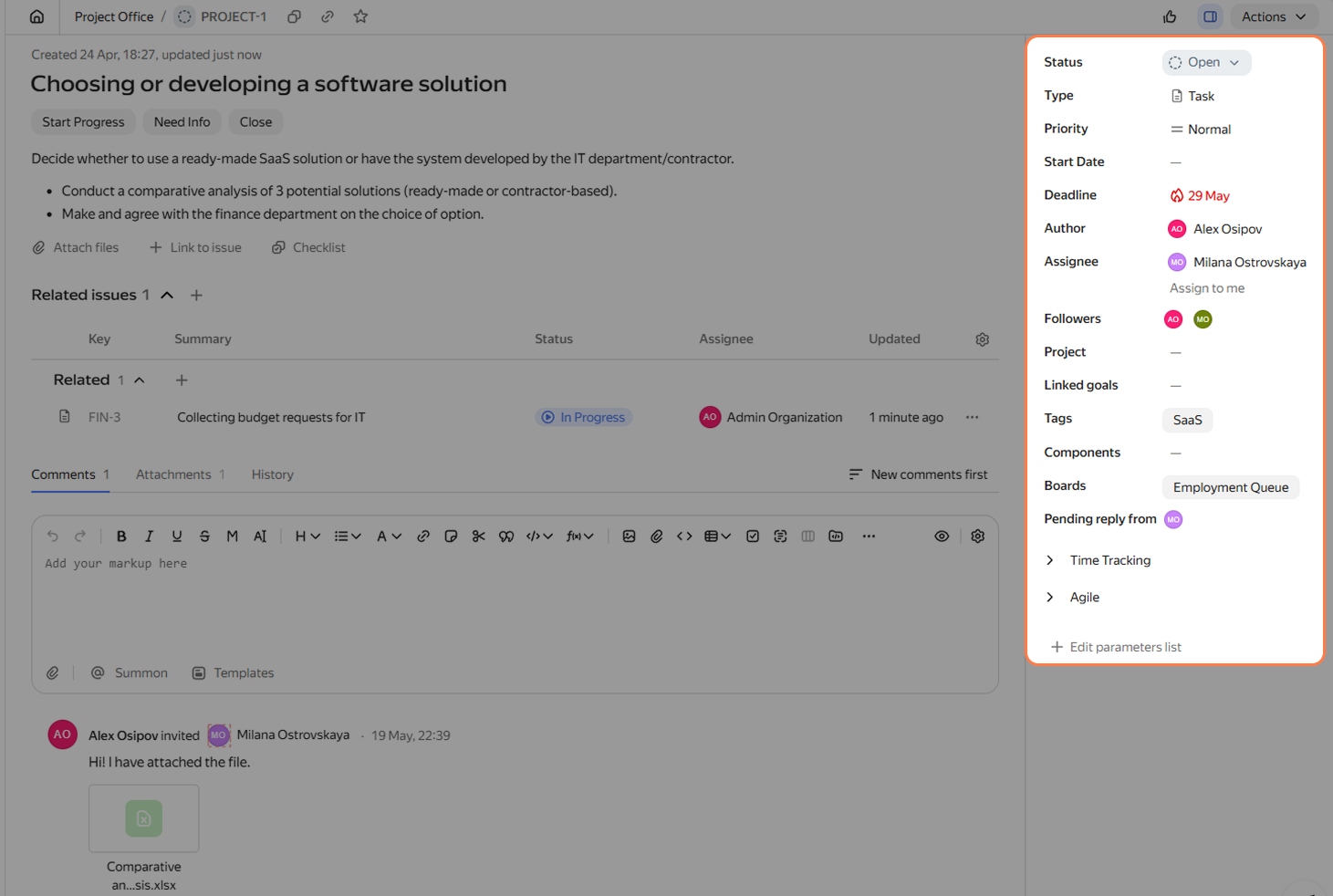
Check the issue parameters
- Author — who created the issue. You can contact them for clarifications; they will also accept the result.
- Deadline — the date by which the issue needs to be completed. If it's already clear that the deadline is unrealistic, write to the manager or the issue author and agree on a new deadline.
- Priority — how urgent and important the issue is. An issue with high priority should be handled first.
- Tags and Components — additional labels that help group issues, create filters, and gather analytics. These fields are usually filled in automatically or manually by the issue author or manager.
If the issue is added to a board or linked to a project, links to these pages will appear in the Boards and Projects parameters.
You don't have to follow these links. However, they can be useful if you want to see the issue in the context of the overall work plan: for example, to see neighboring issues on the board or to understand which project your work belongs to.
Show that work has started
When you're ready to start working on the issue, change its status to In progress. You can do this using the buttons on the right panel or above the issue description. The author and followers will receive a notification.