Change status, deadline, or assignees
As you work on an issue, update its information: change the status, deadlines, assignee, followers, and other fields. Most parameters are located in the right panel of the issue.
Change status
Change the issue status when you move to the next work stage. This way, other participants will see that work is in progress and can track the progress themselves without distracting you with questions.
Typically, an issue's workflow looks like this. You and your team can add other stages. To learn how, read the article Issue statuses.
You can change the status using the buttons on the right panel or above the issue description. The author and followers will receive a notification.
If you're unsure which status to choose, clarify the rules with your manager or supervisor.
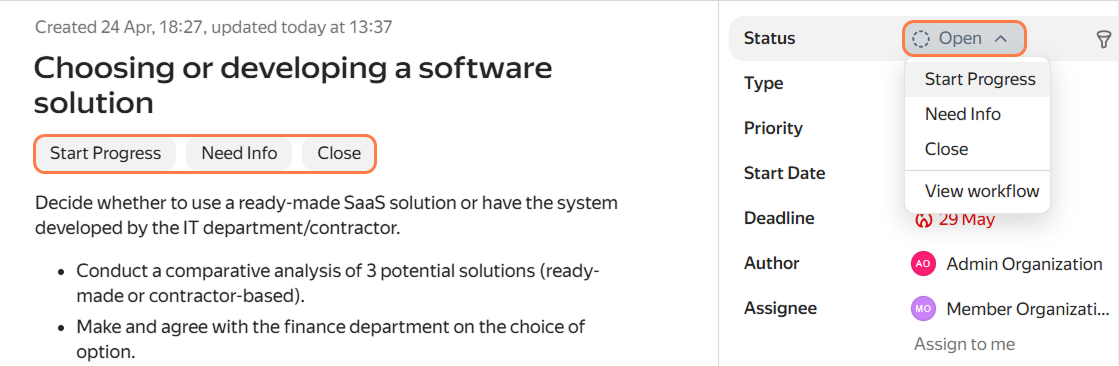
How to update the status
Other ways to report issue changes
The status shows the work stage, for example , , .
A comment is for details: what was accomplished, what questions exist.
Often it's useful to do both. For example, move the issue to the status and explain the reason for pausing work to the author.
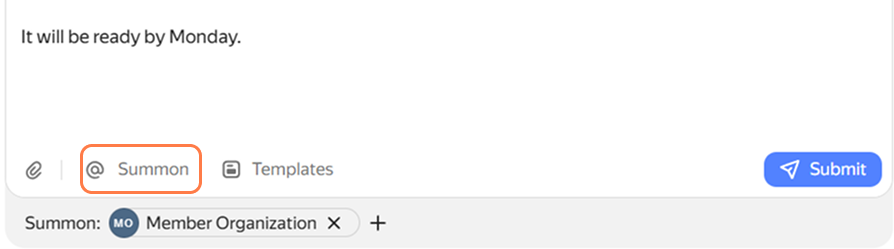
How to invite a colleague to comment
Change the issue deadline
If you and your colleagues agree on a new deadline for the issue, update the Deadline field in the right panel.
If the deadline is moved, notify the client in the comments so they don't miss the change.
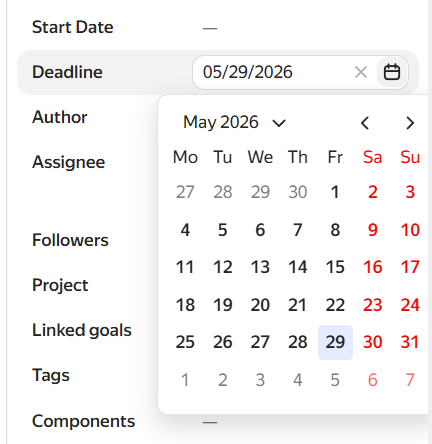
How to set a deadline
Add followers
Followers receive notifications when changes occur in an issue: for example, when the status changes or a comment appears. Add colleagues who need to stay informed about the issue to the Followers parameter.
If you want to follow someone else's issue but aren't directly involved in the work, click Add me.
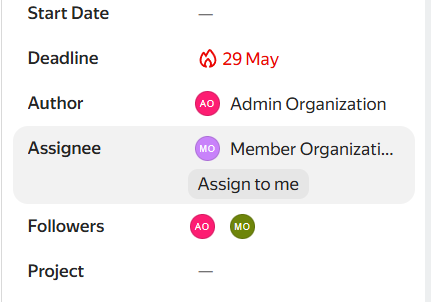
How to subscribe to an issue
Log time spent on the issue
If your workflow involves logging time spent on issues, use the button in the Actions menu → Add time spent.
If you omit the units, the default unit specified in the queue settings will be used. For example:
- 1 week and 3 days —
1w 3d. - 3 hours 20 minutes 30 seconds —
3h 20m 30s.
The count is displayed in the Time Tracking category on the right panel.
For more information, see the article How to track time spent on issues.
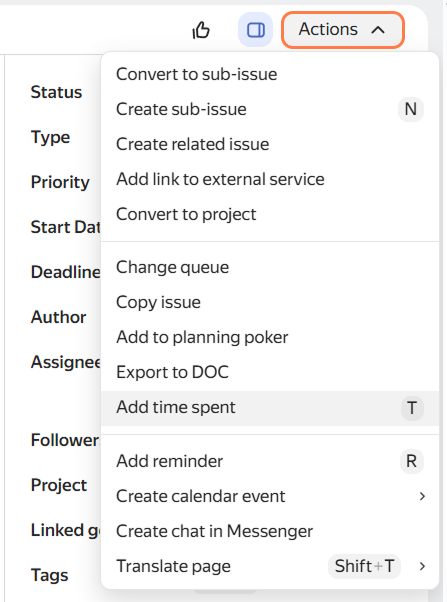
How to log time
Edit other fields
Ask your manager or supervisor which parameters are important to fill out for analytics and grouping issues. Commonly used fields include:
- Priority — how urgent or important the issue is.
- Tags — labels that make it easy to search for issues that aren't otherwise related.
- Components — subdivisions within a queue by product or work area, for example "Frontend", "Backend".
If you made a mistake or changed your mind
Tracker doesn't have an undo button for the last action, but you can view the change history and manually restore a value.
Below the issue description, to the right of the Comments tab, switch to the History tab. There you can see who changed the issue, when, and how.
If there are too many entries in the history, hide the unnecessary ones using filters. For more information about this section, see the article Viewing issue change history.