Yandex Tracker changelog for June 2026
- Adding tabs to the queue page
- Added access option when creating a goal
- Managing project resources
- Tracker service administrator role
- Added trigger run history
- HTML format in emails
- Created new issue field types
- Added ability to restrict creating new queues
- Added dashboards to the mobile app
- Improved goal structure
- Added new widgets: Goals and Projects and portfolios
- Added statuses for key results
- Allowed inserting URL in the Links section
- Adding tabs to the queue page
- Added access option when creating a goal
- Managing project resources
- Tracker service administrator role
- Added trigger run history
- HTML format in emails
- Created new issue field types
- Added ability to restrict creating new queues
- Added dashboards to the mobile app
- Improved goal structure
- Added new widgets: Goals and Projects and portfolios
- Added statuses for key results
- Allowed inserting URL in the Links section
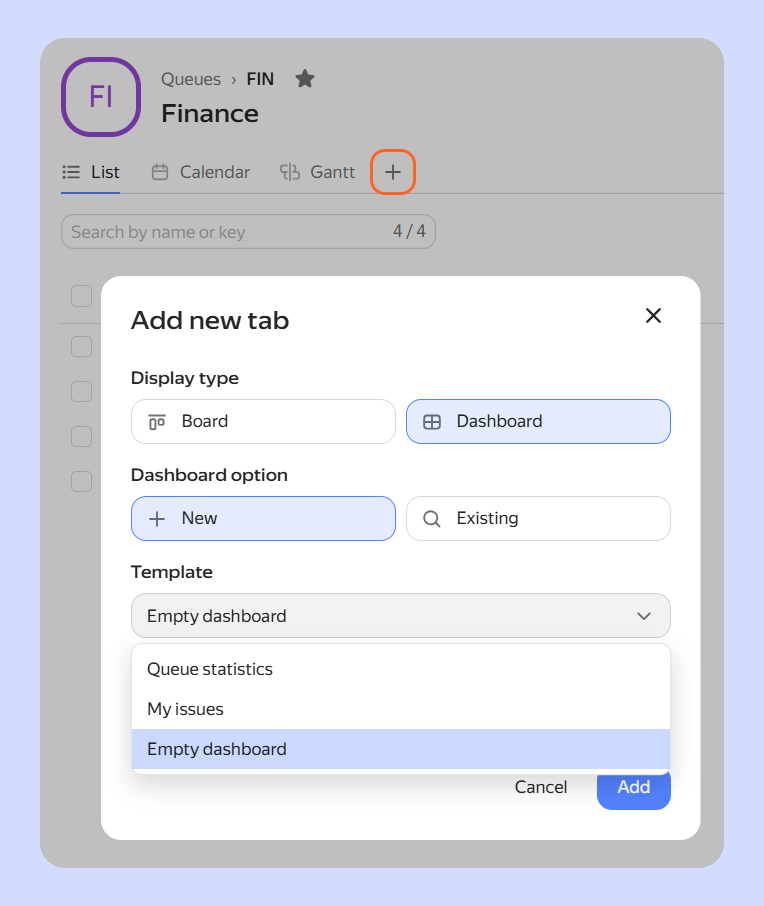
Adding tabs to the queue page
You can now add tabs with issue boards and dashboards to the queue page. How to set up queue tabs
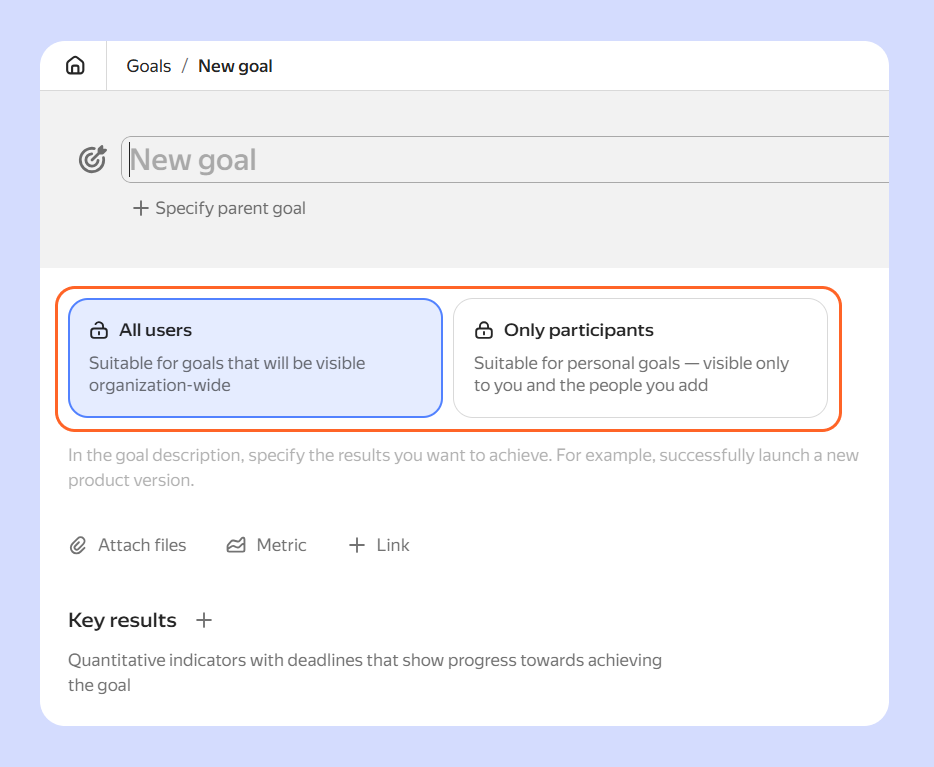
Added access option when creating a goal
When creating a goal, you now need to explicitly specify who will have access to it: all employees and robots in the organization or only the employees specified in the goal parameters — Author, Owner, Participants, or Followers. For more details, see Creating a goal.
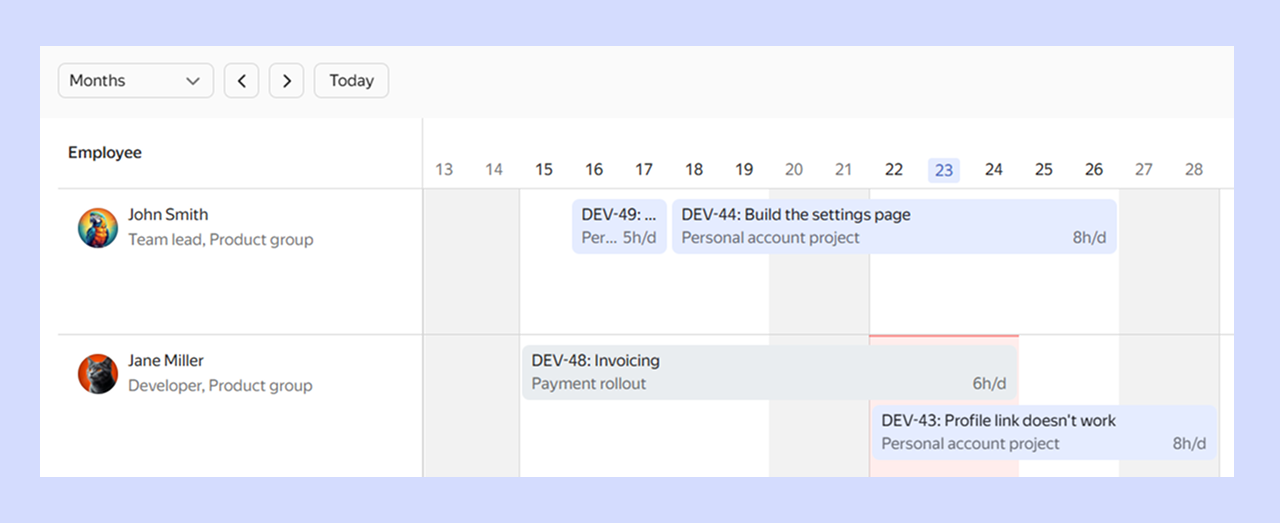
Managing project resources
You can now add employees to project and portfolio pages, assign issues among them, and monitor workload levels. This will help project teams work without overload or downtime. How to manage team resources
Tracker service administrator role
An organization administrator of Yandex 360 can now assign the Tracker service administrator role to other employees.
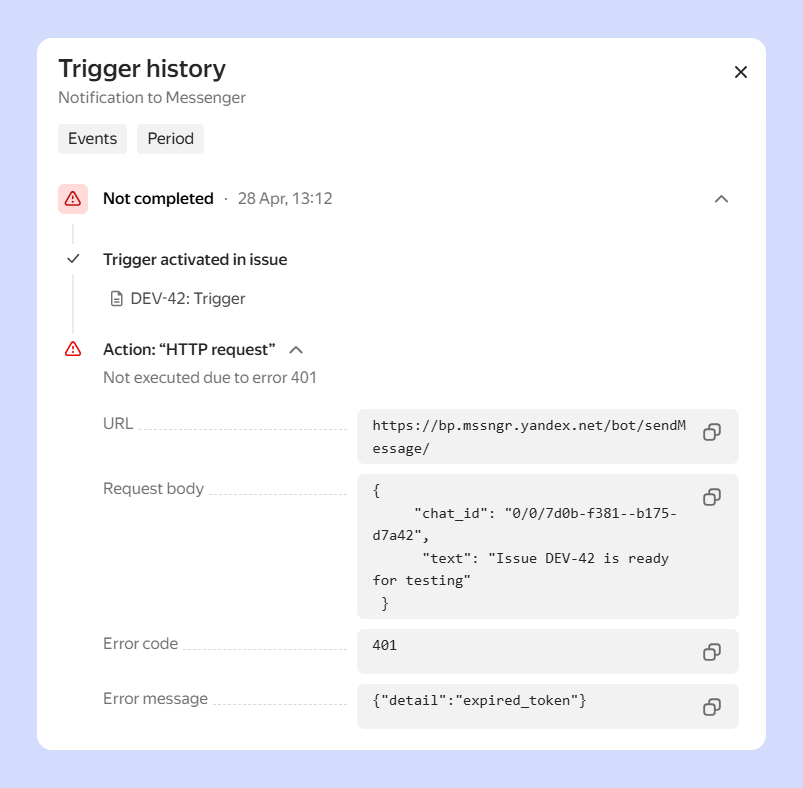
Added trigger run history
You can now view the change history of a trigger and the details of each trigger run in the queue automations list. For more information, see Viewing trigger history.
HTML format in emails
Previously, email text appeared in the issue description or comments in plain text format, so message formatting was lost. Now, Tracker uses HTML format when processing incoming emails and sending replies. When editing email text in the Tracker interface, Markdown markup is now available.
How Tracker's email integration works
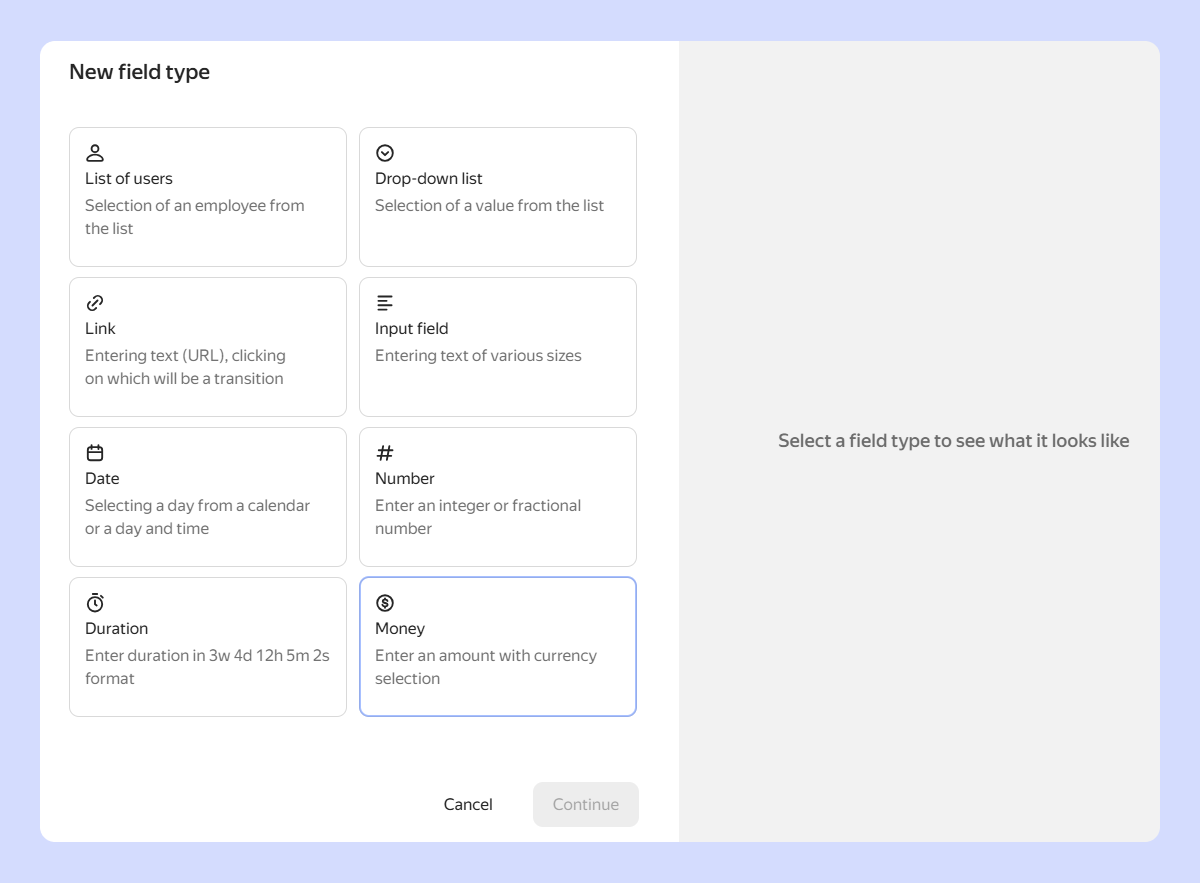
Created new issue field types
You can now create the following fields for your issues:
- Duration — use this to specify a period of time.
- Money — use this to specify an amount and currency.
- Money and rate — select this subtype of the Money field to specify not only the amount but also the employee's rate. For example, full-time rate is
1, half-time rate is0.5.
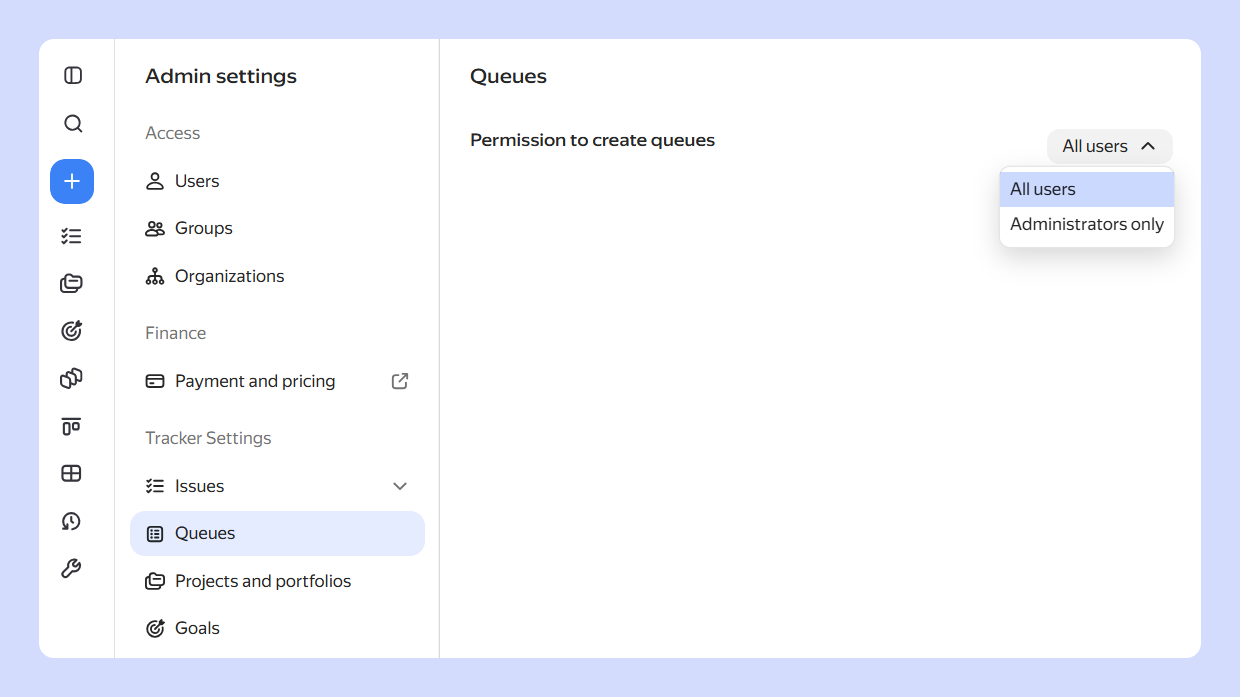
Added ability to restrict creating new queues
The organization administrator can now choose who can create a new queue: any employee or only the administrator. For more details, see Restricting the ability to create queues.
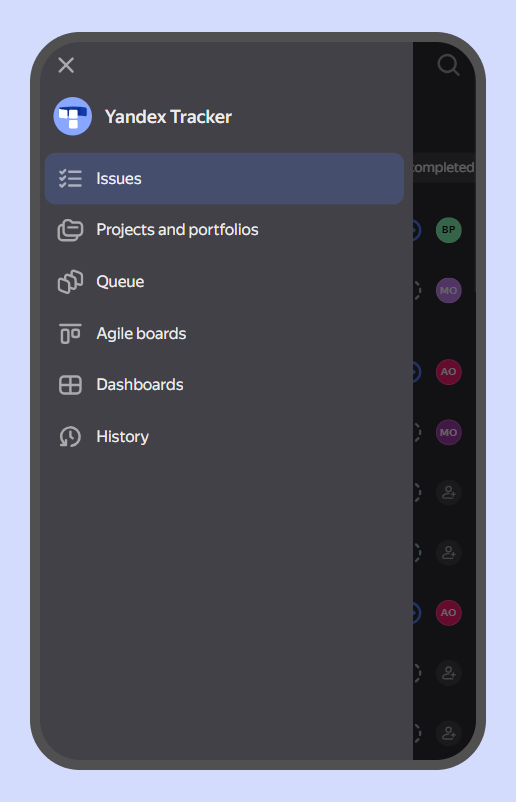
Added dashboards to the mobile app
Dashboards have been added to the Tracker mobile app: track issues and metrics directly from your smartphone.
You can only view a dashboard in the app; you can only create and edit one in the desktop version of Tracker. For more details, see Dashboards in the Tracker mobile app.
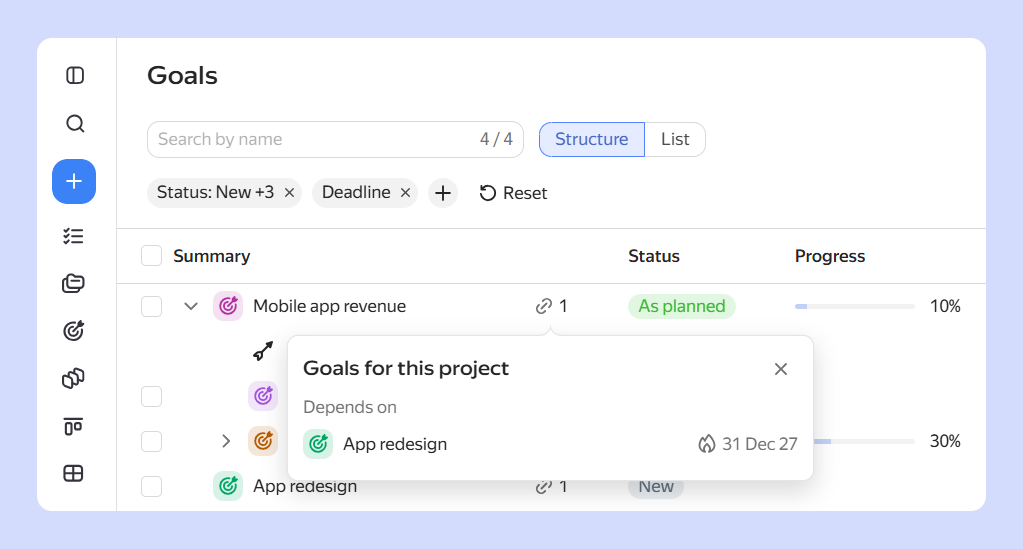
Improved goal structure
In the Links menu of the goal structure, you can now see not only projects and portfolios but also goals that block or depend on the selected goal.
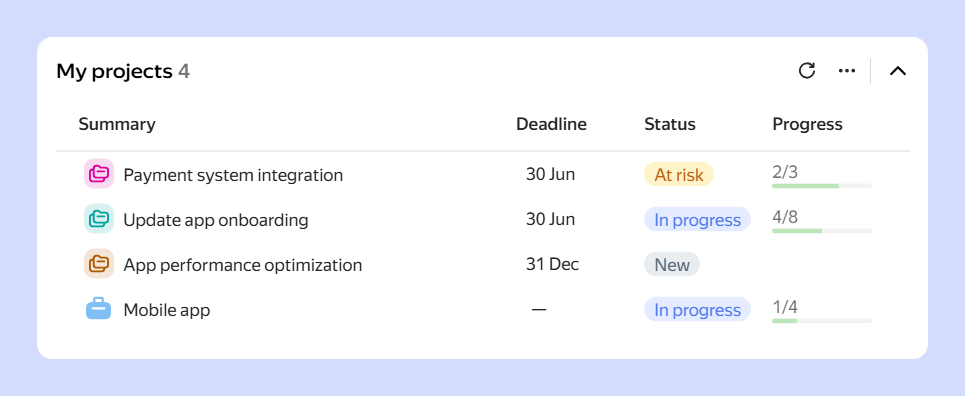
Added new widgets: Goals and Projects and portfolios
Previously, you could only add an issue list to a dashboard. You can now track goals as well as projects and portfolios. For more information about widgets, see What you can add to a dashboard
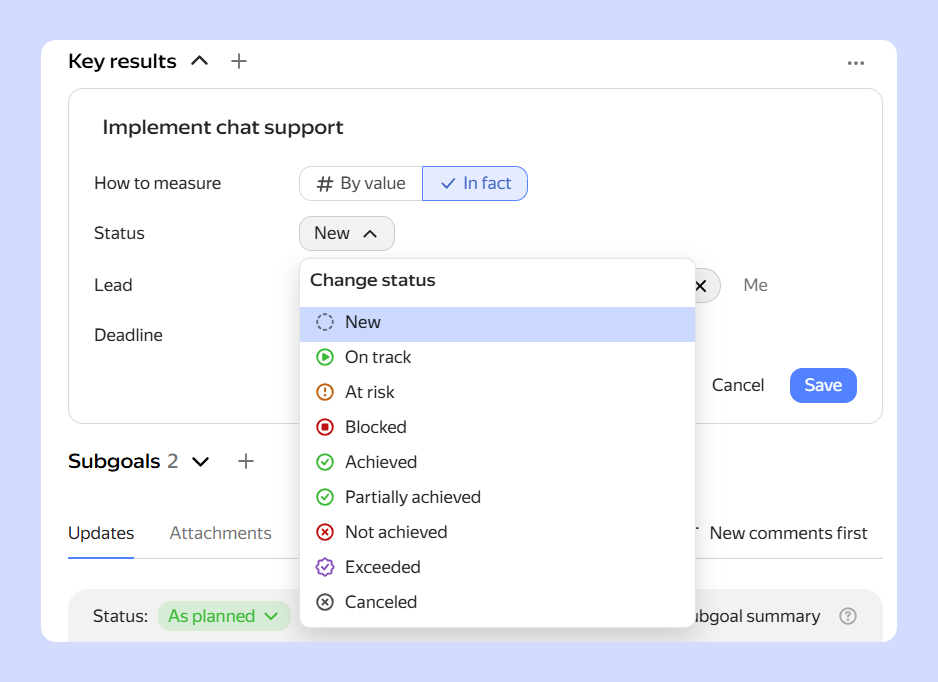
Added statuses for key results
You can now assign statuses to key results — the same as those for goals. The status is set in the key result editing mode.
This allows you to track goal progress in more detail and see the state of each key result separately. For more details, see Changing the key result status.
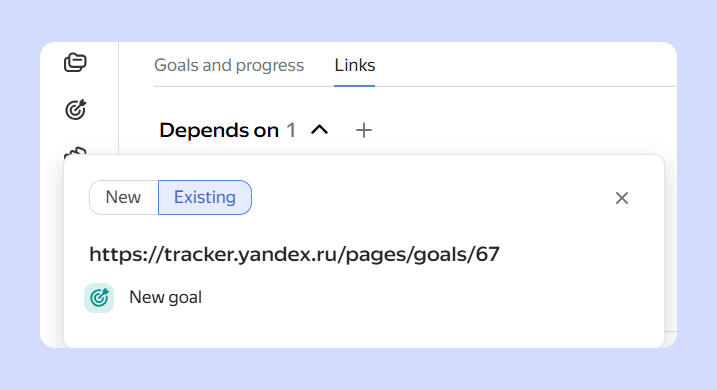
Allowed inserting URL in the Links section
Previously, you could only enter the name or ID of a project, portfolio, or goal in the Links section. You can now paste a link to the desired object.