Yandex Tracker changelog for September 2026
- Customizing the menu
- Added hierarchy to issue lists
- Enabling plugins for yourself and queues
- Tracker MCP server
- Tracker CLI
- Publishing plugins to the public catalog
- New features for working with the issue list
- Queue icon and cover
- Searching for projects and goals by participant or owner
Customizing the menu
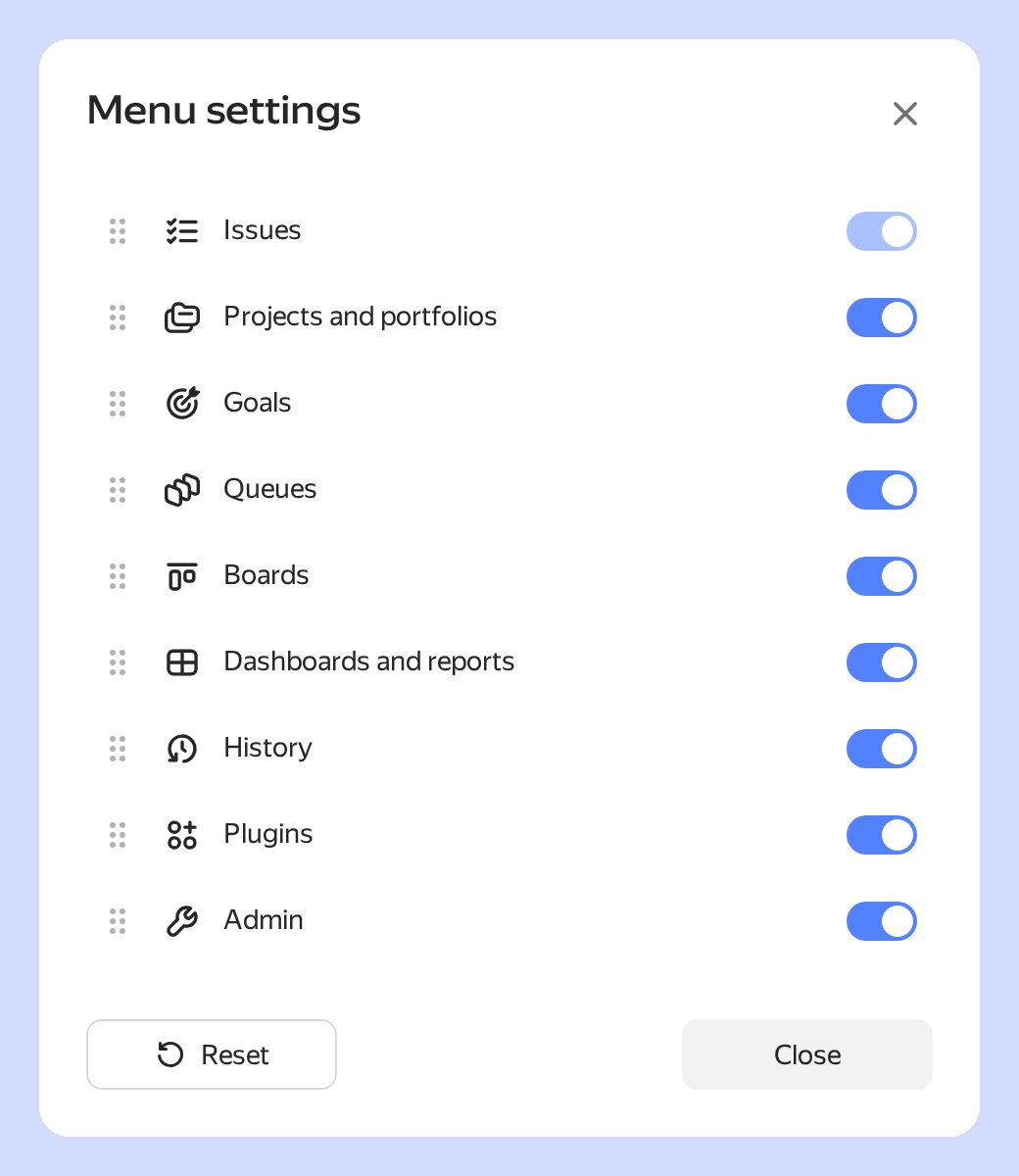
You can now select menu sections and change their order. The setting applies only to you and does not affect other users' menus. How to customize the menu
Added hierarchy to issue lists
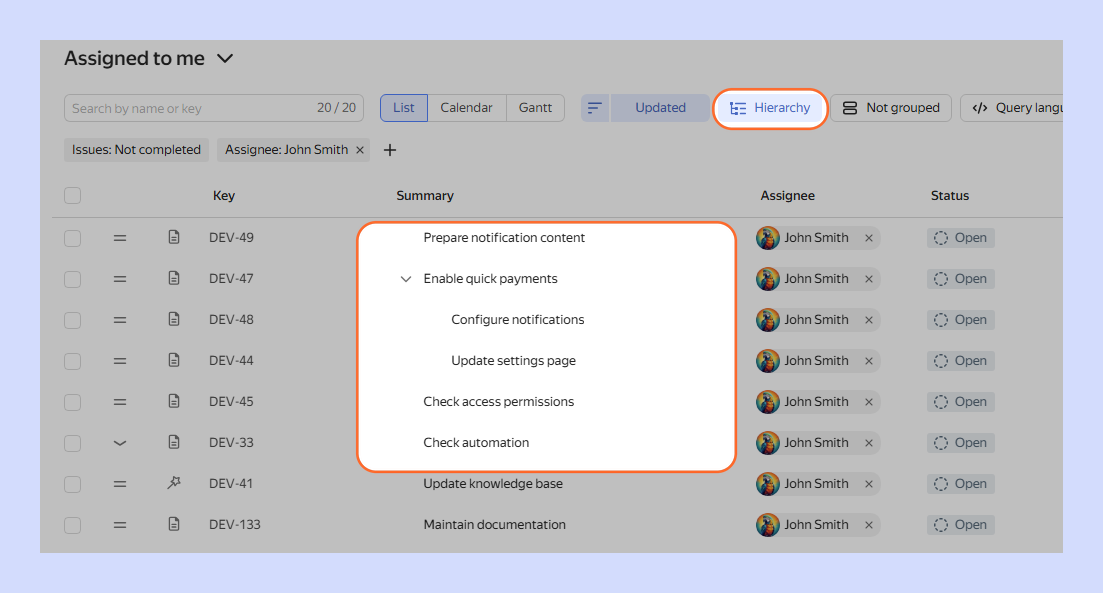
A hierarchy mode has been added to search results and issue lists in queues and projects. It arranges issues into a tree based on the "Parent issue — Sub-issue" and "Epic — Ticket" link types. In such a list, you can expand branches, create sub-issues, and change parent links. How to work with the issue hierarchy
Enabling plugins for yourself and queues
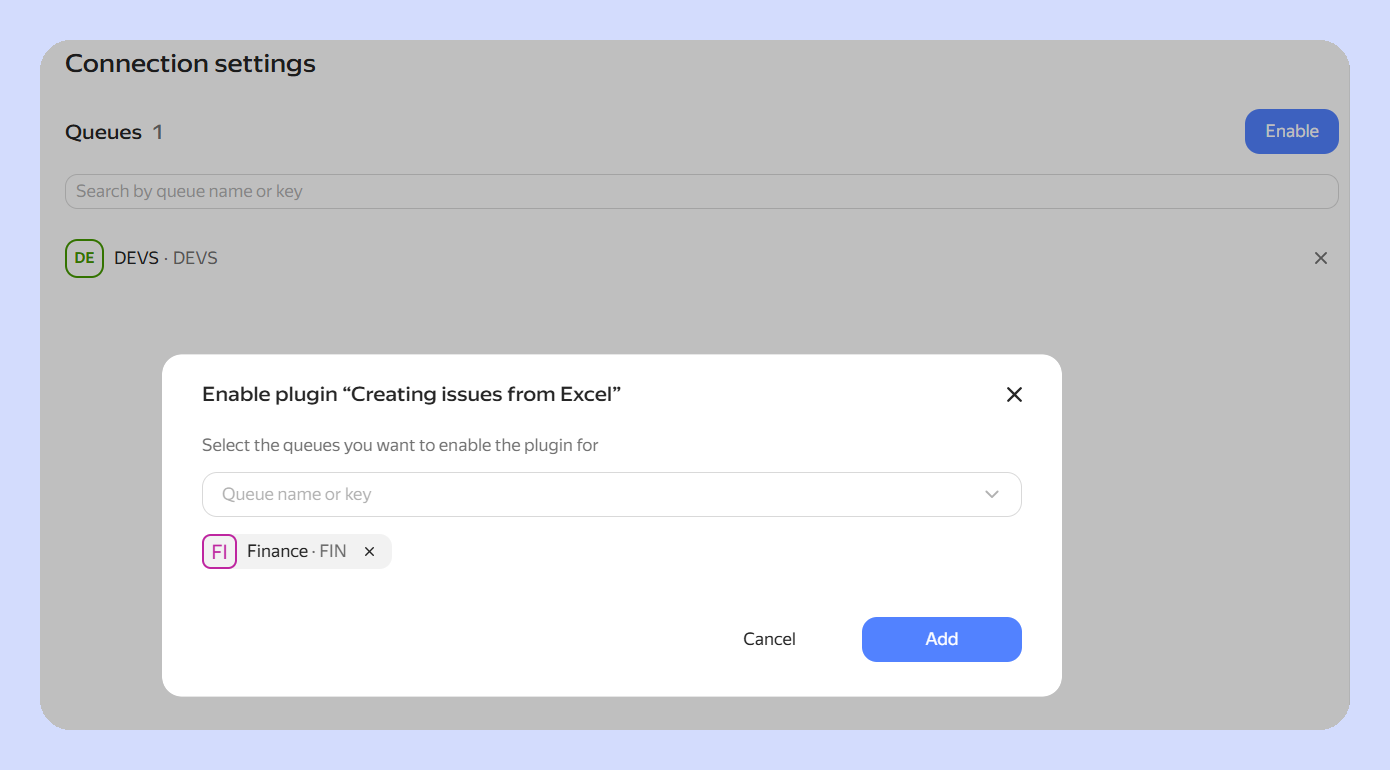
A Tracker administrator can enable a plugin for all users in the organization and for selected queues.
Tracker MCP server
Connect Tracker to an AI assistant via an MCP server. The assistant only gets the data you have access to and asks for confirmation before irreversible actions.
For more information, see Tracker MCP server.
Tracker CLI
Install the CLI ytracker to work with issues from the terminal. The utility can be installed on macOS, Linux, and Windows. You can use it to work with issues and send direct requests to the Tracker API.
For more information, see Tracker CLI.
Publishing plugins to the public catalog
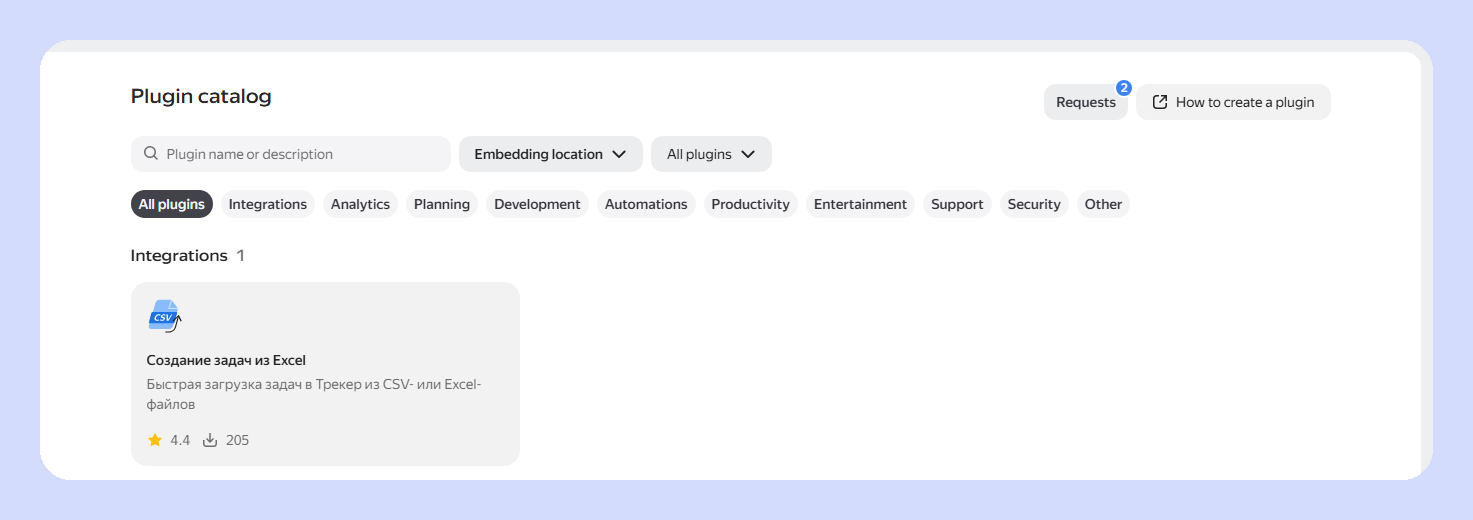
You can now submit a plugin for Yandex moderation and publish it to the public catalog. To do this, update the CLI to version 1.0.8 or newer and run the command weavix submit --public. Once approved, the plugin will become available to users in all organizations.
The command weavix info shows moderator comments for a plugin version with the author's name and date. The output of weavix list does not show comments.
Publishing the plugin in your organization
New features for working with the issue list
Added new ways to manage issue lists:
Queue icon and cover
You can now set an icon and cover for a queue. The icon appears next to the queue name and helps you find the queue in the list. The cover is displayed at the top of the queue page and sets its visual style.
For detailed instructions, see Changing a queue icon and cover.

Searching for projects and goals by participant or owner
The filters in the lists of projects, portfolios, and goals now include the Participant or owner field. It shows objects where the selected employee is a participant or is listed as the owner.