How to embed Yandex Calendar on a dashboard
To keep track of your event schedule right in Tracker, you can embed a Yandex Calendar block in an issue or project description, or in a note on a dashboard. For example, you can add a note with a calendar of your team's regular meetings to a project dashboard.

An example of a dashboard with an embedded calendar
Step 1. Copy the code for embedding Calendar
-
In Yandex Calendar, select a calendar from the My calendars list in the left panel. You can create several calendars and add different events to them. Yandex Calendar: Working with Calendar
If the left panel isn't shown, click
 Expand side panel at the bottom of the screen.
 -
Hover over the calendar name and click → Open settings.
-
In the settings, go to the Access tab and copy the code from the Code for embedding the calendar on a website field.
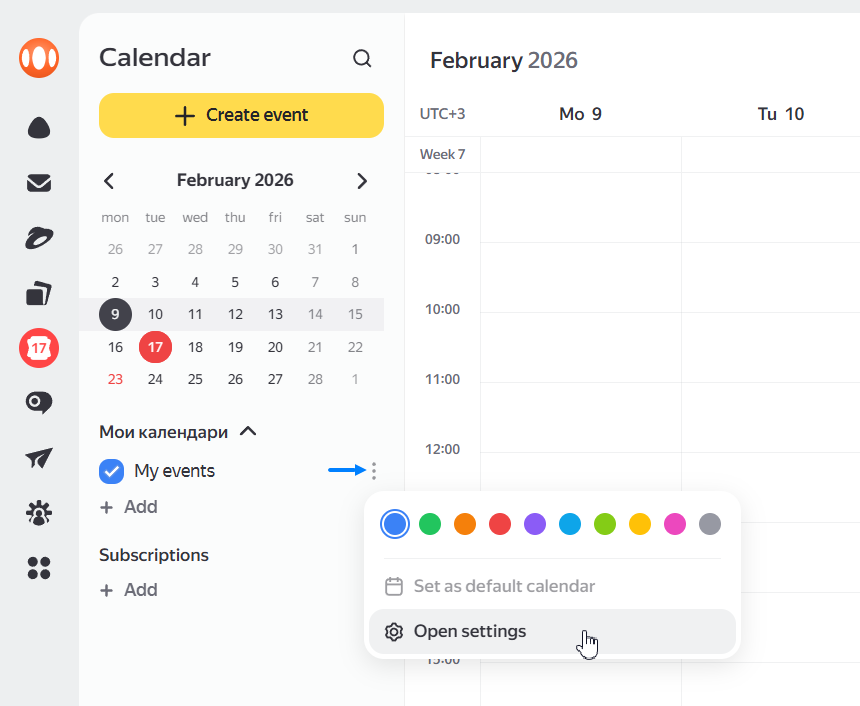
How to open the calendar settings
Step 2. Create a "Note" widget on the dashboard
-
Open your dashboard and click Edit at the top.
-
Create a widget: click Add → Note.

How to add a widget
Step 3. Insert the calendar link into an HTML block
-
Add an HTML markup block to the widget: on the toolbar, click → HTML.
-
Paste the code you copied from Calendar into the block.
-
The code consists of parameters that define the block's appearance. You can change these parameters. For example, set a new border style:
style="border: 2px dotted orange". -
To switch to the calendar preview mode, click Close at the bottom of the block.
To exit this mode, click → Edit in the upper-right corner of the block.
-
When you're done, click Add. The widget with the calendar appears on the dashboard.

How to add an HTML markup block
Troubleshooting
A Calendar event didn't appear in Tracker
If the Visibility → Participants setting is enabled for an event, it may not be visible on the embedded calendar. To fix this, click in the event window and set the visibility to everyone.
The calendar has to be scrolled
This means the HTML block with the calendar is larger than the widget size on the dashboard. To enlarge the widget, click Edit at the top of the dashboard and drag the widget by the ◢ icon in the bottom-right corner.