Pivot table
Select two issue parameters, and the table will show how many issues fall into each combination of values.
For example, to track team workload by Assignee and Status: each column will show an assignee's name, each row will show an issue status, and each cell will show the number of issues for the assignee in each status.
If you want to see the sum of values for a third parameter in the cells, such as Time spent or Iteration, use Summary table with totals.
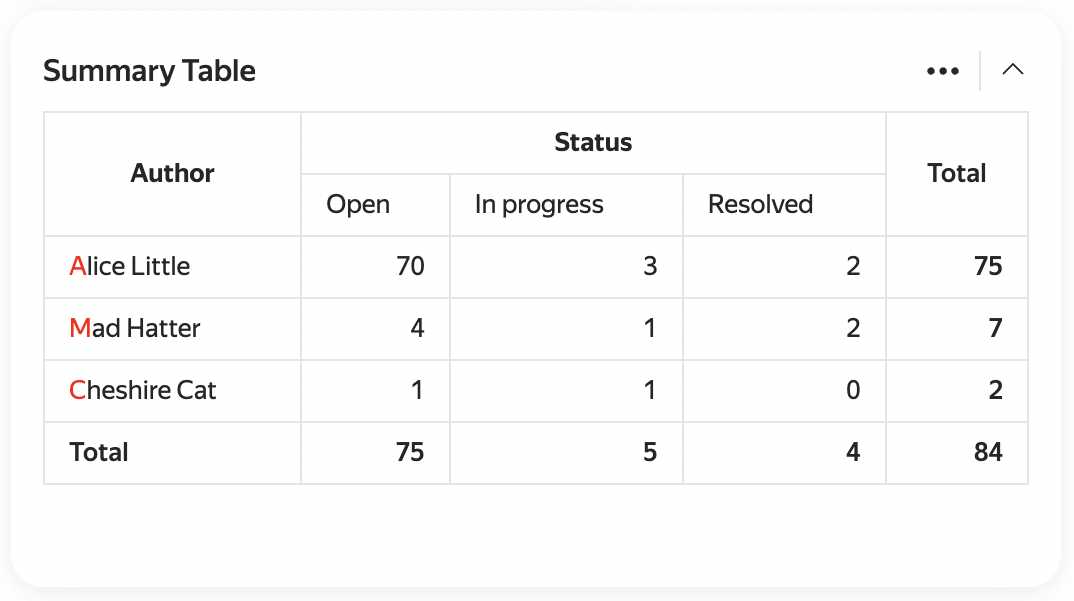
Example of a pivot table
Widget settings
-
Data source — the issue search conditions for the widget. You can specify them in different formats:
- Filter — here you can select a quick filter, such as "Reported by me", or your saved filter. How to save an issue filter
- Query language — here you can enter a condition in query format. Choose this if you need to insert a function or combine several conditions with the "AND" and "OR" operators. How to set a condition using the query language
- Parameters — here you can set up a condition using buttons. How to add search conditions
-
Columns — the issue parameter whose values become the table columns.
-
Rows — the issue parameter whose values become the table rows.
-
Issues on page — how many table rows to display. If there are more rows than specified, the Show all button will appear at the bottom of the widget.
-
Sort by — whether to sort rows and columns by the cell values.
-
Show total — enable this to add a row with the total for each column.
-
Auto-update — how often the widget will update.
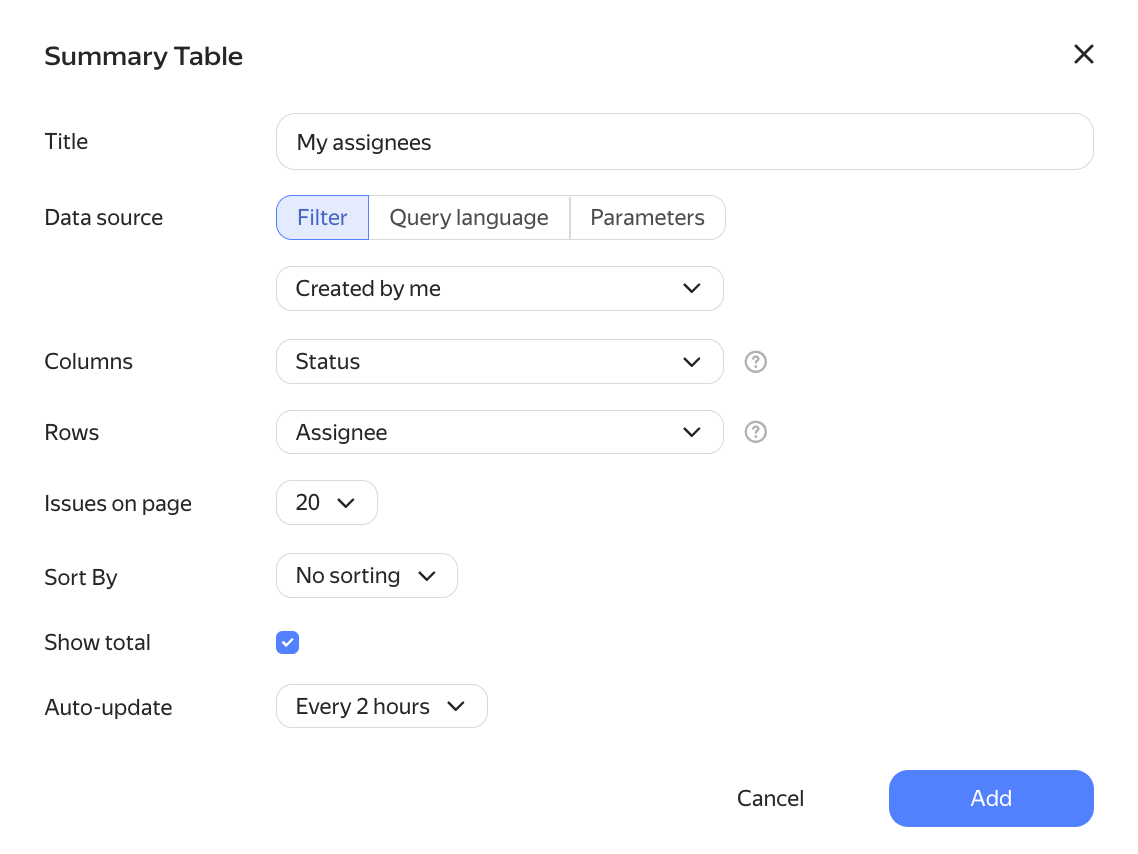
Example of settings