Spaces in Yandex Wiki
A space combines a top-level page and all its subpages. Each space has its own page tree, navigation, owner, and administrators. Pages inside a space work like any other Wiki pages.
In existing organizations, spaces are disabled by default. An organization administrator can enable them and configure access. In new organizations, spaces are enabled by default and cannot be disabled.
Find a space
-
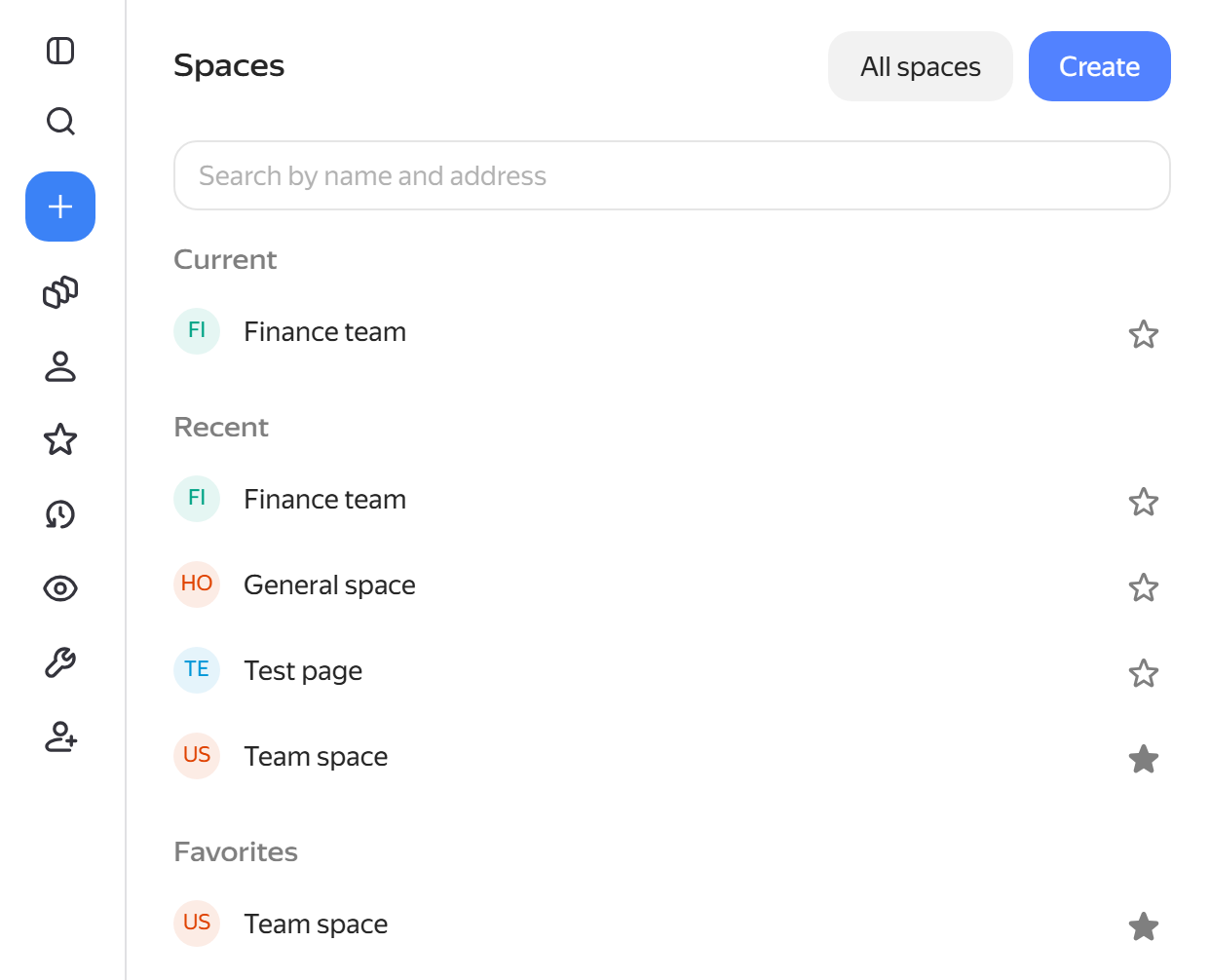
In the left panel, click Spaces.
The drawer shows the current, recently opened, and favorite spaces, as well as a search field.
-
In the drawer, click All spaces to open the catalog.
-
Select a space from Available to me or Favorites.
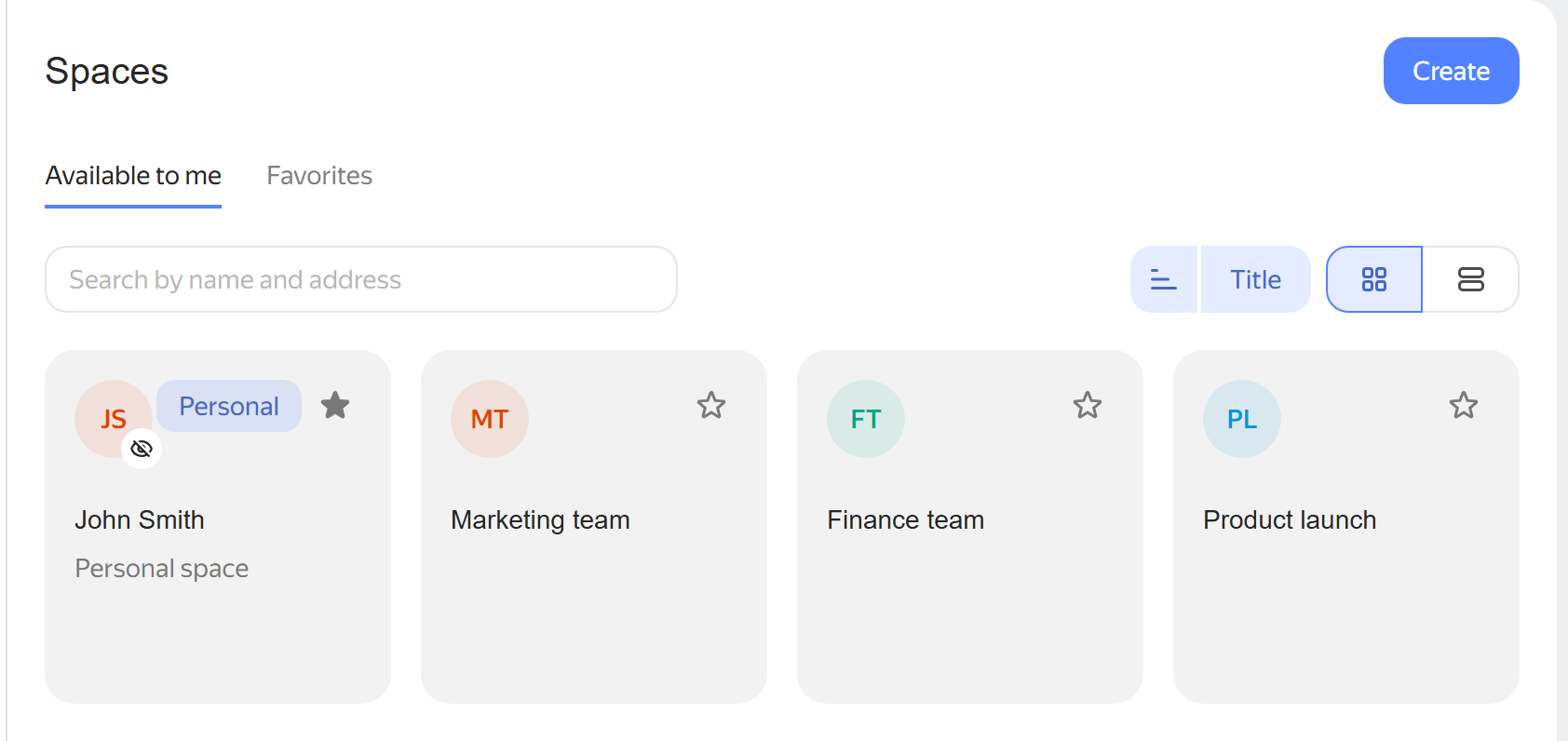
Your personal space is labeled Personal. It is created automatically for every employee.
Learn more about your personal space in Personal space.
Create a space
To learn how to enable spaces and configure access to them for your organization, see the administration panel.
-
In the left panel, click Spaces → All spaces.
-
Click Create.
-
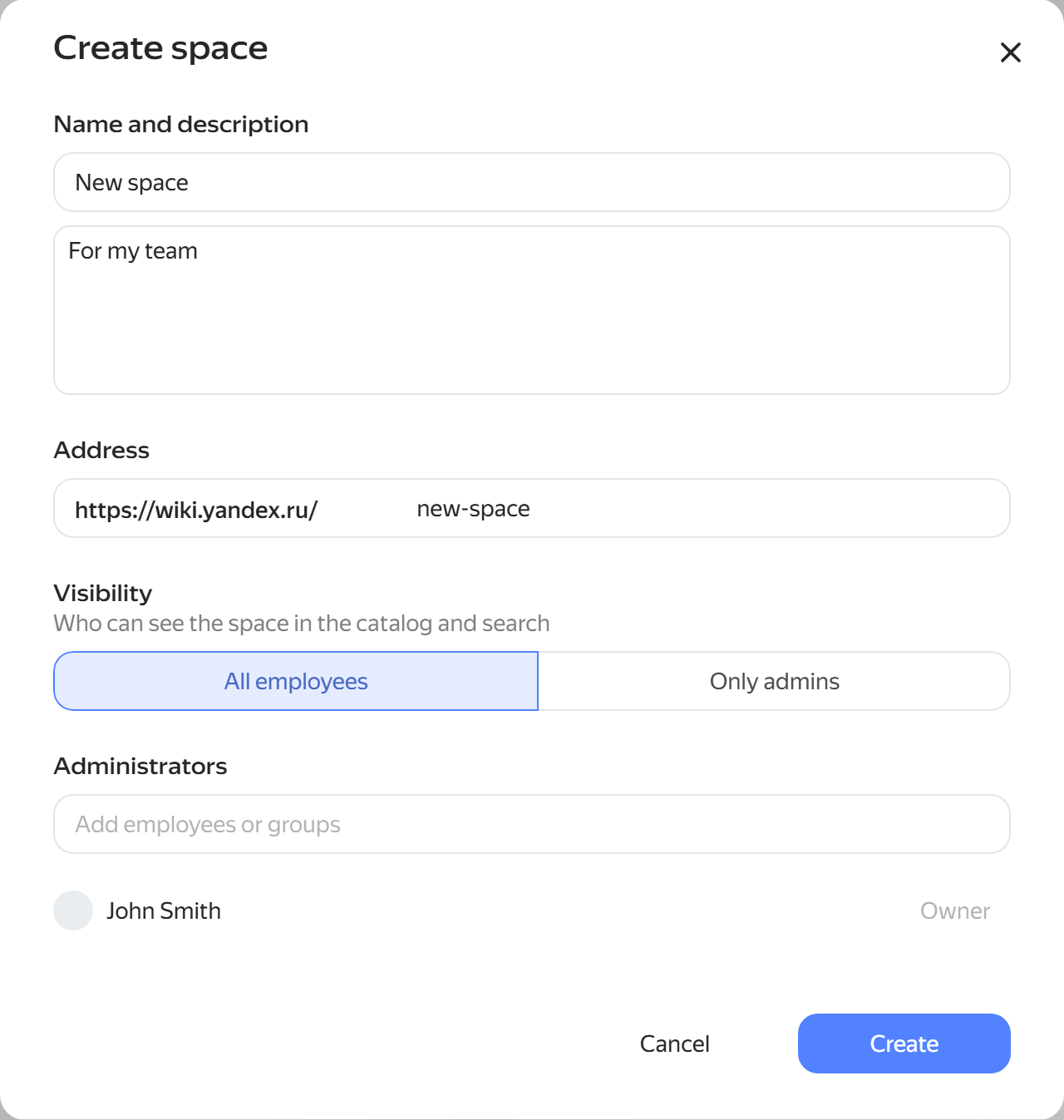
Enter the space name, description, and address.
-
Under Visibility, choose who can see the space in the catalog and search. This setting doesn't change user roles or page access permissions:
- All employees.
- Only admins.
Choose Only admins if most employees don't need the space.
-
Under Administrators, add employees or groups who will manage the space.
The owner can add and remove administrators and manage access to the space. Administrators can change other space settings and manage access to pages within the space. The owner and administrators can grant themselves access to any page in the space and elevate their existing permissions. Other users' permissions remain unchanged.
-
Click Create.
The user who creates a space becomes its owner.
The new space opens. To add content, create its first page. It opens in the standard Wiki editor.
Configure a space
-
Open the space.
-
Next to the space name, click and select Space settings.
-
On the About space tab, change the space name, description, icon, or visibility.
-
Click Save.
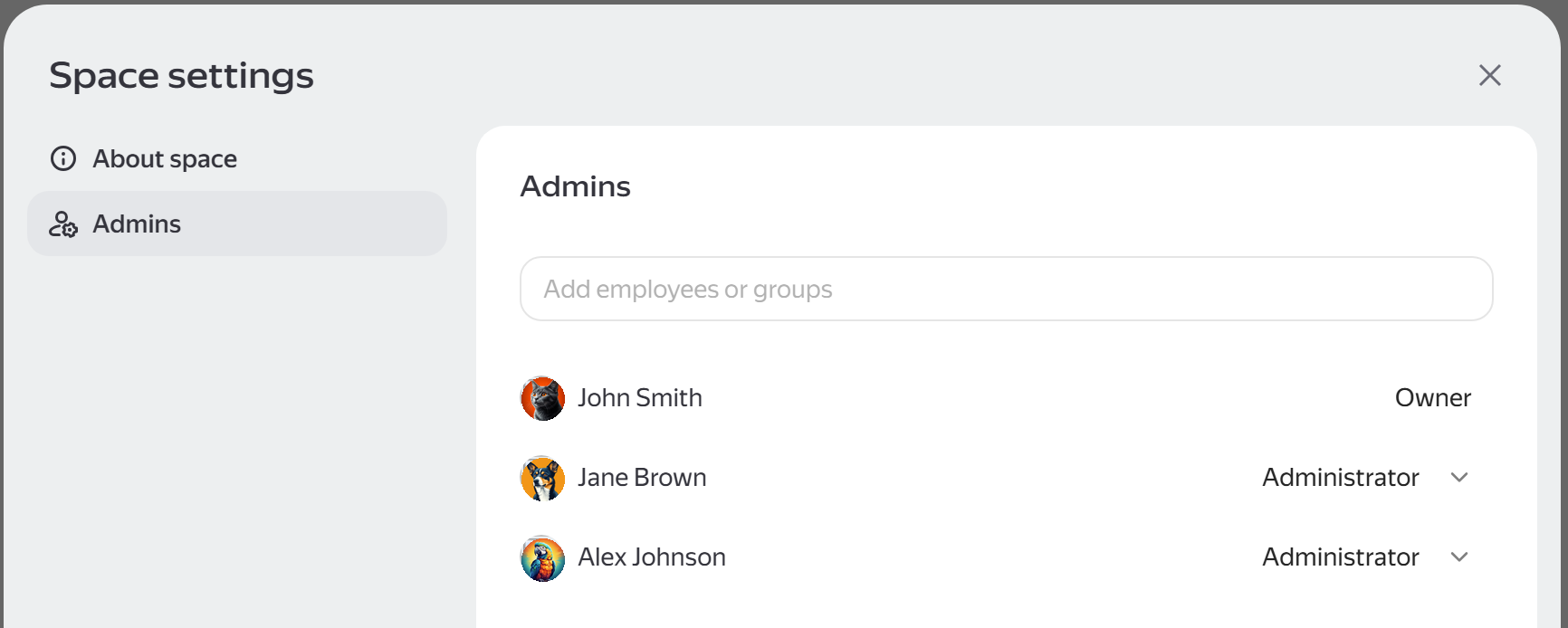
On the Admins tab, you can see who manages the space. The space owner is marked as Owner. An owner or administrator can be an employee or a group.
To change who can view or edit pages, configure page access.
Delete a space
Before deleting a space, delete all its pages.
-
Open Space settings.
-
On the About space tab, click Delete space and confirm the deletion.