Links to issues and other Tracker entities
You can add magic links to Tracker entities or issue lists to a Wiki page.
Magic links
If you paste a link to an issue or another Tracker entity into the page text, it converts to a magic link. A magic link automatically shows information about the resource you're linking to: the Tracker logo, title, and other parameters, such as assignee and deadline, if any.
Magic links work for issues, projects, portfolios, goals, dashboards, queues, and components. To learn more about magic links, see Magic links.
-
To insert a link to an issue in the page text, copy its key or full address and paste it into the page text. What is an issue key

-
To insert a link to another entity in the page text, go to the required page in Tracker, such as a project page, and copy the link from the browser address bar. Then paste this link into the page text. For example:
https://tracker.yandex.com/pages/projects/1234
Issue list
To place an automatically generated issue filter or a queue issue list on a page:
-
On the toolbar, click Other actions, then select Issue list.
You can also use the quick access menu: type
/and select a command from the list. -
Specify the queue key or the link to the issue filter from the browser address bar.
To insert an issue list in Markdown markup mode, use the code:
{% tasks url="<queue_key or link to filter>" %}
For more information about working with issues, see the Tracker Help:
A maximum of 50 issues can be displayed in the list.
Issue list with parameters
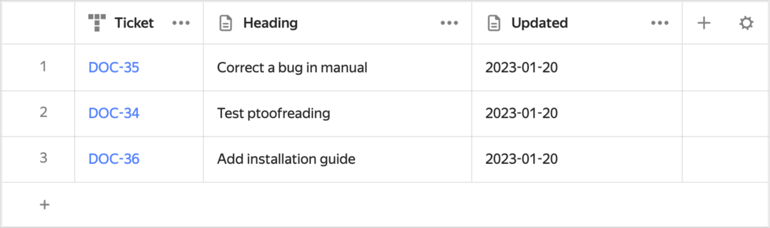
Using dynamic tables, you can place a list of issues and their main parameters on a Wiki page:
-
Create a dynamic table.
-
Add a column with the Issue in Tracker data type.
-
Add the required number of rows and list the issue keys in them. What is an issue key
-
Create additional columns. For the data type, select Issue parameters.
Available issue parameters:
- Title
- Type
- Assignee
- Author
- Status
- Priority
- Creation date
- Update date
- Initial estimate
- Fix in versions
- Components
- Story Points
- Deadline
- Description
- Completion date
- Time estimate
- Followers
- Last comment (update date)
- Parent issue
- User response required
- Project
- Queue
- Resolution
- Resolution date
- Sprint
- Start date
- Status changed
- Status type
- Tags
- Votes
-
Save the table.
Example: