Code forwarding
Description
With code forwarding, you can install arbitrary HTML code in the banner container. If the code contains scripts, they will be executed in the context of the page.
You can use the following banner features in Adfox:
- Both HTML5 code and asynchronous embed code from any ad management system can be installed.
- You can place any HTML code that can go beyond the container: for example, showing Fullscreen, Background, or expandable banners.
Format features:
- Click statistics can only be taken into account when placing HTML5 banner code considering the requirements.
- When placing a banner with an ad tag, click statistics aren't taken into account.
To place the Adfox ad tag with the context.js library, use the Adfox forwarding code [context] template.
Code requirements
-
The maximum allowed number of characters in the HTML code is 65,000.
-
It's best to place JavaScript and CSS inside the HTML code of the banner. If the final HTML code exceeds the maximum acceptable size, reduce it by splitting JavaScript and CSS code into separate files:
-
Save the JS and CSS code in separate files with the .js or .css extension.
-
File size can't exceed 10 MB.
-
Upload the files to the ad campaign's Files tab and add the resulting file links to the HTML code:
-
If the project includes absolute links (
src="js/script.js",src="css/style.css"), Adfox will recognize the paths to the files and automatically add them to the Files tab, replacing all links to these files in the project during the upload. -
If the project includes relative links (
src="../js/script.js"), use one of the following methods:- Replace
.jsand.cssfile links with absolute paths: Adfox parsing will trigger, and all links will be replaced automatically. - Manually upload
.jsand.cssfiles to the Files tab and replace relative links in your HTML code with the ones you'll get from Adfox.
- Replace
Example of connecting JS and CSS files:
<script type="text/javascript" src="LINK_TO_FILE"></script><link rel="stylesheet" type="text/css" href="LINK_TO_FILE" /> -
-
-
You can install any HTML code, Adfox ad tag with the context.js library, or asynchronous ad tag of another ad system (without the document.write function).
Note
If the HTML code that you want to add to Adfox as a banner contains document.write, you can't use the Code forwarding [context] template. In that case, we recommend adding the code through the Banner HTML5 [context] template.
Requirements for counting clicks in a banner with HTML5 code
-
Counting clicks on banners.
To count click statistics for a banner in Adfox, you need to include the following variable in the
аtag for thehrefattribute in the HTML code:%banner.reference_mrc_user25%For links, use the
targetattribute with the%banner.target%variable as an attribute. If the attribute is missing, the link will open inside the iframe: that is, the advertised site will open in the location of the banner.Example of HTML code that counts banner clicks:
<a href="%banner.reference_mrc_user25%" target="%banner.target%">Advertiser's site</a> -
Counting clicks for multiple links on the banner. Let's say the banner has several links leading to different pages of the advertised site, and you need to count the number of clicks for each of them.
<a href="http://site.ru" target="_blank">First link</a>
<a href="http://site.ru/about/" target="_blank">Second link</a>
Replace the
hrefattribute value with the%request.reference_mrc%&pf=%banner.eventN:urlenc%variables, whereNis the event number from 1 to 28.For example:
<a href="%request.reference_mrc%&pf=%banner.event1:urlenc%" target="%banner.target%">First link</a>
<a href="%request.reference_mrc%&pf=%banner.event2:urlenc%" target="%banner.target%">Second link</a>
You need to inform the manager who adds the banner to Adfox about which links correspond to which variables. When adding a banner, you'll need to specify the first link for Event 1, and the second link for Event 2 on the Events tab.
Add a banner
-
To add a banner with a code, use the Code forwarding [context] template.
-
If this template is missing from the banner type list, add it from the preset.
-
When adding a banner, specify the parameters:
Parameter
Description
Tracking pixel link
By default, the Adfox
//banners.adfox.ru/transparent.gifpixel is used. If you want to count impressions in a third-party system, delete the Adfox pixel and provide another link.HTML ad tag
Insert the HTML code.
Transition URL
Specify the link to the advertiser's site, provided that the HTML code complies with the requirements for embedding code to count clicks.
If the HTML code contains several links to different pages of the advertised site, leave the Transition URL field empty and specify the links on the Events tab after adding the banner.
For the click-through to work correctly, make sure that the link includes the protocol (
http://orhttps://).Name of the banner container class attribute
If necessary, enter a name (or multiple names separated by a space) for the
classattribute of the banner container.Advertising label settings:
- Ad label
- Domain
Note
If the format of the banner is sticky, manually add the layout for the “Ad” label to your ad unit code. We don't recommend enabling the “Ad” label in the banner parameters in Adfox.
In the Ad label list, select
AdorSocial adto label the banner. If your ad creative already contains a label, you can leave theDisabledvalue in the drop-down list.Note
Adding the “Social ad” label doesn't automatically define the creative as social advertising. To label a creative as a social ad (PSA) in the state register, select Social advertising contract with payment or Social advertising contract by quota for the corresponding contract with the end advertiser.
In the Domain field, specify the advertiser domain, and it will be added to the label: “Ad | example.com” or “Social ad | example.com” (only if the
AdorSocial Advalue is selected in the dropdown list).Show banner menu
To add a token to a non-clickable banner, enable the Show banner menu option in the banner settings. When the banner is served, the
 menu icon will be displayed in its upper-right corner. When a user clicks the icon, the advertiser's details and the copy token button appear (if ad register is enabled for the banner or a third-party token is specified).
The banner menu contains a link to the rules for using recommendation technologies. It's required for compliance with Clause 3 of Section 1 of Article 10.2-2 of the Federal Law No. 149-FZ “On information, information technologies, and information protection”, dated July 27, 2006.
Note
If the banner is non-clickable (the Transition URL field is empty) and has not been added to the ad register, you can enable the banner menu to make the token available when serving the banner.
Advertising labeling
Advertising labeling: This section is only available if you've selected Submit data to state register as a labeling procedure in the campaign settings. Fill in the fields in this section to register the creative in the Yandex advertising data operator. The creative is assigned a token automatically.
Add a default banner
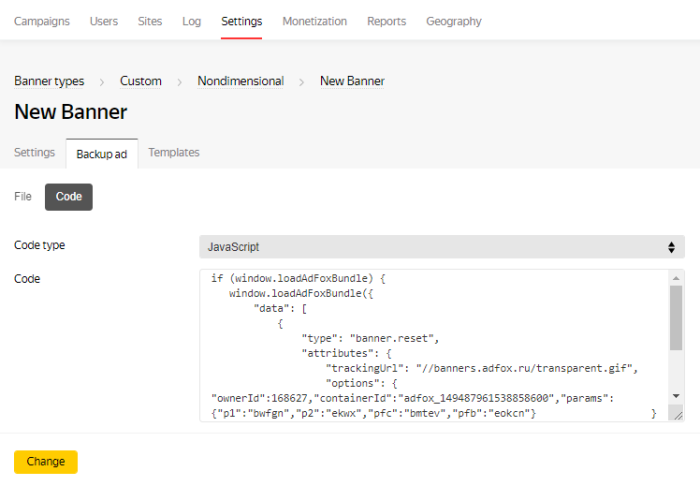
- To add a default banner with any HTML code, use the code generator.
- Select the Third-party ad tag code type and paste the HTML code into the code input field.
- Add tracking pixels if necessary.
- Copy the ad tag and paste it in the Code field with the JavaScript type.
Example of placing third-party code:
Contact support
The banner is fixed in the browser window and stays in the viewport as the user scrolls through the page.