Ad label and banner menu in Adfox banners
With Adfox, you can add the “Ad” or “Social Ad” label to your banner, along with the advertiser information in the form of a menu with a preset design. It's mandatory to use the label and indicate the advertiser and (or) their site if you launch ads for serving in Russia.
The banner menu also displays a token assigned to your banner by the Yandex advertising data operator or a third-party token set in the banner parameters. That way, you can label non-clickable banners. If your banner already includes all the information required by the state register, you don't have to enable the banner menu.
The banner menu contains a link to the rules for using recommendation technologies. It's required for compliance with Clause 3 of Section 1 of Article 10.2-2 of the Federal Law No. 149-FZ “On information, information technologies, and information protection”, dated July 27, 2006.
The display of the label and banner menu is available:
-
For ads on websites: in all preset templates labeled context.js and in custom templates based on code forwarding.
-
For ads in mobile apps: when using Yandex Mobile Ads SDK.
-
For ads in the video player: if you use the Yandex Video Ads SDK library or support the
extensiontag in your own video player.If you're using a VAST template that has no
extensiontag and the player contains the Yandex Video Ads SDK library, the “Ad” label is shown by default. To hide it, in the Adfox interface, add code in the VAST template and manage the label in the banner parameters.
How to add a label and banner menu:
-
Here are the steps to add a banner to your campaign:
-
In the Advertising label settings section:
In the Ad label list, select
AdorSocial adto label the banner. If your ad creative already contains a label, you can leave theDisabledvalue in the drop-down list.Note
Adding the “Social ad” label doesn't automatically define the creative as social advertising. To label a creative as a social ad (PSA) in the state register, select Social advertising contract with payment or Social advertising contract by quota for the corresponding contract with the end advertiser.
In the Domain field, specify the advertiser domain, and it will be added to the label: “Ad | example.com” or “Social ad | example.com” (only if the
AdorSocial Advalue is selected in the dropdown list). -
To add a token to a non-clickable banner, enable the Show banner menu option in the banner settings. When the banner is served, the
 menu icon will be displayed in its upper-right corner. When a user clicks the icon, the advertiser's details and the copy token button appear (if ad register is enabled for the banner or a third-party token is specified).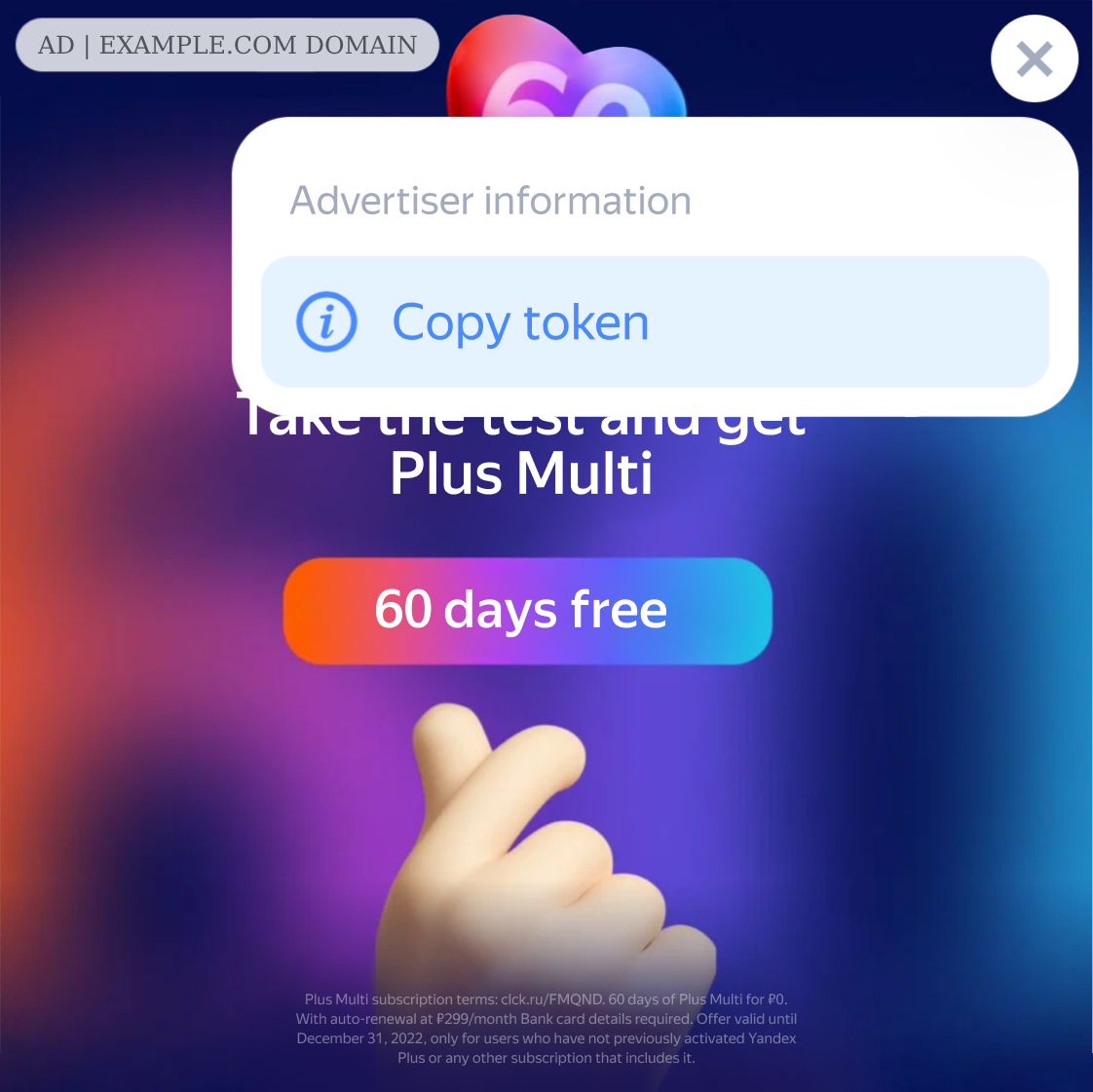
-
The banner menu displays the advertiser information that you specified in the campaign (or flight) settings. If the text is too long, it may be cropped and partially replaced with an ellipsis. Users can view and copy all the information by triple-clicking it.
-
If the banner is labeled in Adfox via the Yandex data operator (the Submit data to state register option is selected), the token is assigned to the banner automatically once you save it.
-
If the banner has already been assigned a token via the Yandex advertising data operator API or a third-party advertising data operator, enter it in the banner parameters.
How to specify a token in the banner parameters
-
In the Marking procedure field, select Do not submit data to state register.
-
Under Advertising label settings, enter the token value in the Third-party token field. No characters other than the token itself are allowed in this field.
The token will be available in the banner menu when the banner is served.
Note
If the banner is non-clickable (the Transition URL field is empty) and has not been added to the ad register, you can enable the banner menu to make the token available when serving the banner.
-
-
-
Save the banner.